You can assign a campaign to a Patient Group from the Patient section or from an email campaign. Choose from the two options below.
Option 1: From [My Campaigns]
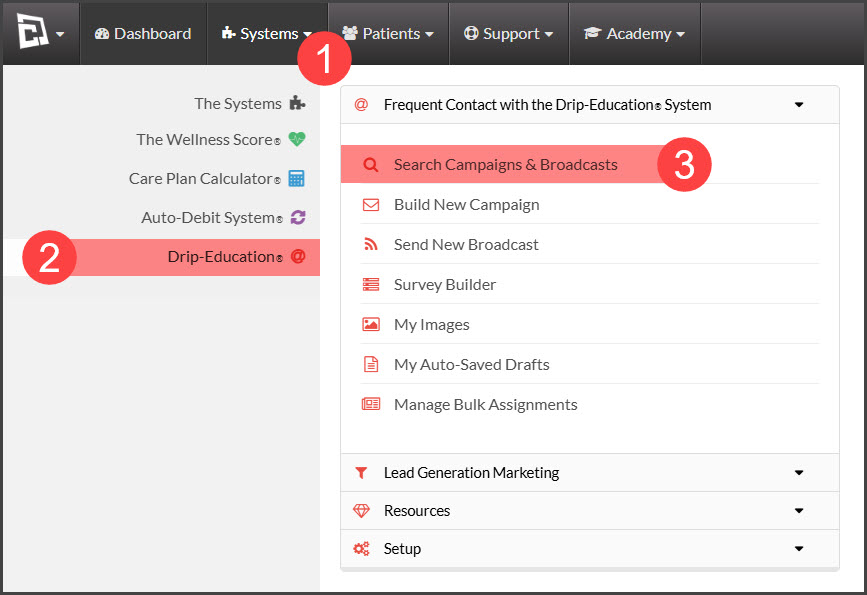
Step 1: From the [Systems] menu→ [Drip-Education® ]→ [Search Campaigns & Broadcasts]
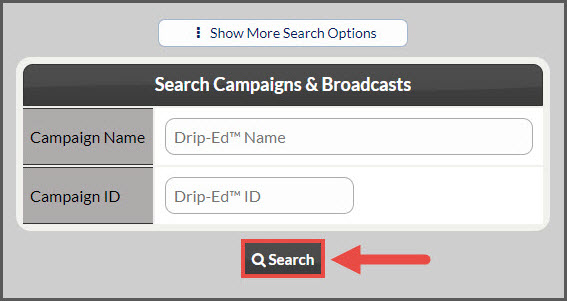
Step 2: Use the search options to refine the search for the campaign you are looking for→ click the [Search] button.
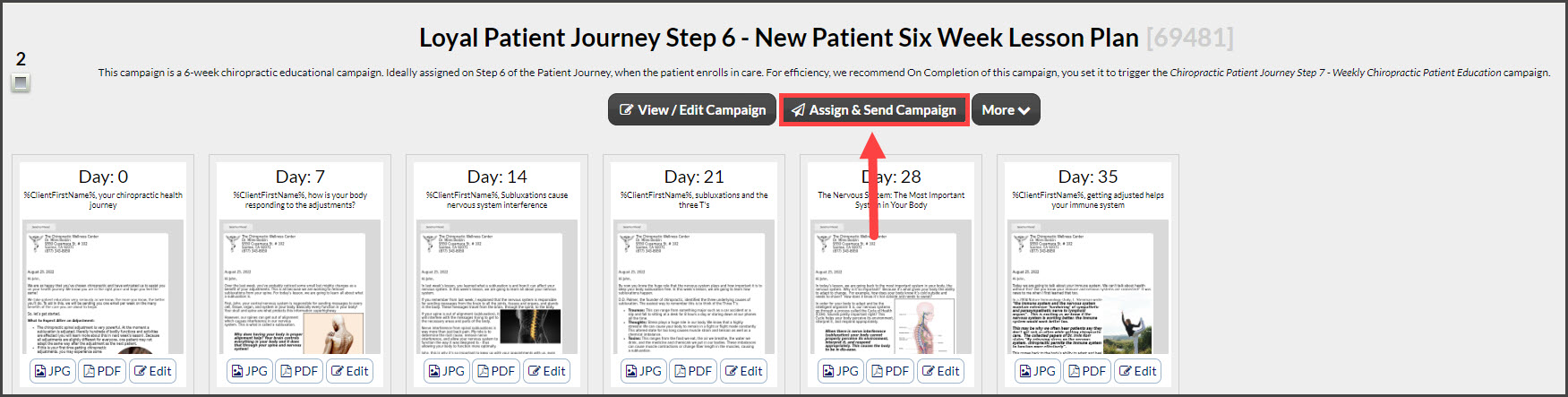
Step 3: Once you have located the campaign you wish to assign and send to your Patient Group, click the [Assign & Send Campaign] button.
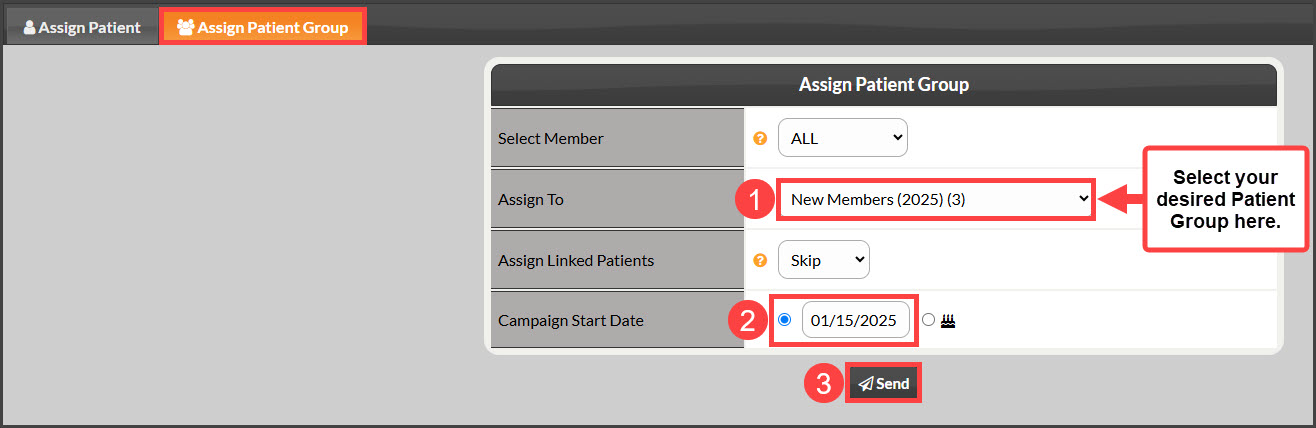
Step 4: From the [Assign Patient Group] tab, locate the [Assign To] field and select the group you would like to assign the campaign to.
Step 5: Choose the [Campaign Start Date].
Step 6: When ready, click the [Send] button.
__________________________________________________________________________________________________________________
Option 2: From [Patient Search]
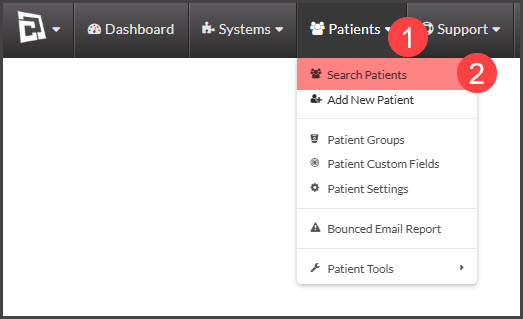
Step 1: From the [Patients] menu → click on [Search Patients].
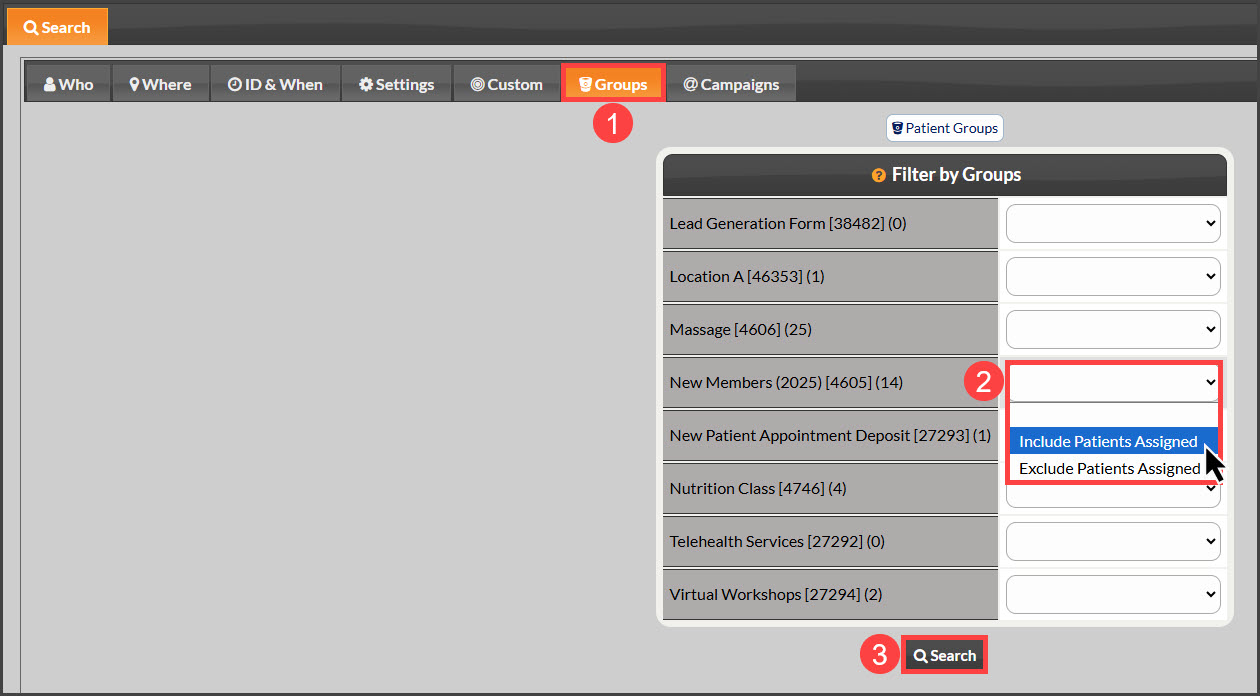
Step 2: Select the [Groups] tab → locate the Patient Group you will be assigning the campaign to → select [Include Patients Assigned] in the drop-down menu → click [Search].
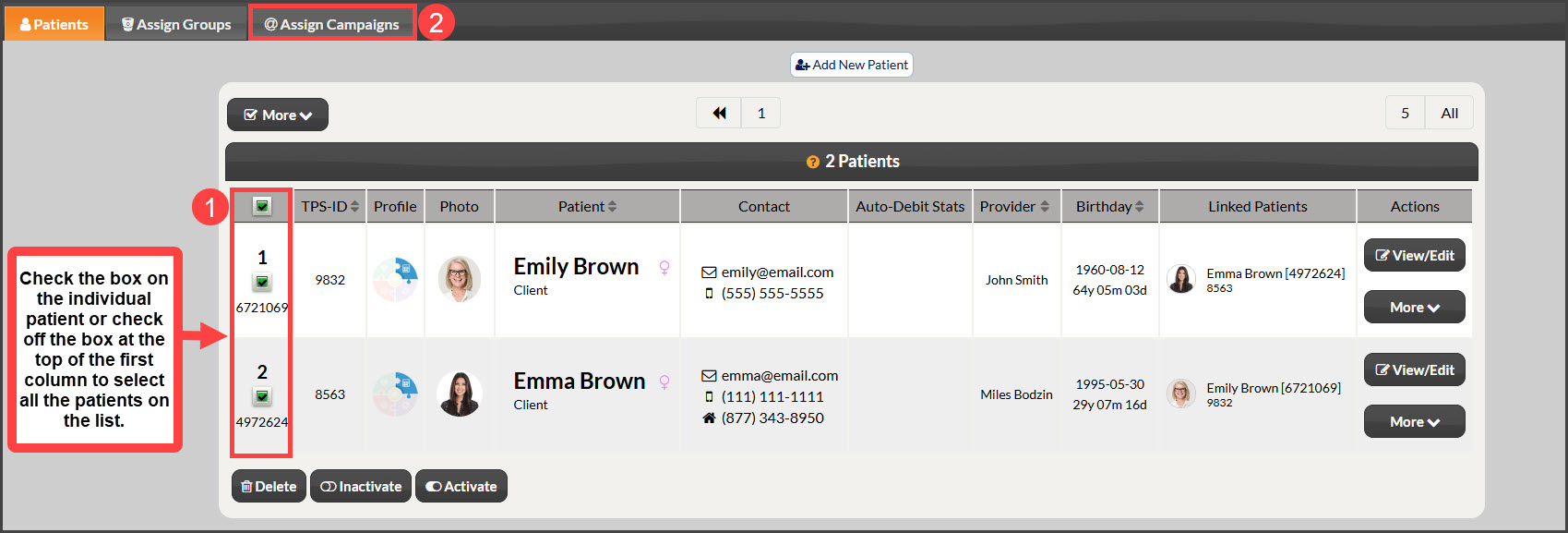
Step 3: From the search results, select the box next to the patient(s) you would like to assign to the campaign→ and click on [Assign Campaigns].
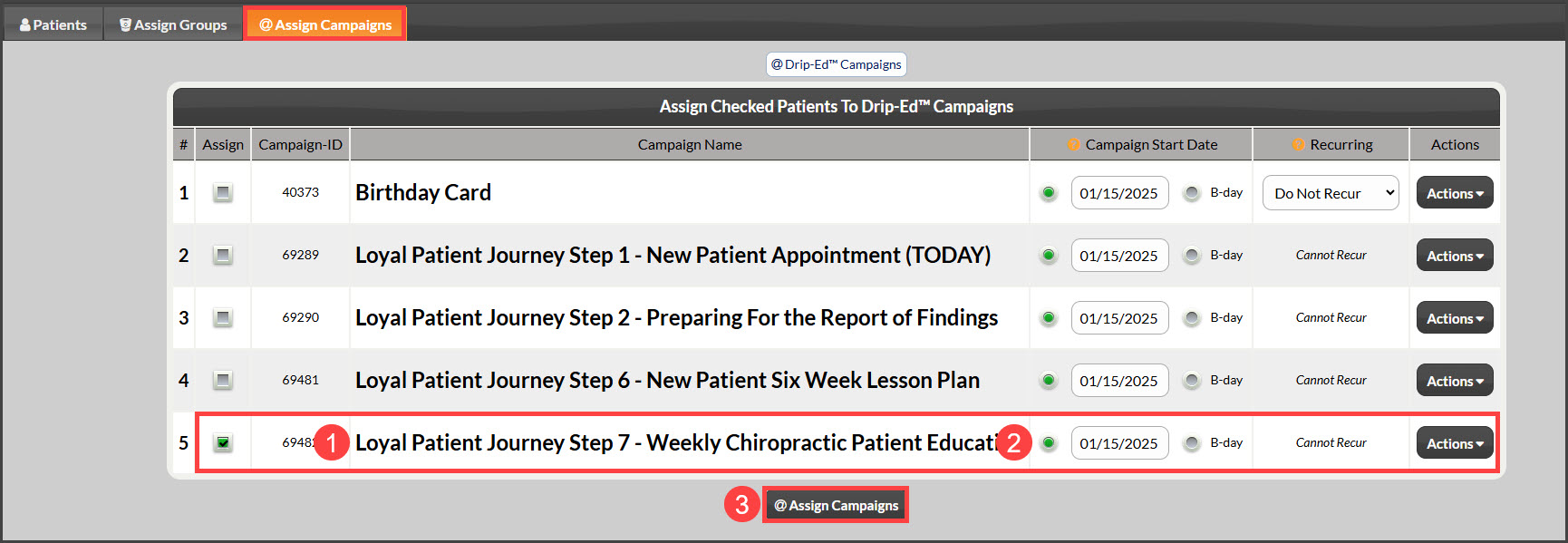
Step 4: Check off the box for the Campaign you are assigning the Patient Group → select the Campaign Start Date → scroll down and click the [Assign Checked] button.