Getting started:
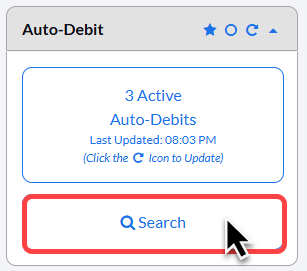
Step 1: From the [Dashboard], click on the [Search Auto-Debits] button on the right side of the page.
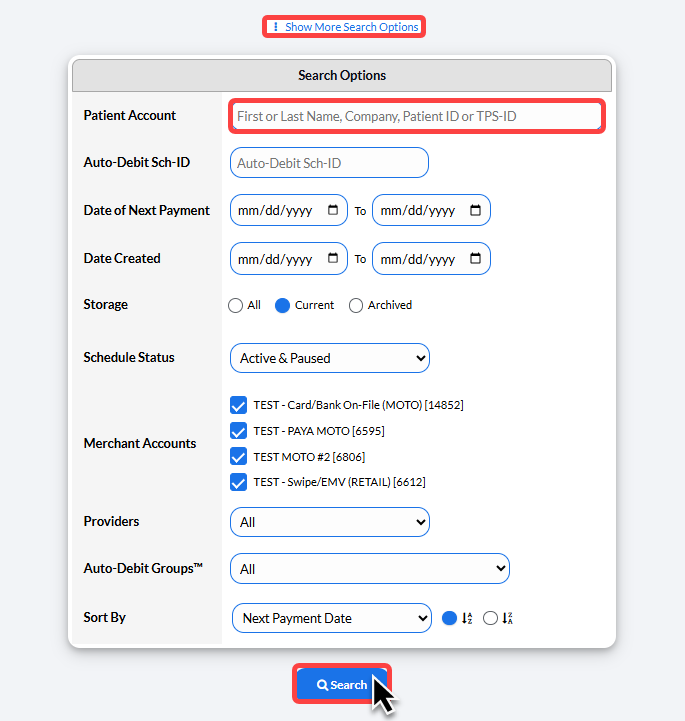
Step 2: Define your search criteria.
Enter the patient's name and click [Search].
Step 3: Click on the [Restart Auto-Debit] button.

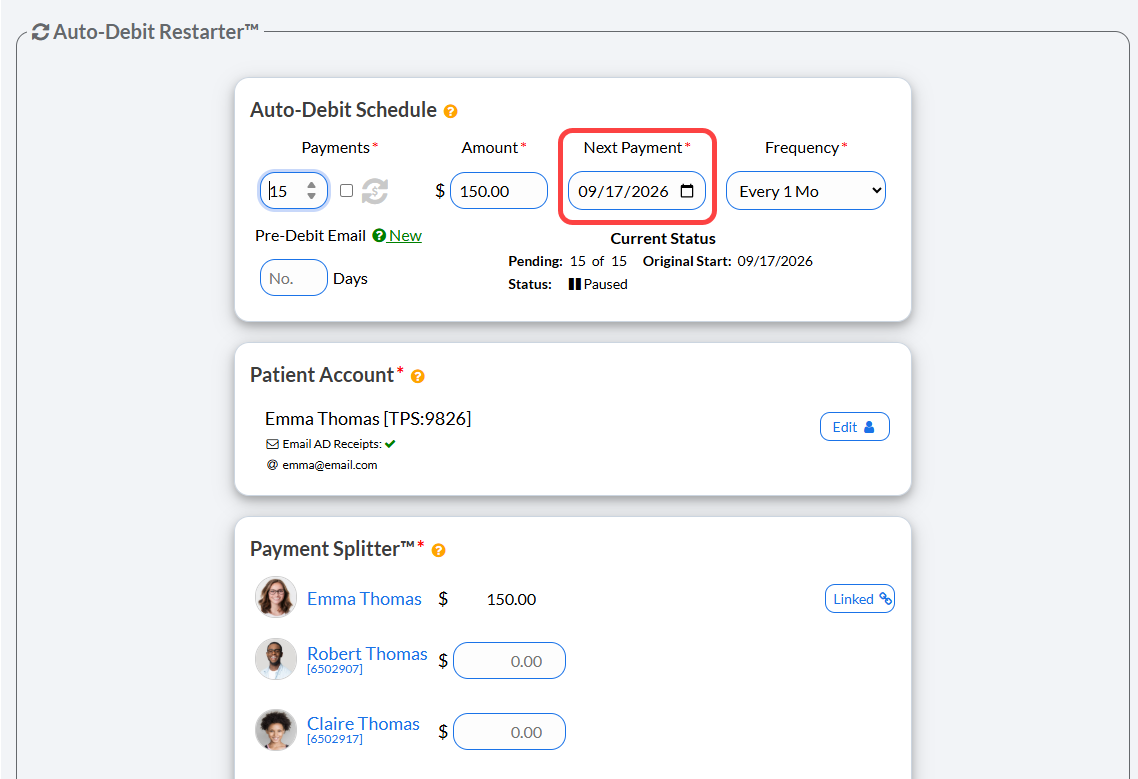
Step 4: This then loads the Auto-Debit Restarter.
Select the [Next Payment] date for when the auto-debit will restart.
Make any additional changes, and proceed by clicking the [Restart Auto-Debit] button at the bottom of the page.

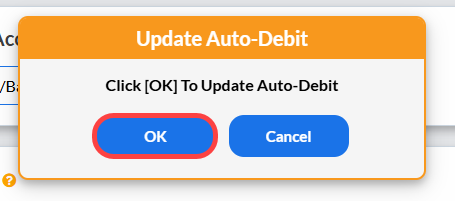
Step 5: Click [OK] to proceed.
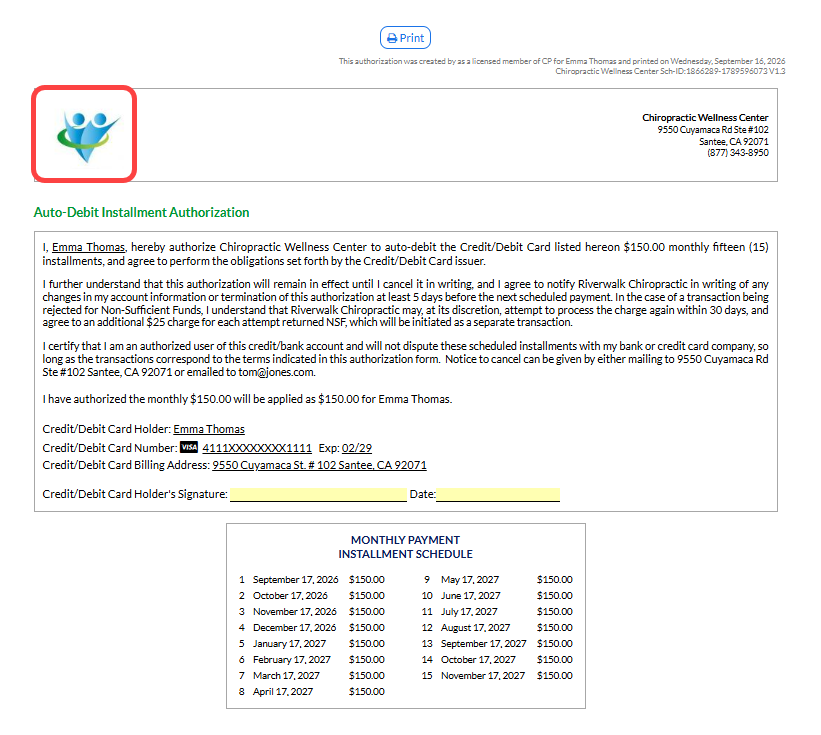
Step 6: This then produces a new authorization form for the patient to sign. We recommend printing two copies. One for you to keep with their signature, and the other for the patient's records.
Click on the Company Logo or select the print button to print.