

To customize the branding for the [Reprocess Declined Payment] CP Online Form™, follow these instructions.
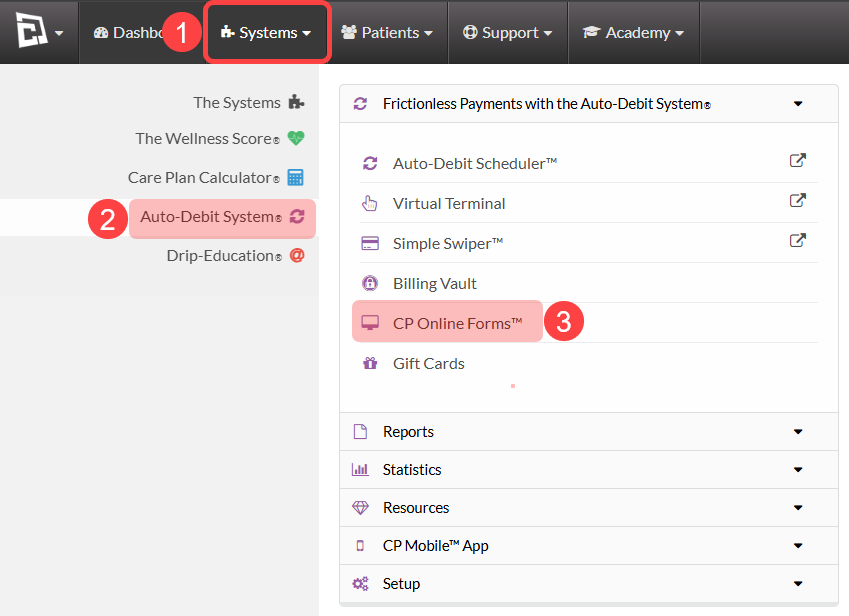
Step 1: Follow the sequence to access your CP Online Forms:
Hover over [Systems]
Then, click on [Auto-Debit System]
Select [CP Online Forms™].
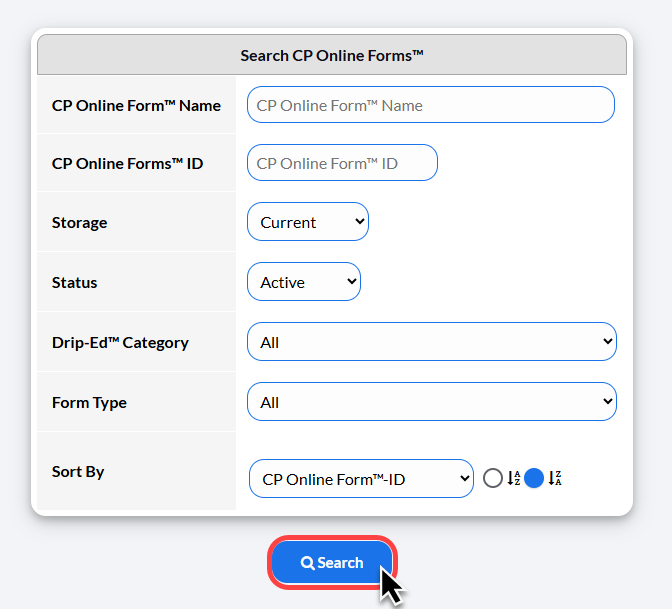
Step 2: Enter the form name and click [Search].
Or, click the [Search] button to load all your active CP Online Forms™.
Step 3: Click on the [Edit Form] button.

Step 4: Head to tab #6 Branding. Here, you can change the colors using the color selection fields, or background images for your online form.
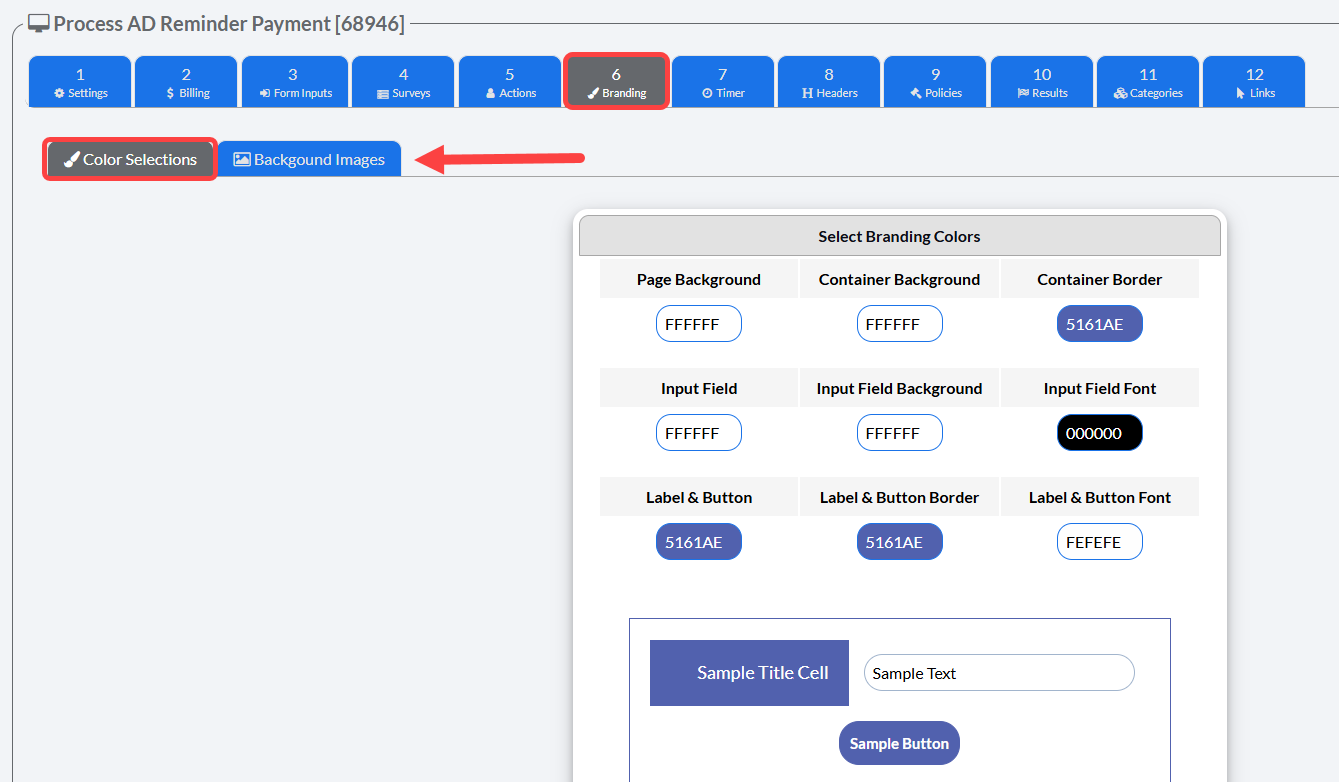
Step 5: When you're done making your changes you can select [Save & Preview] to save your changes and preview the form.
Select [Save/Next] to save your changes and proceed to the next step in your form settings.
[Brand ALL Forms] will apply your branding selections to all of your CP Online Forms.
