We are pleased to announce that you now can have your clients/patients receive an email when their payment is declined that instructs them to take action and make the payment online. To turn this feature on please follow these instructions.
TURNING IT ON
From the main menu, navigate to the ADS Settings page by going to [Systems] → [Auto-Debit System®] → [Setup] → [ADS Settings].
*Note: Only admins or users with permission can access the [Setup] area.
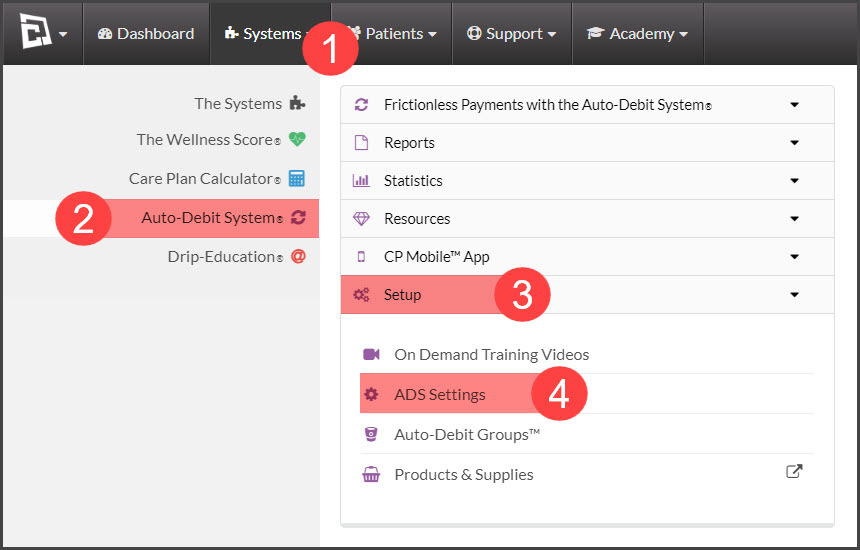
ADS Settings Page
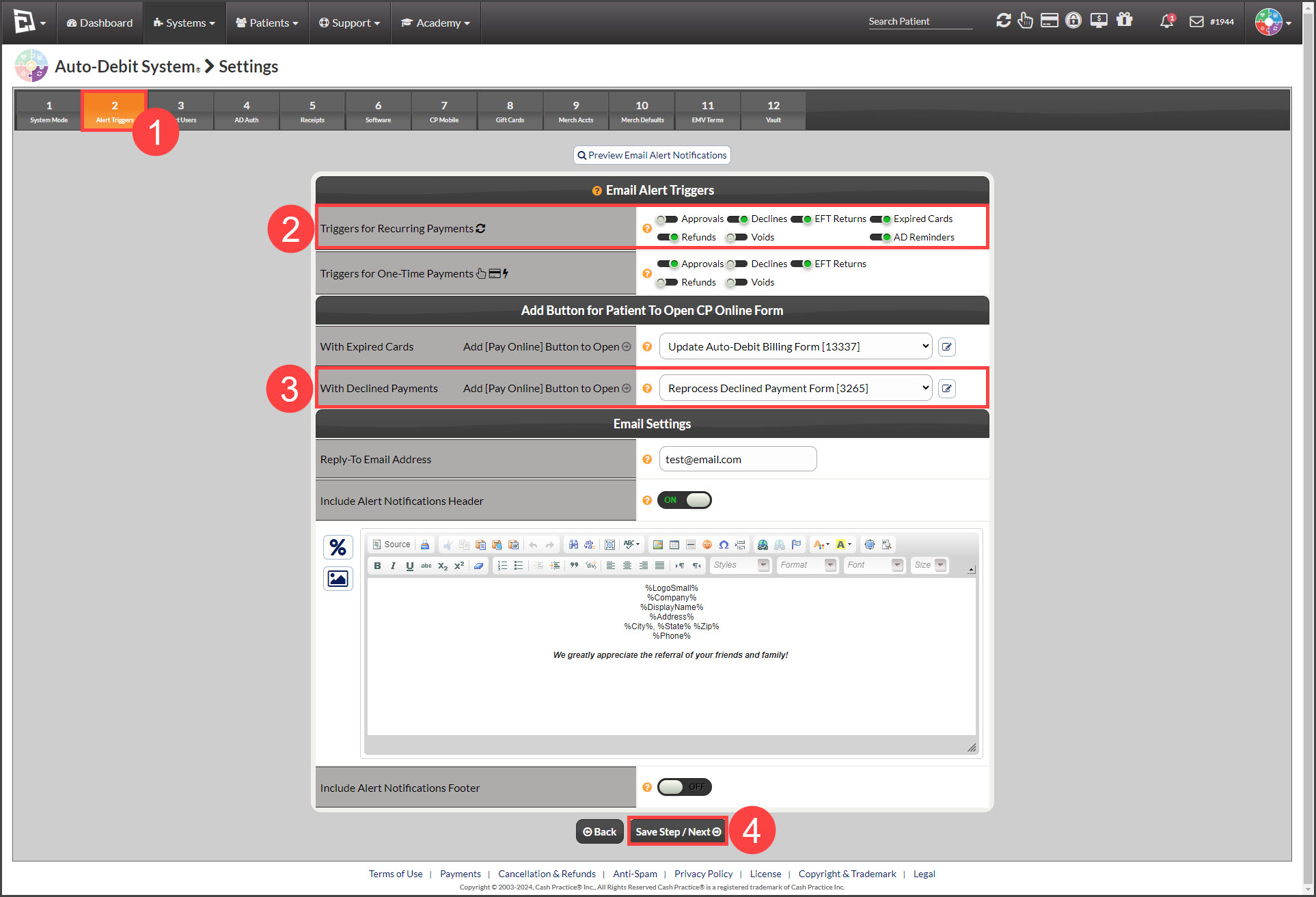
Step 1: Click on the second tab [2 Alerts].
Step 2: Select the [Reprocess Declined Payments] form. By doing so, the [Pay Online] button will be inserted into the declined payment email notice sent to the patient. We have pre-populated your Cash Practice® Account with a CP Online Form™ set to Reprocess Declined Payments. If you wish to edit this form, go to the CP Online Forms™ to edit it.
Step 3: If you want the patient to automatically be sent the email alert then for [Automated Email Alerts for Recurring Payments], check the box next to [Declines]. Please note that you can also manually send these email alerts from the [Posted Payments Report]
Step 4: Click [Save Step/Next].
*Note: When processing one-time payments, a patient is typically standing before you with their card, so if the payment is declined, you would verbally communicate with them. You don't want to rub salt in the wound by having them also receive email notification of the declined payment, therefore we recommend that you do not check the box next to [declines] for [Automated Email Alerts for One-Time Payments].
Optional: To edit the look and feel of the CP Online Form™ (branding), click HERE.
Patients Email Settings
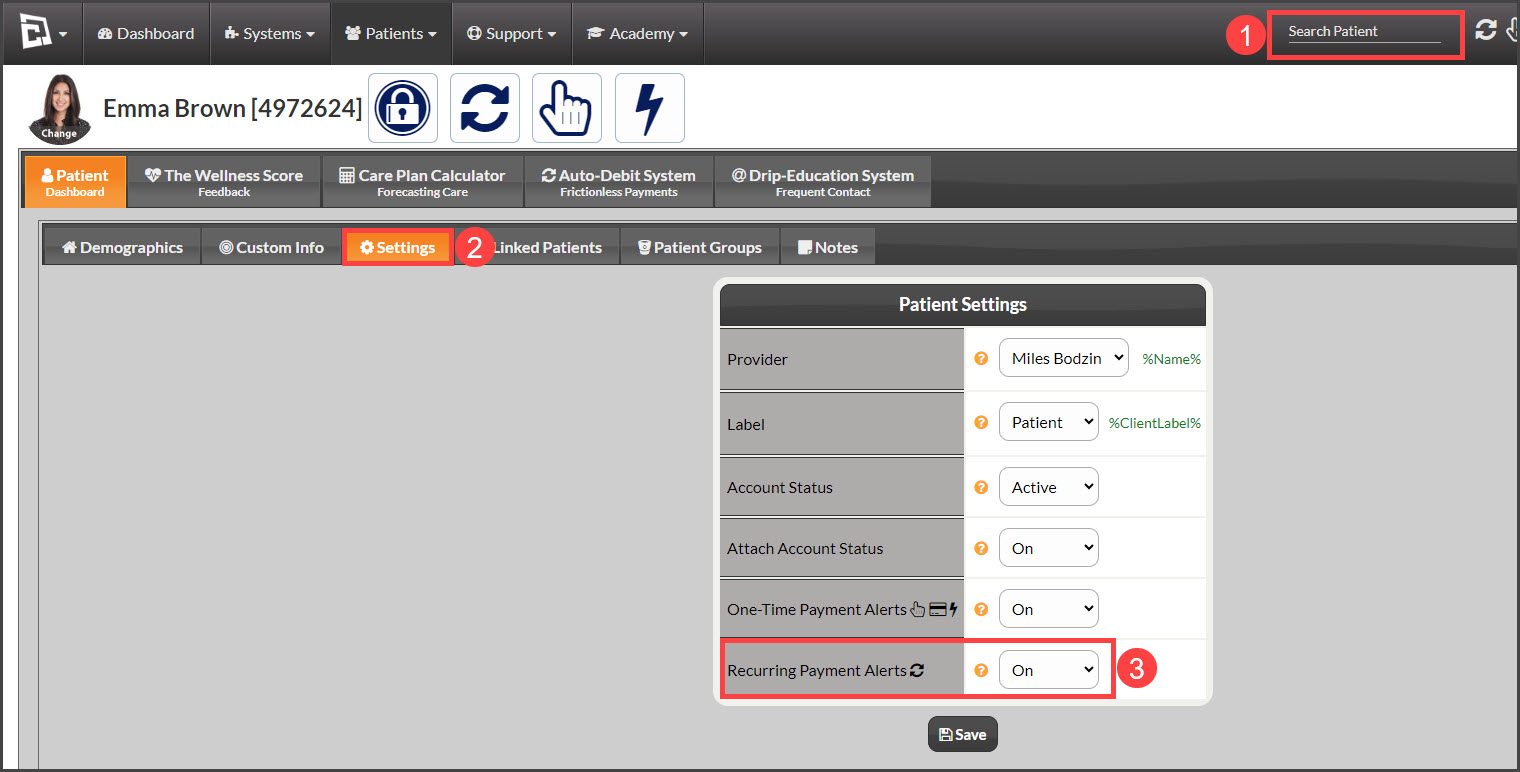
By default, all patients added to your account will have their Email Settings [ON]. To verify your patients will receive the email notices, make sure your patient has an email on file and their Auto-Debit System® Email Alerts are set to [YES].
Step 1: Search for the patient to access their account settings.
Step 2: Click on the [Settings] tab.
Step 3: For the [Auto-Debit System® Alert Notification Email] make sure the [Recurring Payment Alerts] are set to [On].