DevicesThe device needs to function the same as a mouse. If you are unsure, ask the sales company or manufacturer before you make your purchase.Cash Practice® DOES NOT PROVIDE ANY SUPPORT FOR THESE DEVICES. If you find a device is not working with Cash Practice®, you will need to contact the manufacturer. |
ChiroTouch® and POS Users Please Read! Signature pads that come with programs like ChiroTouch® DO NOT work with this. Do not purchase signature pads like Topaz. Those devices are designed to work with programs installed on your computer, not web-based applications. The signature capture method we use allows you to use any mouse input device. |
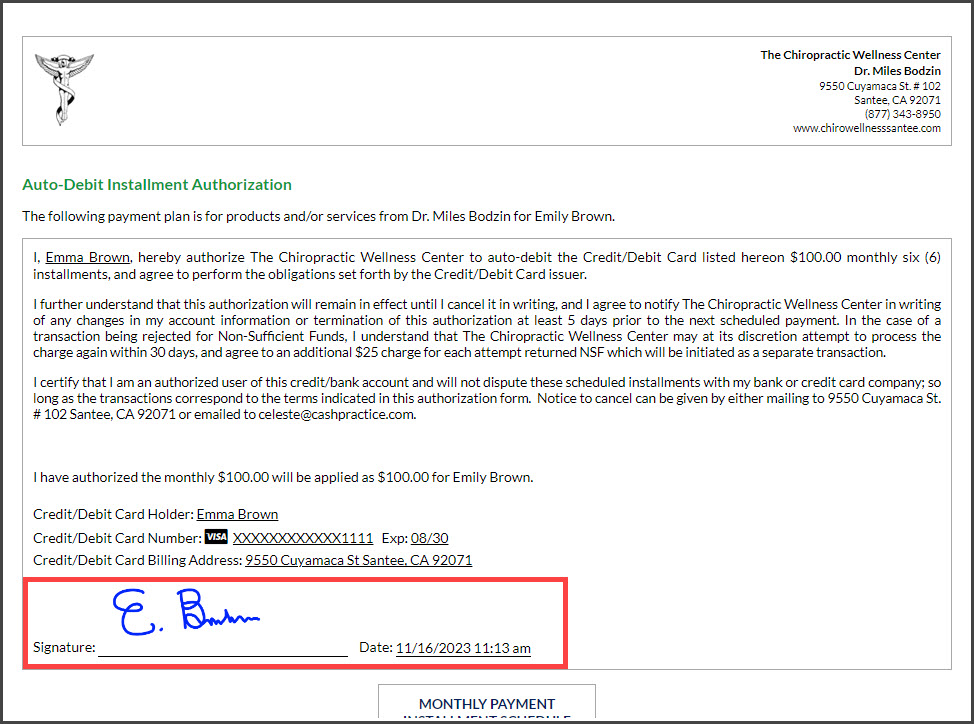
Graphics Tablet Signature of Auto-Debit Authorization:
Option #1: Once you have processed the auto-debit, a signature screen will come up and the cursor will turn into a pen. Your patient can sign via your Graphics Tablet, computer mouse, or touchscreen monitor. Or you can skip the signature.
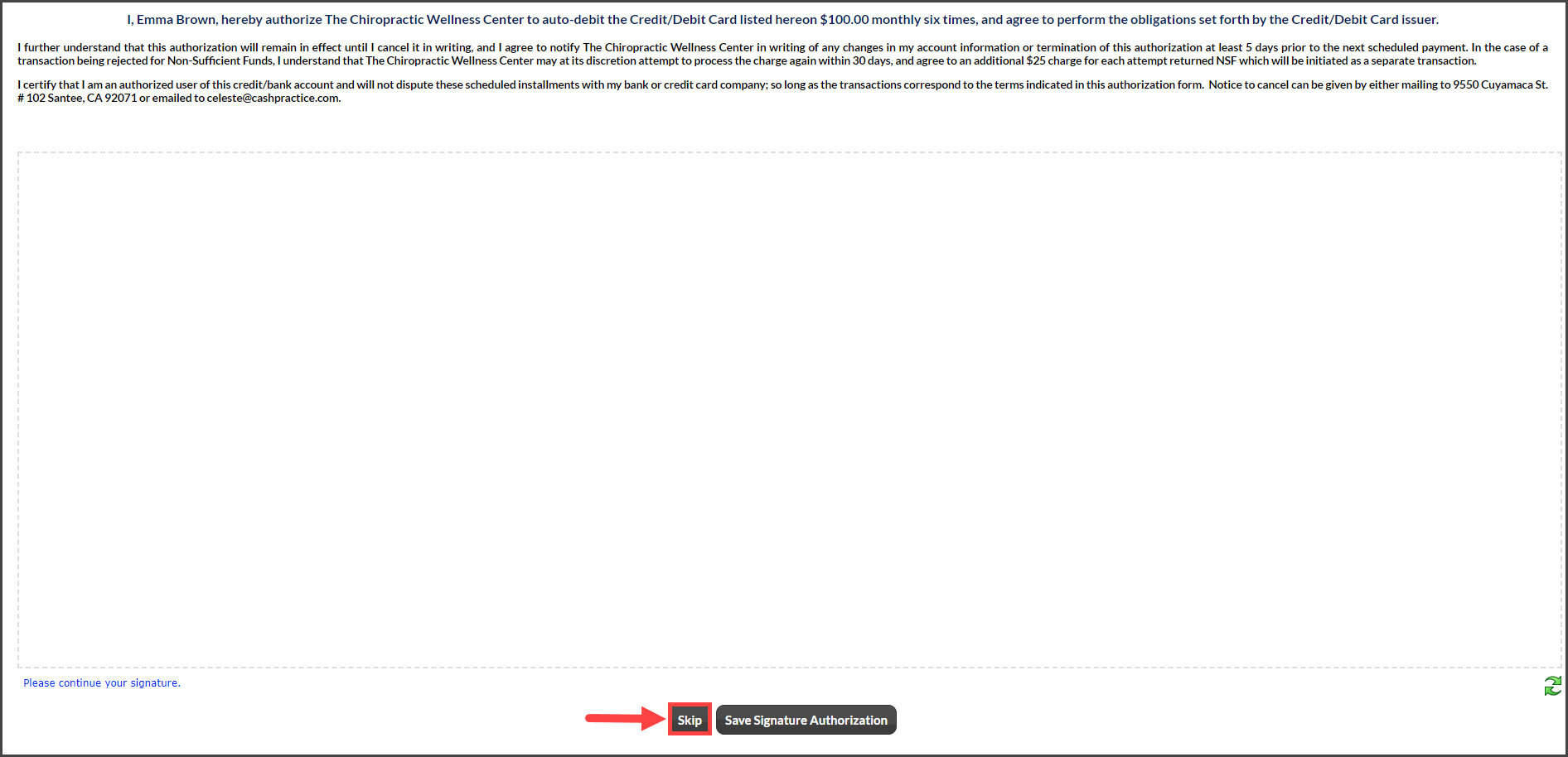
If you skip the signature, the receipt will load with a place for the patient to sign.
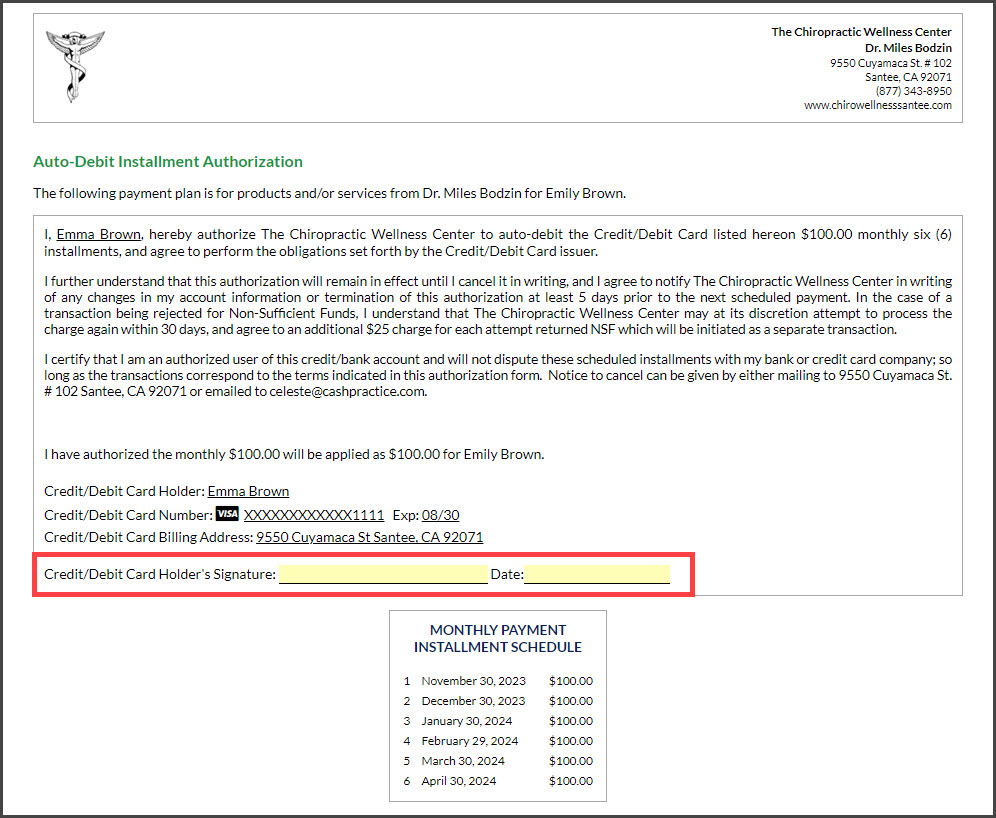
Option #2:
Have the patient sign then click [Save Signature Authorization].
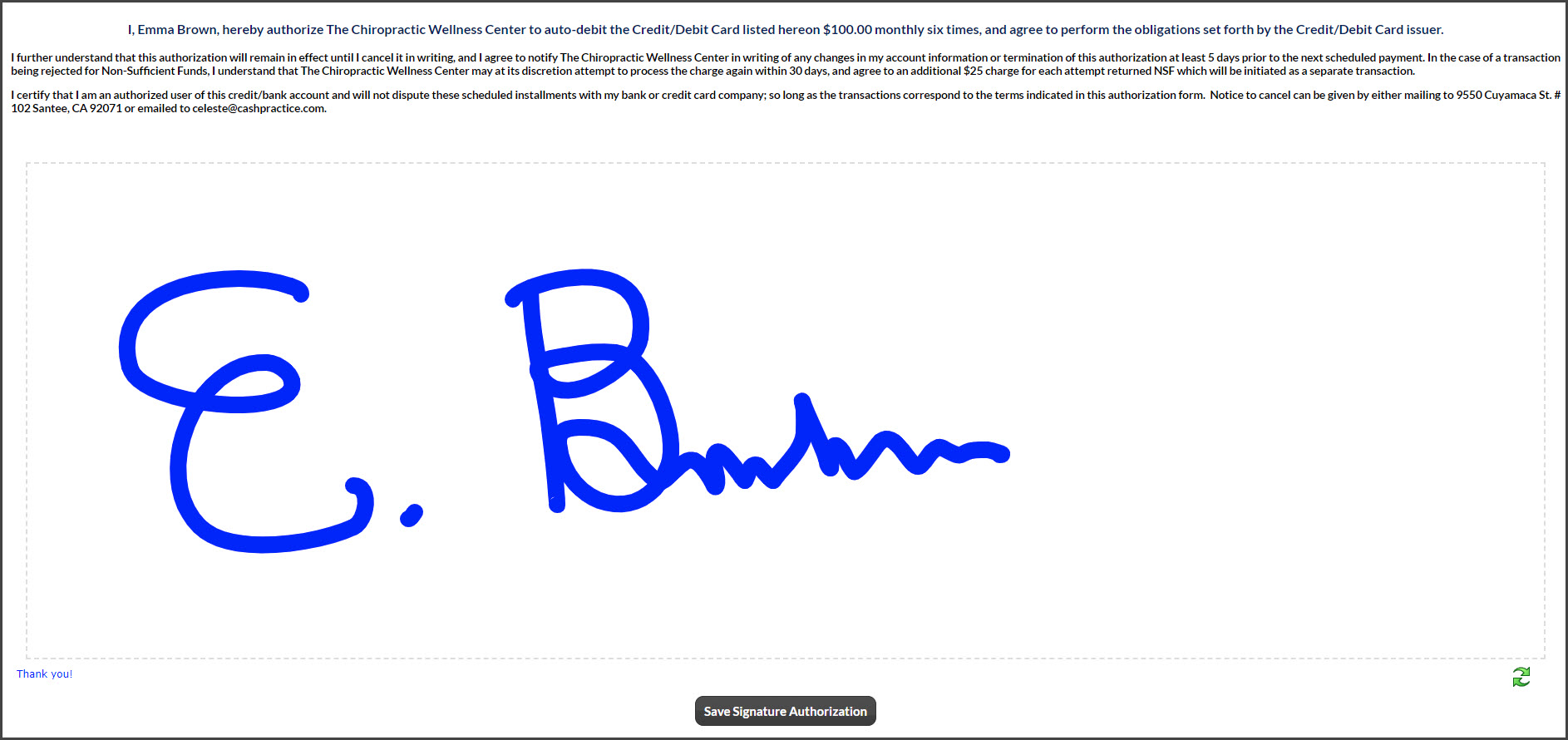
The authorization form will load with the saved signature. You may print a copy for your patient, however, we do store this signed version in your account.
Graphics Tablet of Transaction Receipt:
Option #1:
Once you have processed the transaction, a signature screen will come up and the cursor will turn into a pen. Your patient can sign via your electronic signature pad, computer mouse, or touchscreen monitor (or, you can skip the signature).
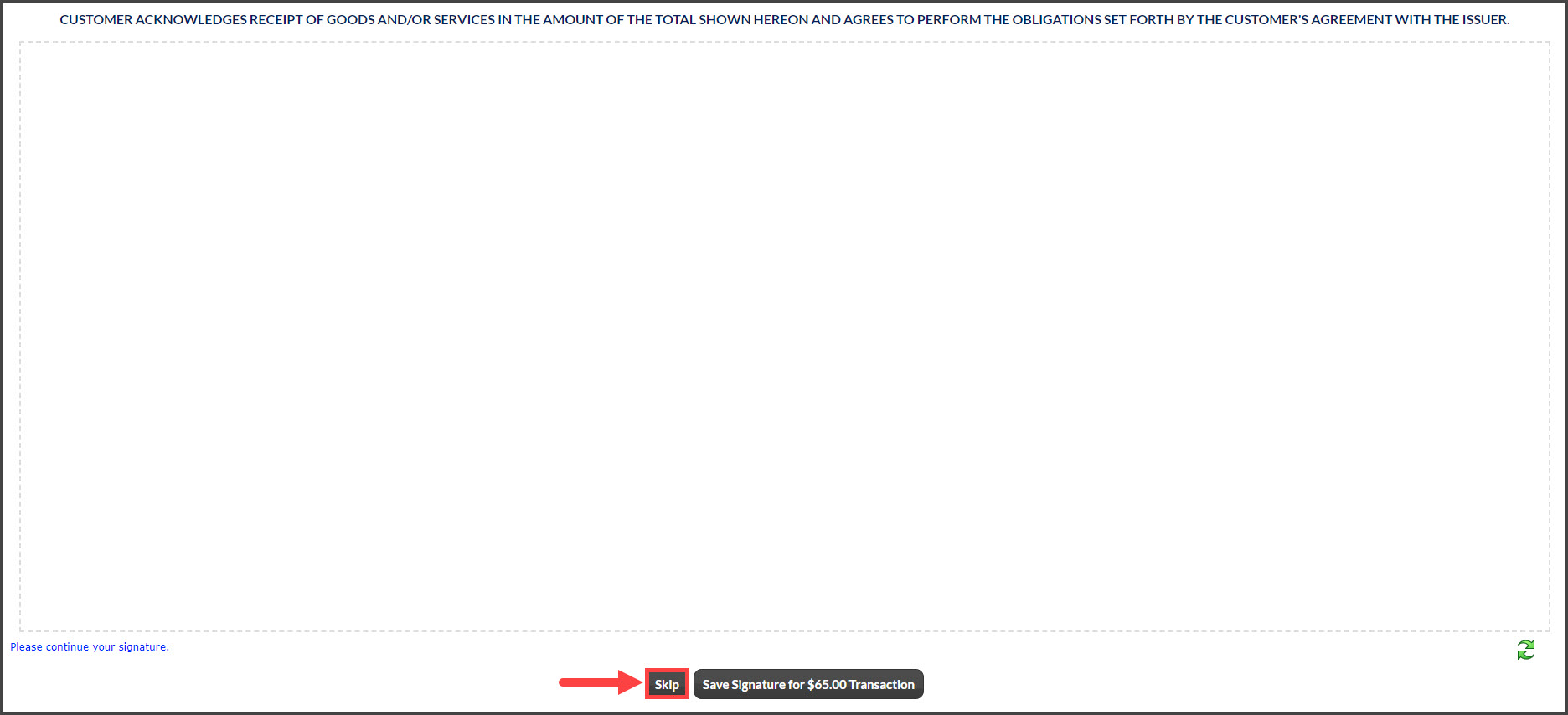
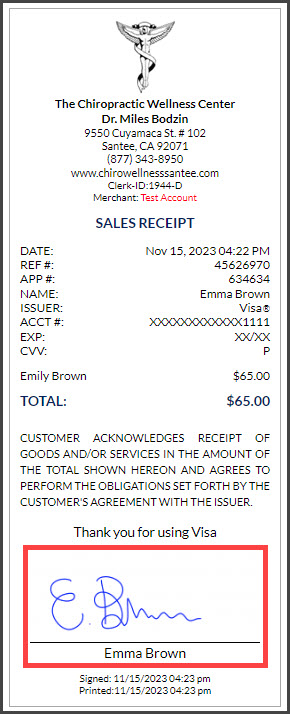
If you skip the signature, the receipt will load with a place for the patient to sign.
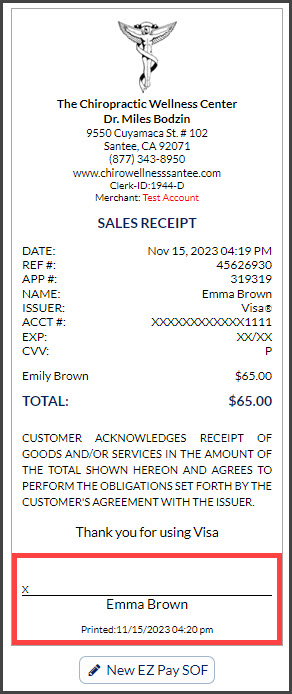
Option #2:
Have the patient sign then click [Save Signature for $XXX.XX Transaction].
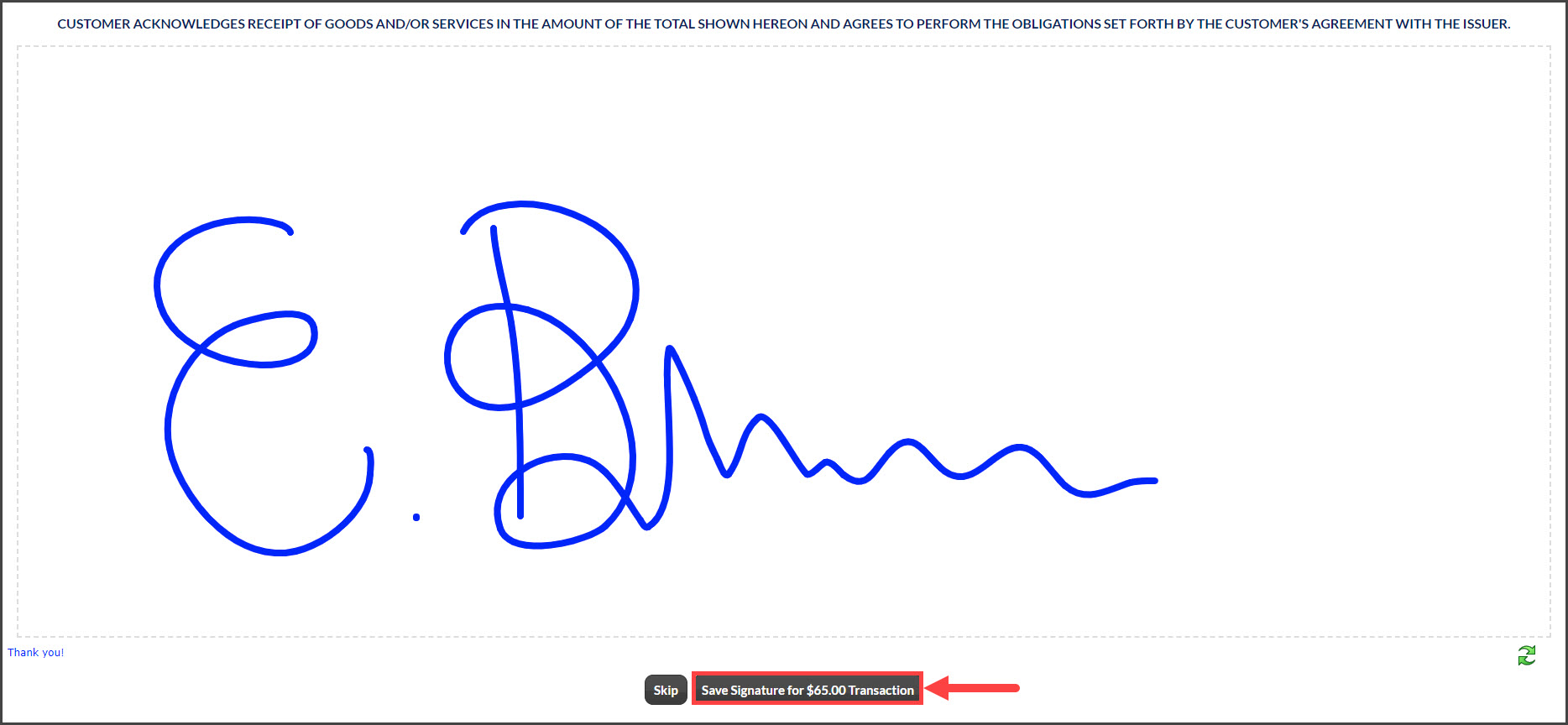
The receipt will load with the saved signature. You may print a copy for your patient. If your settings are set to email the patient their receipt, they will receive the signed copy. There is no need to print the receipt for an office copy because the system will save it for you!