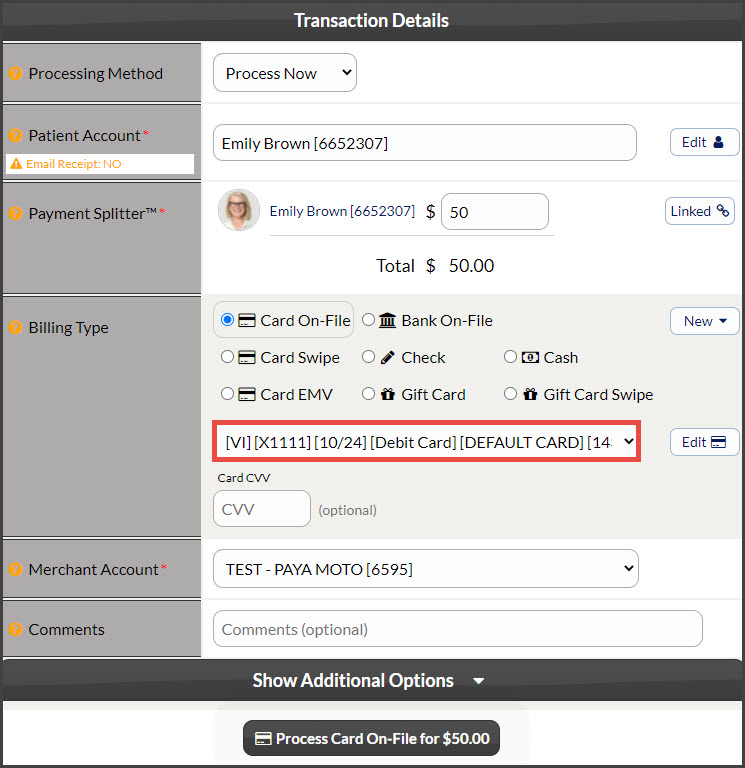
Select your patient's default billing using The Billing Vault!
The Billing Vault will allow you to have access to previously used billing, enabling you to have multiple credit cards and Bank EFTs on file for your patient at all times. You can use the billing vault to set the appropriate default card to process payments on.
DEFAULT indicates the patient's Default billing stored in the patient's billing tab as default Credit Card or Bank EFT.
PLEASE NOTE: The billing vault will NOT contain any billing processed on the EMV terminal.
Getting Started:
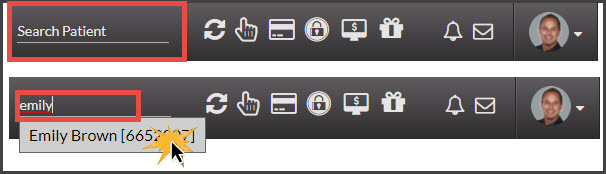
Step 1: From the top-right side of the Dashboard, head to [Search Patient], type the name of the person you are looking for, and select their name from the drop-down menu. This will redirect you to the Patient Record.
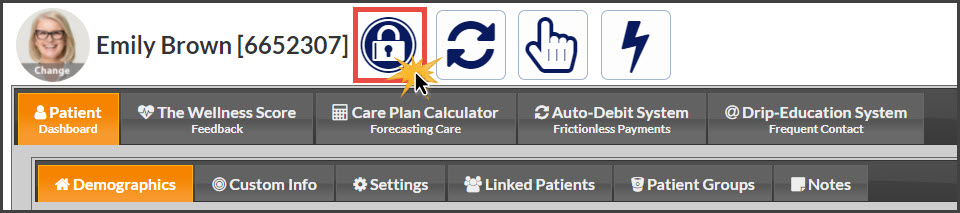
Step 2: At the top of the patient record, click the [Billing Vault] button.
Step 3: In the Billing Vault, you will be able to view all of the billing information that has been used for previous transactions that have not expired. From the list, you can make any billing, the Default by clicking the radio icon in the "Set Default" column.

The card that you selected, will now be made the new default billing type. You will then have the ability to process one-time payments or schedule an auto-debit using the new default.
Example: