Getting Started:
Step 1: In the [Search Patient] bar, begin typing your patient's first or last name and select their name from the drop-down menu. This then redirects you to the Patient Record. Skip ahead to Step 4.

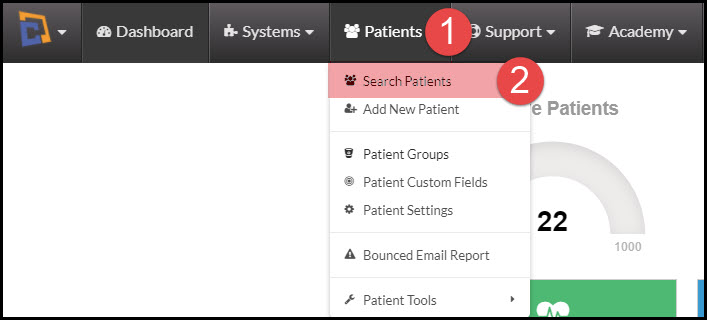
Option 2: Hover your mouse over the [Patients] Menu → click [Search Patients].
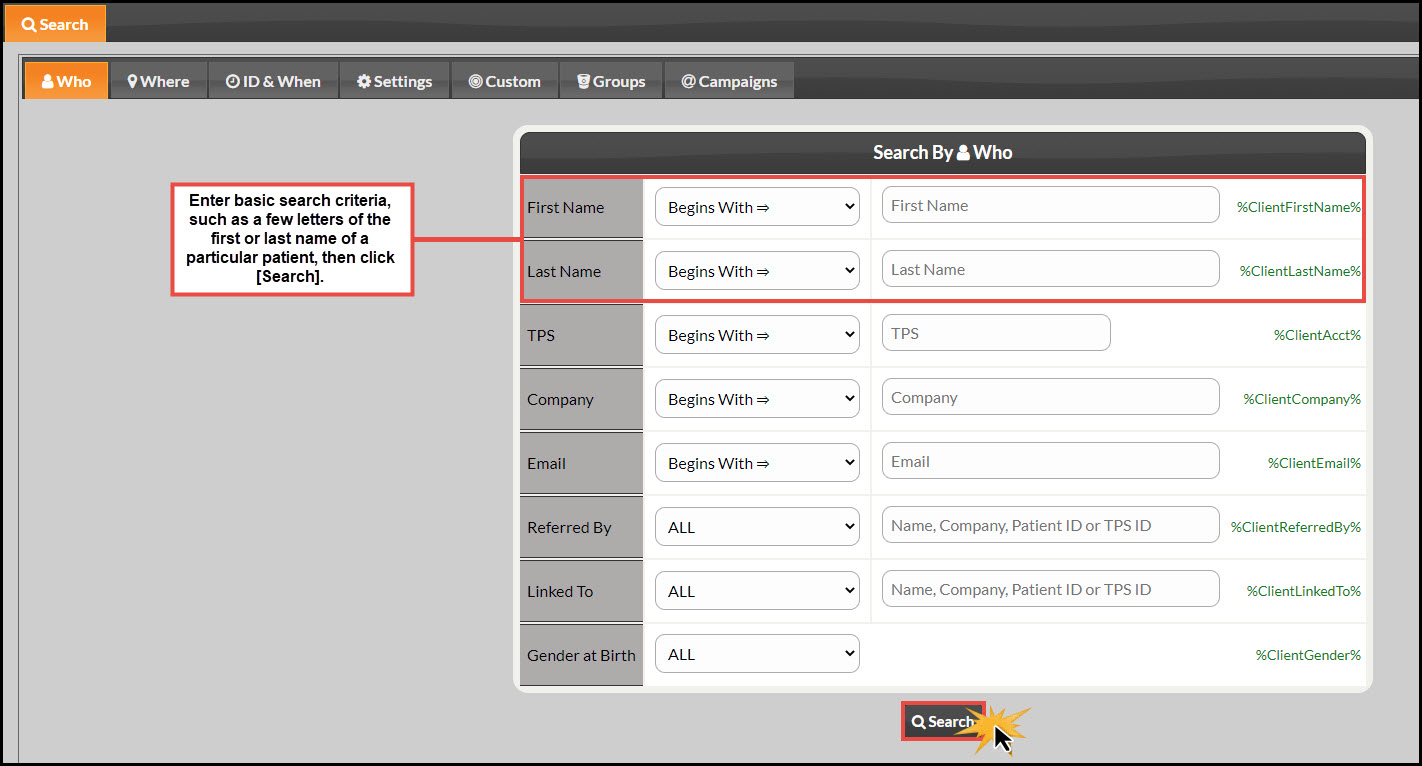
Step 2: Enter in your Search Criteria here for the desired patient you want to add a note for. We find the fastest way to find one person, in particular, is to enter the first two letters of the first name and the first two letters of the last name.→ Click [Search].
Step 3: Either click on the name or the [View/Edit] button of the patient you would like to open up the patient record for.

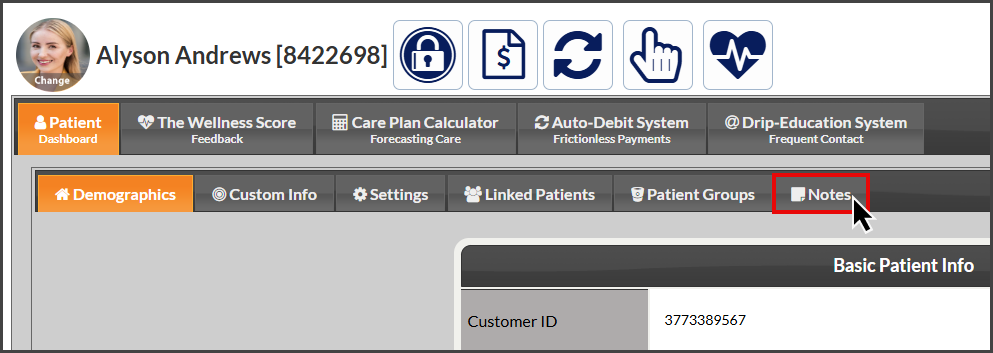
Step 4: From the Patient Information page, click on the [Notes] tab.
Step 5:
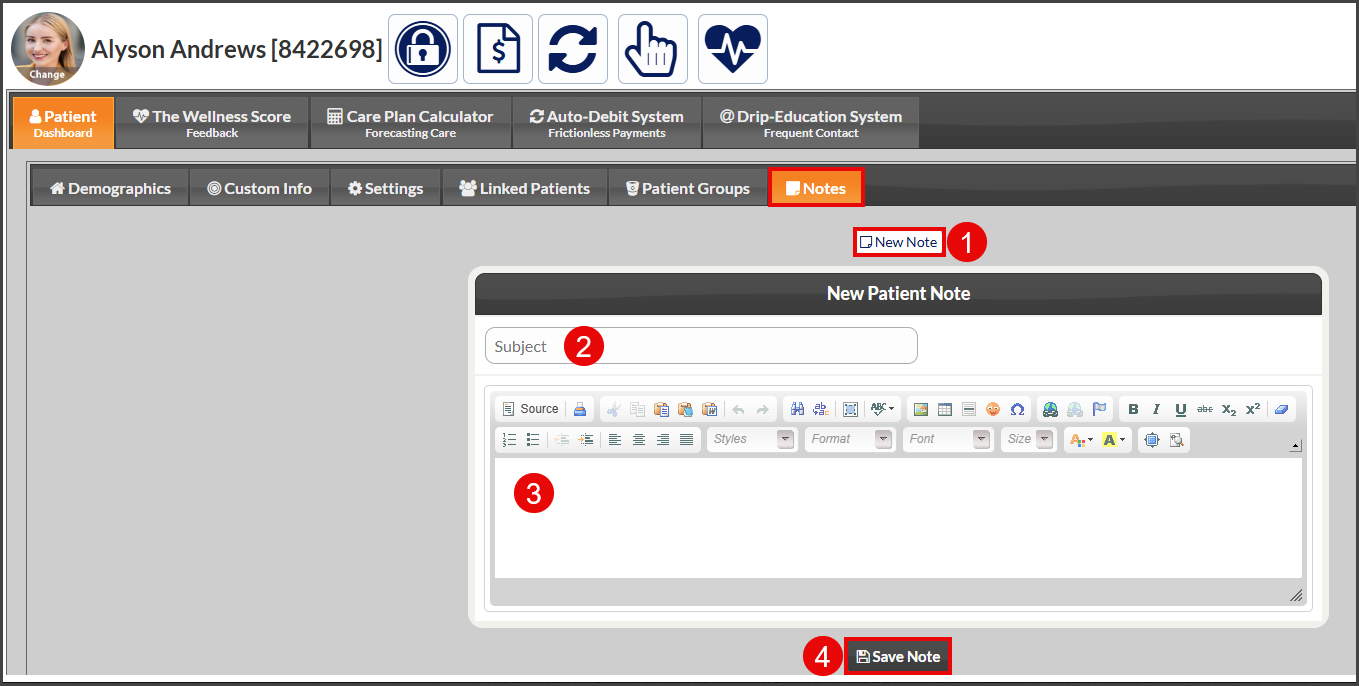
Click on the [New Note] button.
Type in a subject.
Add your note content.
Click on the [Save Note] button.