

Option 1: From the "Search Patient" field
Step 1: Begin typing the first few letters of the patient's first or last name and select the patient account from the drop-down menu, which will then bring you to the patient's record.

Option 2: From the [Patients] menu
Option 2: From a transaction through the 'Search Payments'
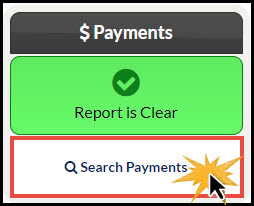
Step 1: From your Dashboard, on the right, click on the [Search Payments] button under the "Payments" section.
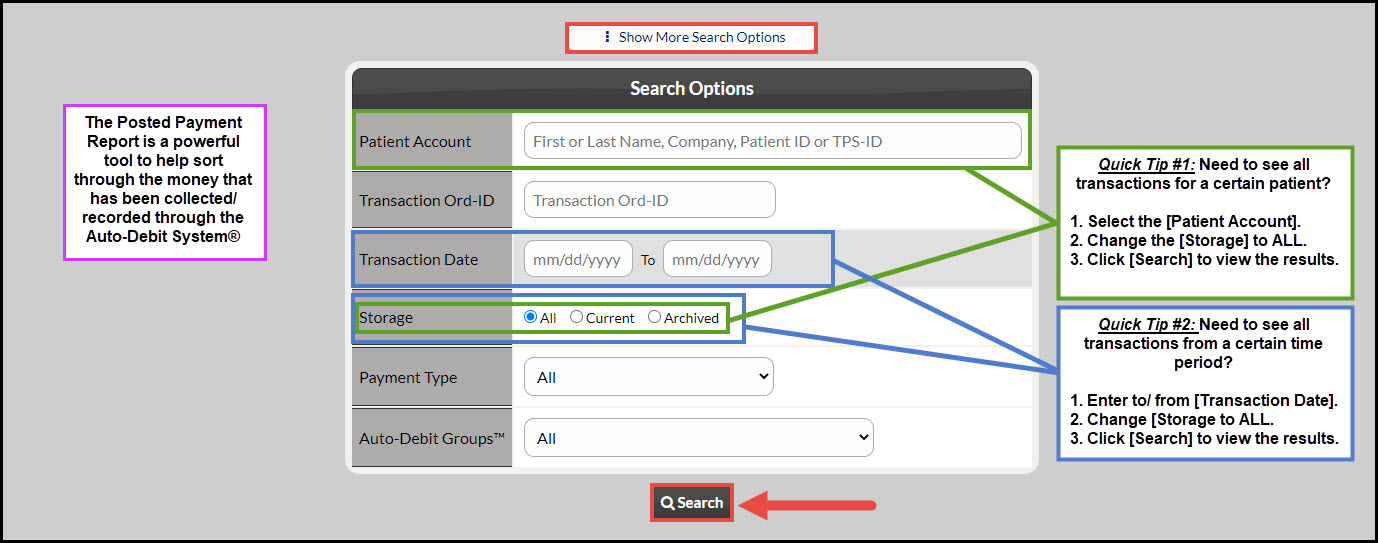
Step 2: Use the search options to define what transactions you are looking for. For more search options, click on the [Show More Search Options] tab at the top, then click the [Search] button to load the defined report.
Step 3: Once the report loads the transaction for the patient you are searching for, click on the patient's name that is bolded, located under the "Patient Details" column. This will then bring you to the patient's record.

Option 3: From an auto-debit through 'Search Auto-Debits'
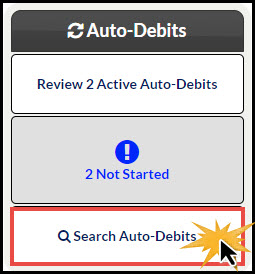
Step 1: From your Dashboard, on the right, click on the [Search Auto-Debits] button.
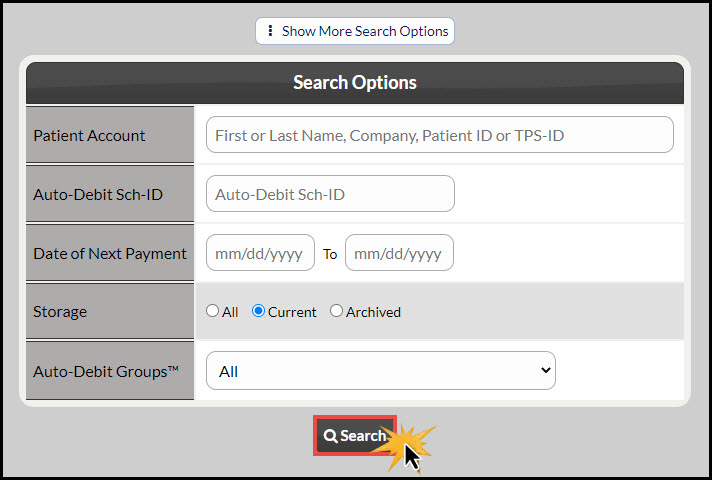
Step 2: Enter the search criteria → click [Search].
Step 3: Once the report loads the auto-debit for the patient you are searching for, click on the patient's name where bolded, located under the "Patient Details" column. This will then bring you to the patient's record.
