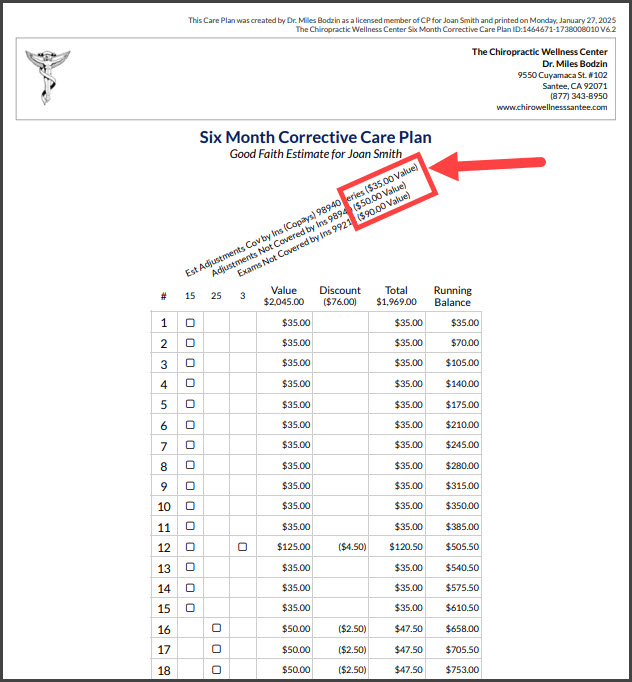
NOTE: If you're using a ChiroHealthUSA® discount with a max $ per visit you MUST use the Visit Allocator.
In this example, we show that the Care Plan Calculator® is being used to create a financial plan.
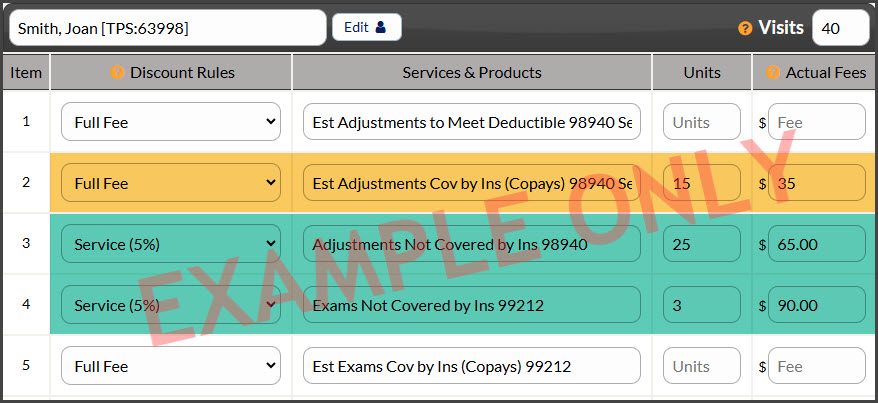
There are a total of 40 visits being provided.
[YELLOW]: The first 15 services are covered by insurance and include a patient co-pay. No discounts are given on these visits.
[GREEN]: The remaining 25 visits with 3 exams, not covered by insurance will be discounted.
Click the [Calculate Care Plan] button at either the top or bottom of the screen.
From the Calculator, click on the [Care Plan Settings] section, and select the [Patient #] button next to "Plan Visit Allocation".
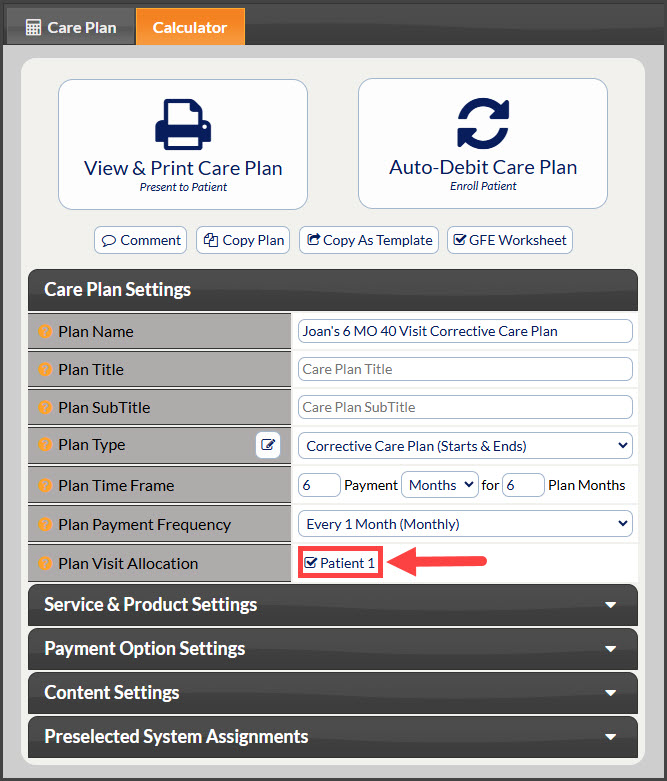
This will then load the ability to allocate what is happening per visit. Please see the image below for more details.
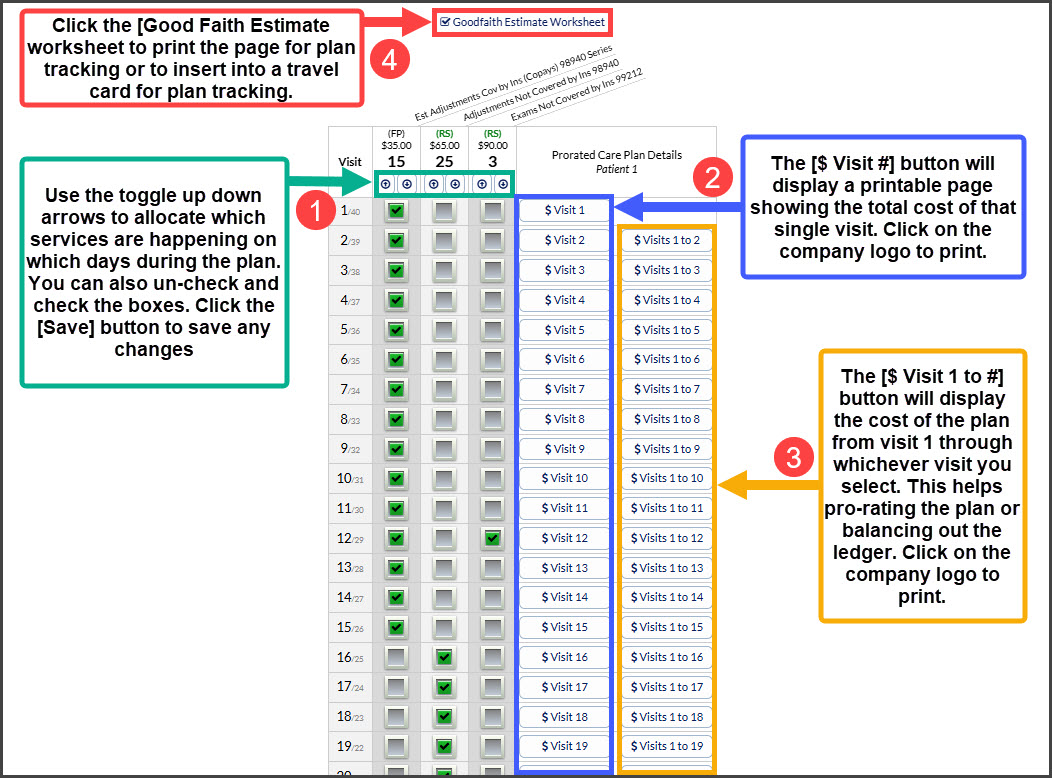
When allocating the visits, visits 1-15 are insured and are listed along with which services take place on those visits.
The remaining 25 visits that are not covered by insurance are then moved down and take place in visits 16-40.
Optionally, you can print the Good Faith Estimate Worksheet to help keep the patient's care on track or fold and place it in a file or travel card.
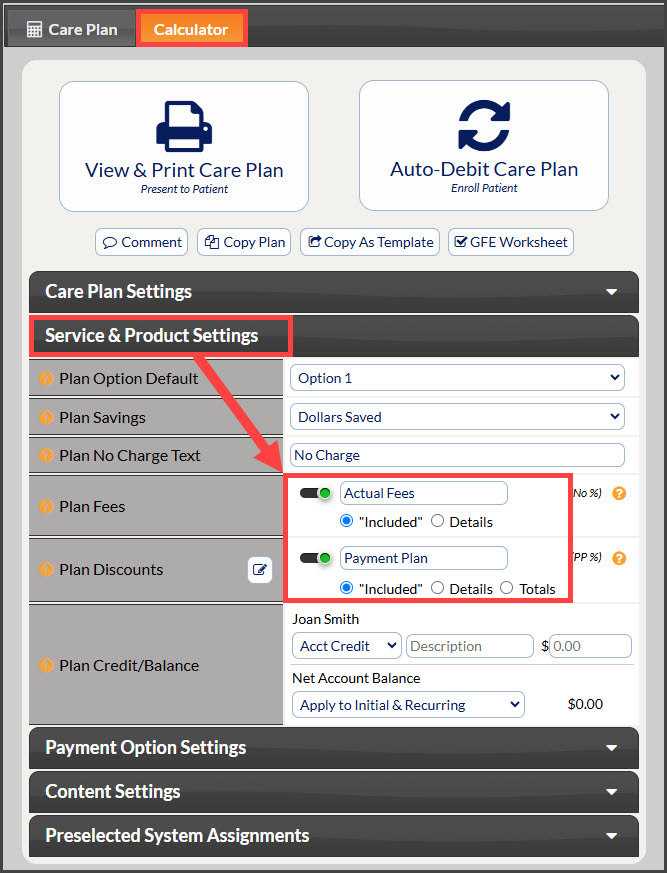
Note: If your office chooses to display the Plan Fees and Plan Discounts section as "Included", this will display as follows on the Good Faith Estimate Worksheet:
Example: