Logo

Cash Practice® Systems Help Center

Search our knowledge base to get answers to your questions, access video training & more!

Auto-Debits: How do I Stop/Cancel a scheduled auto-debit?

Auto-Debit System® (Frictionless Payments)

Auto-Debits: How do I Stop/Cancel a scheduled auto-debit?

Last updated on 13 Sept, 2025


Step 1: From the Dashboard, click the [Search Auo-Debit] button, under the "Auto-Debits" section. 
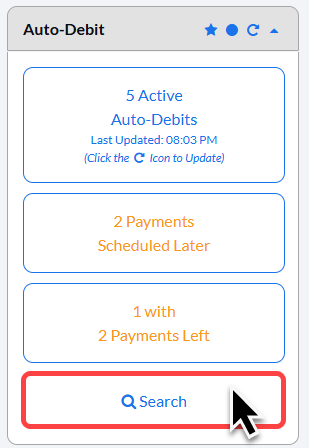
Image

Step 2: Define your search criteria. Most likely, enter the patient's name and click [Search].
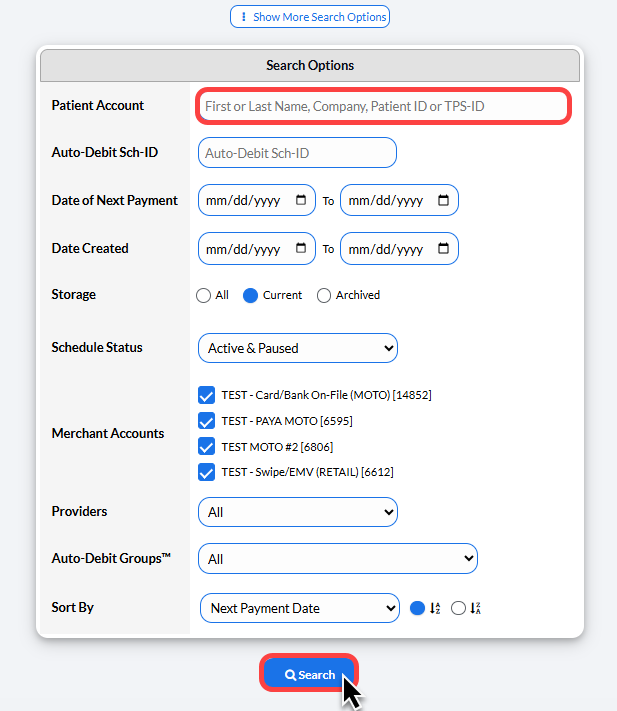
Image

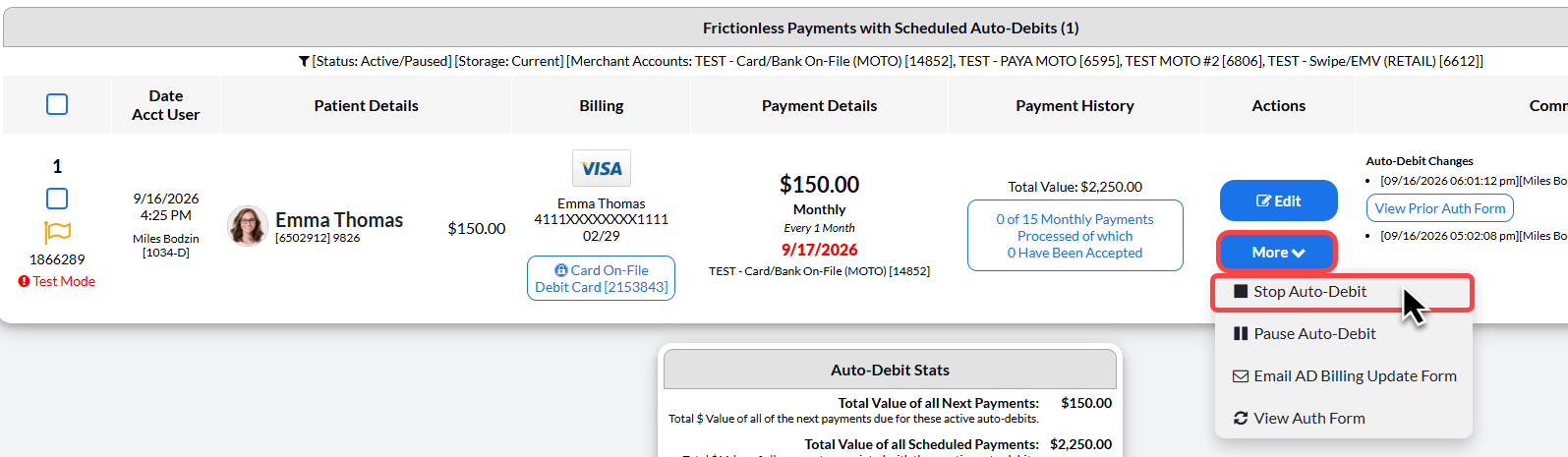
Step 3: Click on the [More] drop-down menu, then click on [Stop Auto-Debit].

Image

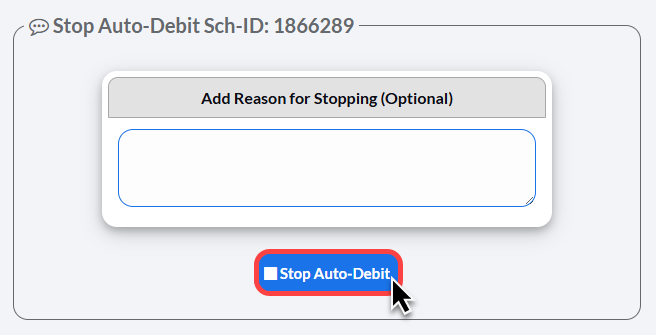
Step 4: A pop-up window will appear with an option to add a comment for why this is being stopped. Click [Stop Auto-Debit]. Click [OK]. 

Image

Step 5: (Optional) If you would like to verify the auto-debit has been stopped, you can view the [Cancelled Auto-Debit Report].
From [Systems] → [Auto-Debit System®] → [Reports] → [Cancelled Auto-Debits]. Full instructions HERE. 


Did you find this article helpful?
Previous

[Refund]: How to refund a transaction

Next

© 2026 Cash Practice Systems. All rights reserved.