

Step 1: From the campaign editor, you will have the ability to add a link to your email content. For steps on how to edit an existing campaign email, click here.
Step 2: Select the "Link" option from your email editor menu. This will display the link properties window.

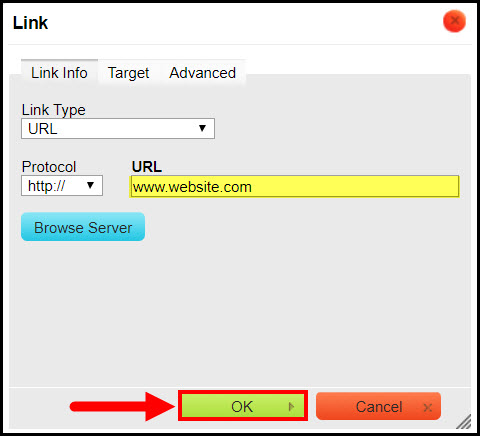
Step 3: Enter the URL address that the link will redirect the patient to once it is clicked in the email, and click [OK].
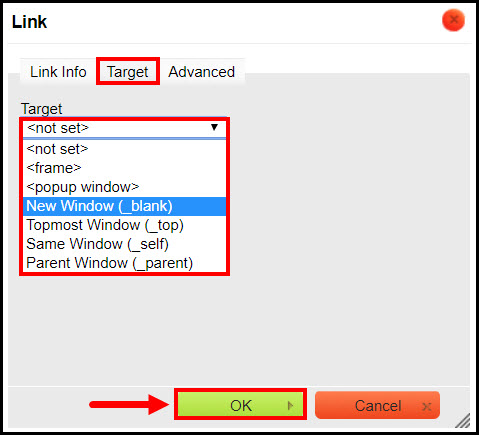
Optional: You also have the ability to designate whether the link opens into a new window when clicked. Using the same link properties window, click on the [Target] tab. From here, change the settings from [<not set>] to [New Window (_blank)]. Click [OK] when finished.
Step 4: To test the link, click the [Preview] button at the top of the composition editor.
Step 5: Click the text or the image in which you've inserted the link to test that the web address was entered correctly.
Step 6: Save any changes made to your campaign email by selecting the [Save] button at the top of the composition page.