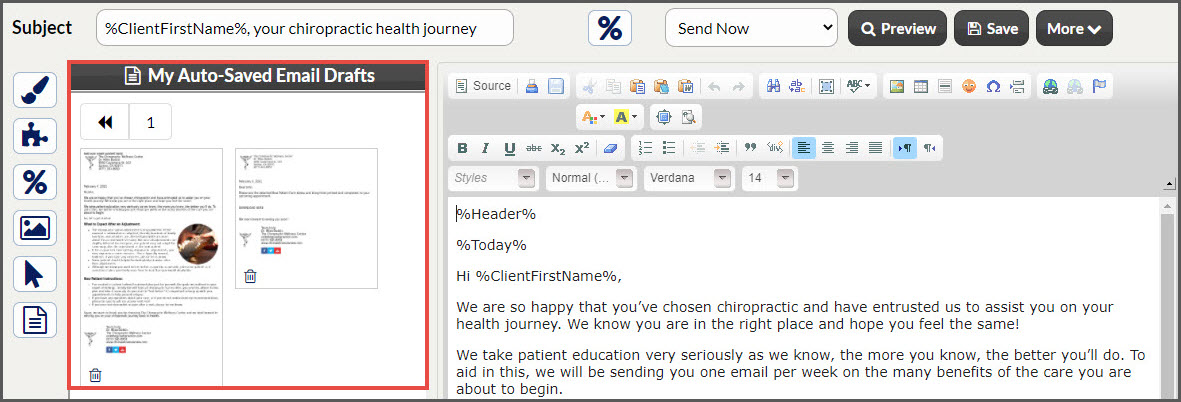
Use Auto-Saved Drafts to access old emails that were used in the past!
When creating emails using the Drip-Education® System, your account will automatically store a draft copy of each email that you have written in your Drip-ED™ campaign and broadcast editors. This is convenient so that you don't have to constantly retype the same general messages you may be using more than once.
These Auto-Saved Drafts can be found in both the campaign editor and your Drip-Education® System Menu.
From the Systems menu: To view and Manage
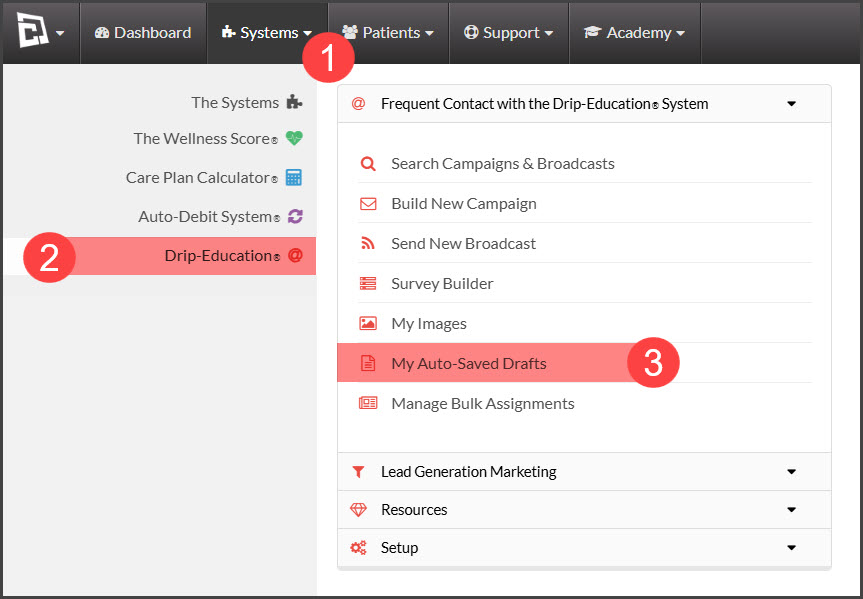
Step 1: Hover over [Systems] → [Drip-Education®]→ [Auto-Saved Drafts].
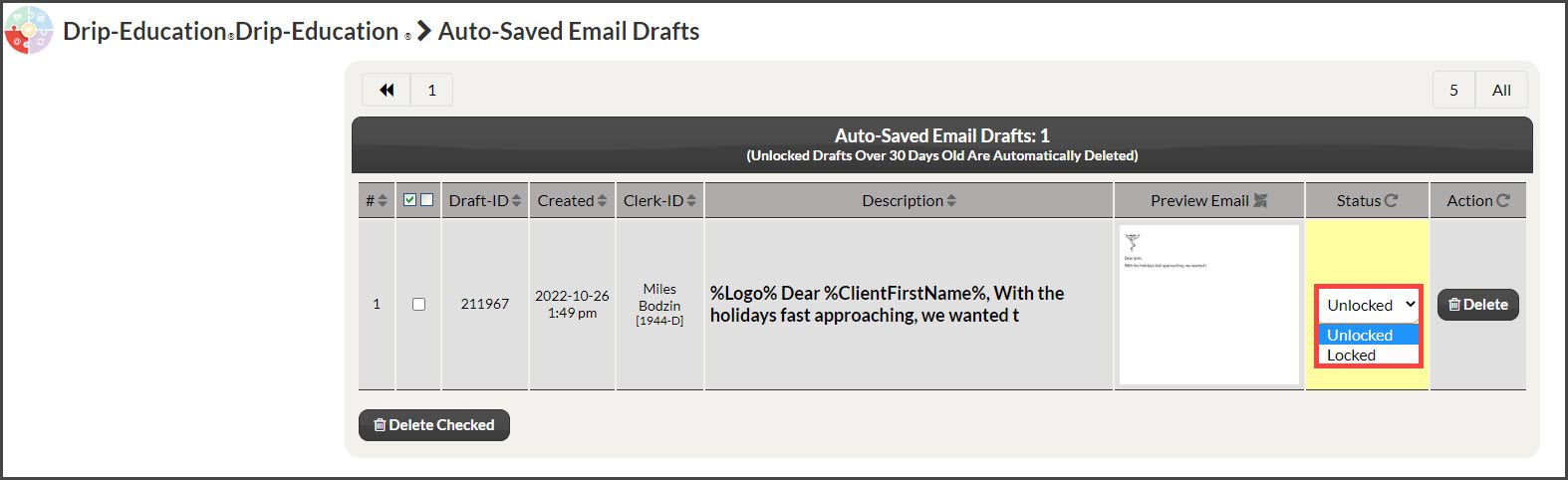
Step 2: Here, you can view your Auto-Saved Drafts, manage their status, and delete them.
Status:
Locked: This means the draft will be saved indefinitely
Unlocked: This means the draft will be deleted after 30 days.
From My Campaign: To Use
NOTE: You must first be on the campaign editor page. For steps on how to access the campaign editor, click HERE.
Step 1: Click on the paper icon on the left-hand panel to load and view your Auto-Saved Drafts.
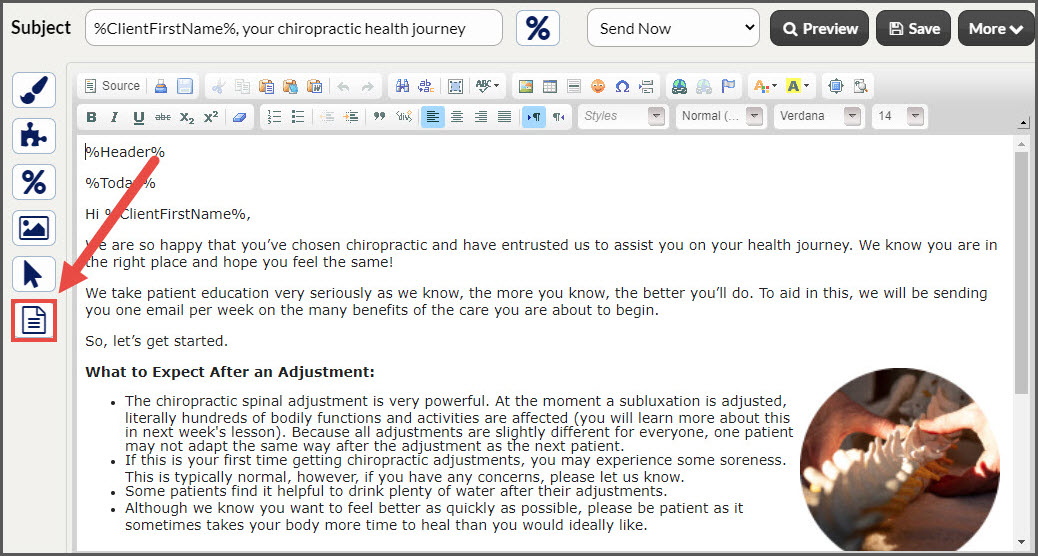
Step 2: First, select the [Show My Auto-Saved Email Drafts] button, then choose which one you would like to use.