

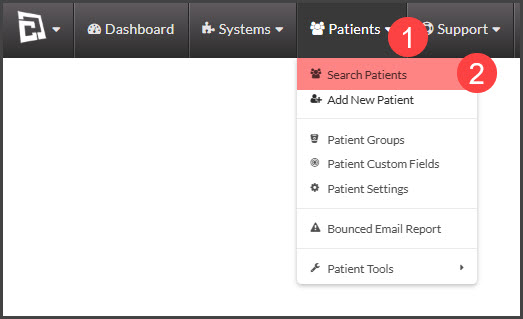
Step 1: Go to the [Patients] menu → click on [Search Patients].
Step 2: Click the [Campaigns] tab. The [Filter By Campaigns] box will display.
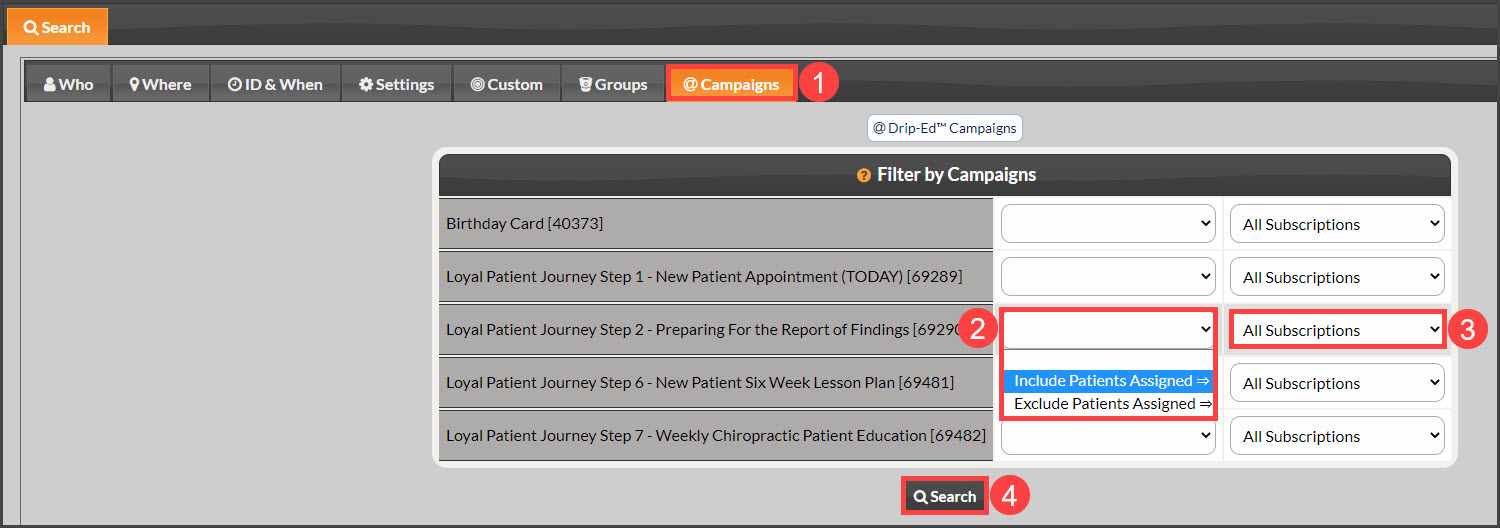
Step 3: Select Include Patients Assigned from the first drop-down menu next to the campaign in which you are looking for patients assigned.
Step 4: Select Active Subscriptions from the second drop-down menu next to the campaign in which you are looking for patients actively receiving emails.
Step 5: Click [Search]. This will display a list of all patients currently assigned to the campaign AND who are actively receiving emails from the said campaign.
Step 6: Switch the [Results Per Page] view to ALL (if there are multiple pages). This will display the patients currently assigned to the campaign (if any).