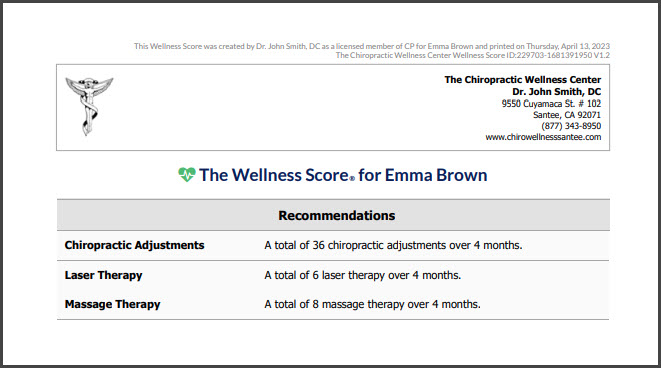
Including a Service Group with the Wellness Score® is optional. Including a Service Group will outline your treatment plan recommendations. The Service Group will be displayed on page 4 of the patient's printed wellness report. See the image example below:
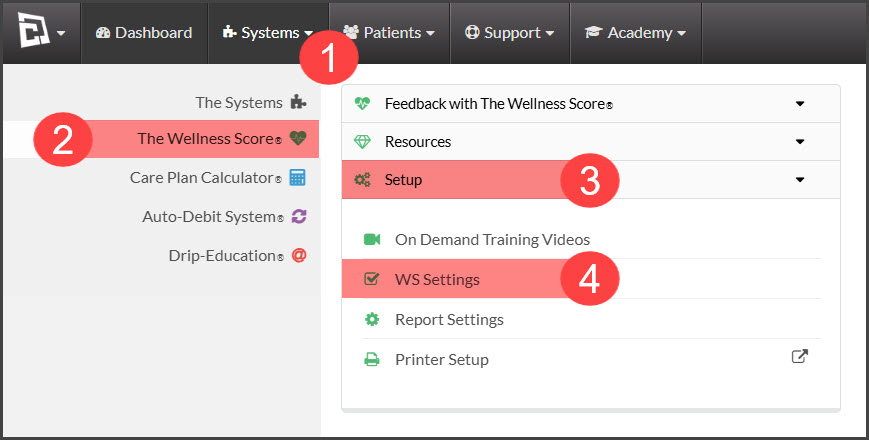
Getting started:
Step 1: Hover over [Systems] → click on [The Wellness Score®] → click on [Setup] → select [WS Settings].
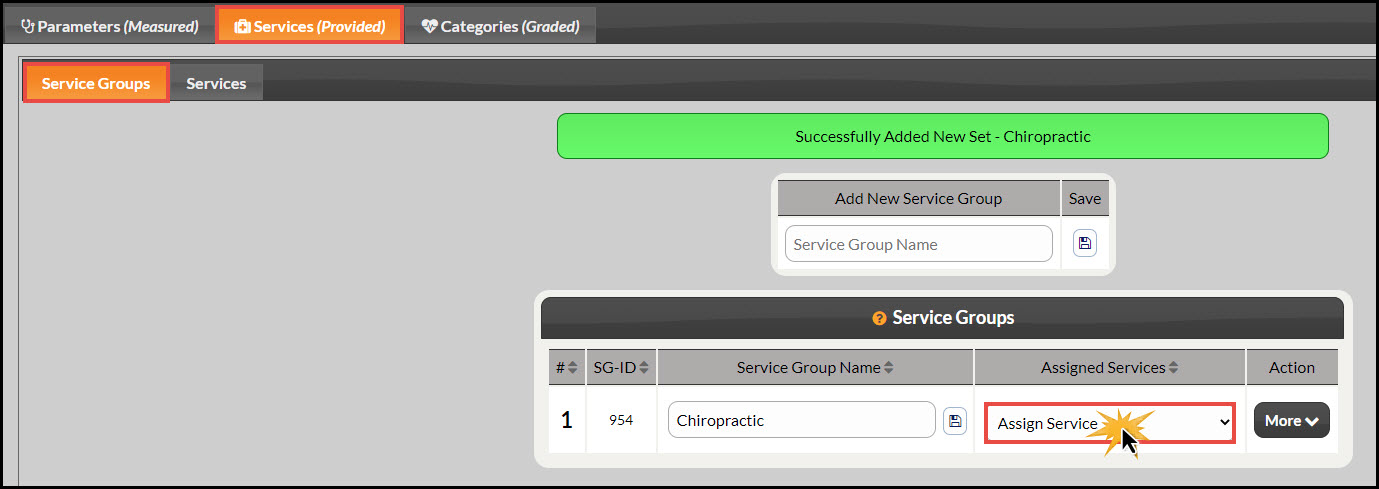
Step 2: Click on the [Services] tab → sub-tab [Service Groups].
Step 3: Type in the name of the Service Group you would like to add to your account. Select the [Save] icon to the right.

Step 4: The page will reload, and you will now see the newly added service group. To assign services to the Service Group, select the [Assign Service] selector field, and click on the desired service.
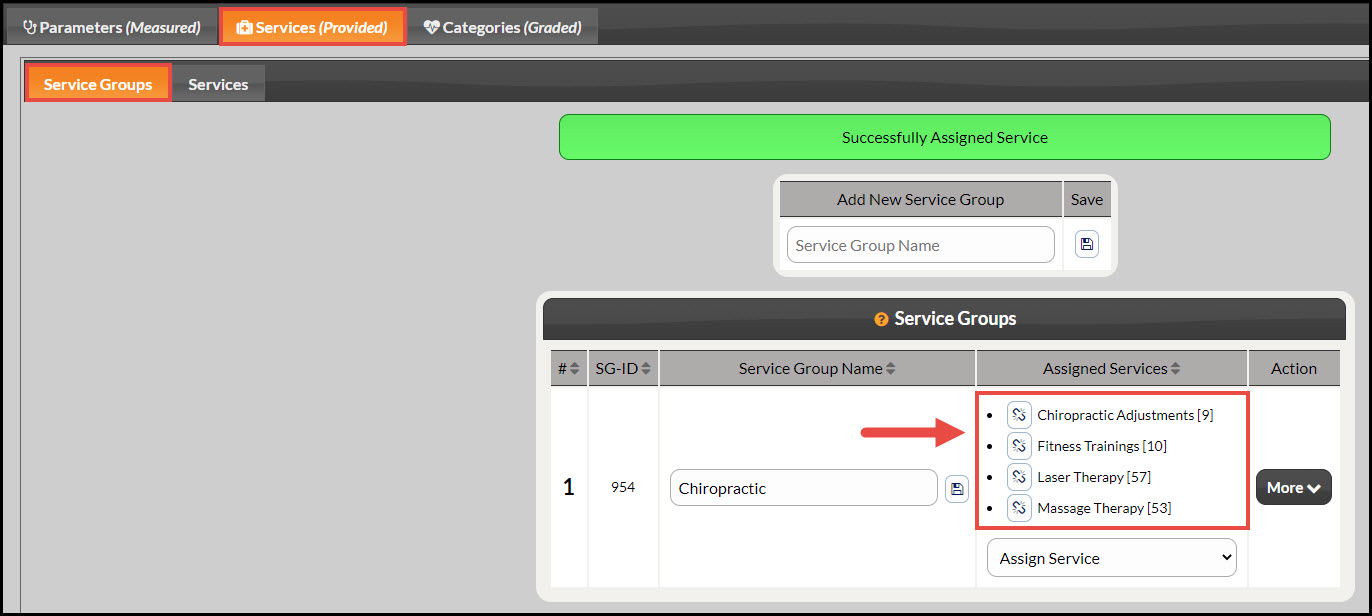
Step 5: The page will reload to show the newly added services to your Service Group.