

How it Works
Costs
eStatements costs $0.25 each. No refunds. No rollovers.
*Note: ClinicMind® also charges $0.25 for each eStatement generated.
What You'll Save
Think about how much time your staff spends printing, folding, and stuffing paper statements into envelopes and mailing them.
When you eliminate the time spent on statements, paper, envelopes, ink, and postage, we estimate you may save up to $1.50 per statement. Multiply that by the number of statements you send monthly to estimate your total savings!
How it works in ClinicMind®:
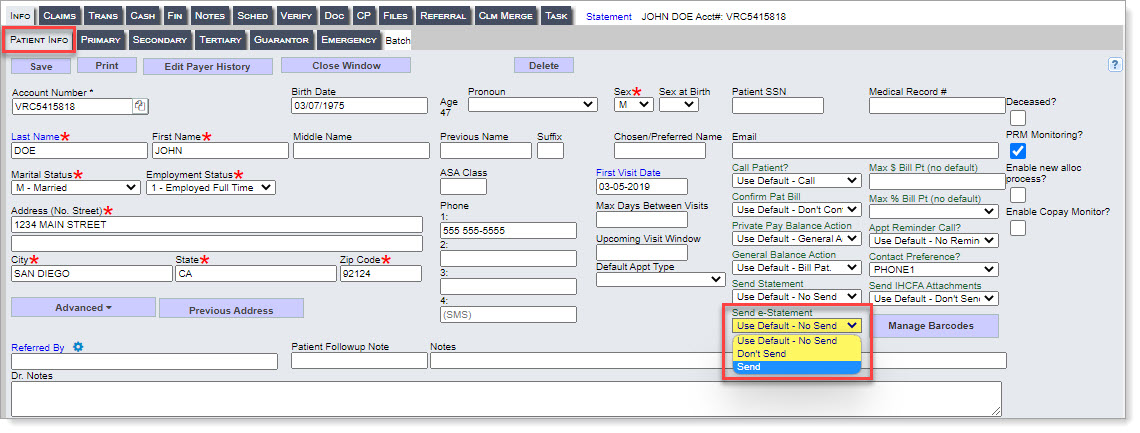
When claims are turned on in the patient status, and the patient has a balance past 30 days, the system will automatically send the file to generate the eStatement. If the balance continues, a new eStatement will be sent every 30 days. If you have [Send to Collections] on, after 3 eStatements, they can go to collections. If collections are not on, then the patient will continue to receive eStatements every 30 days.
The statements are automatically emailed to the patient using your CP eStatement integration.
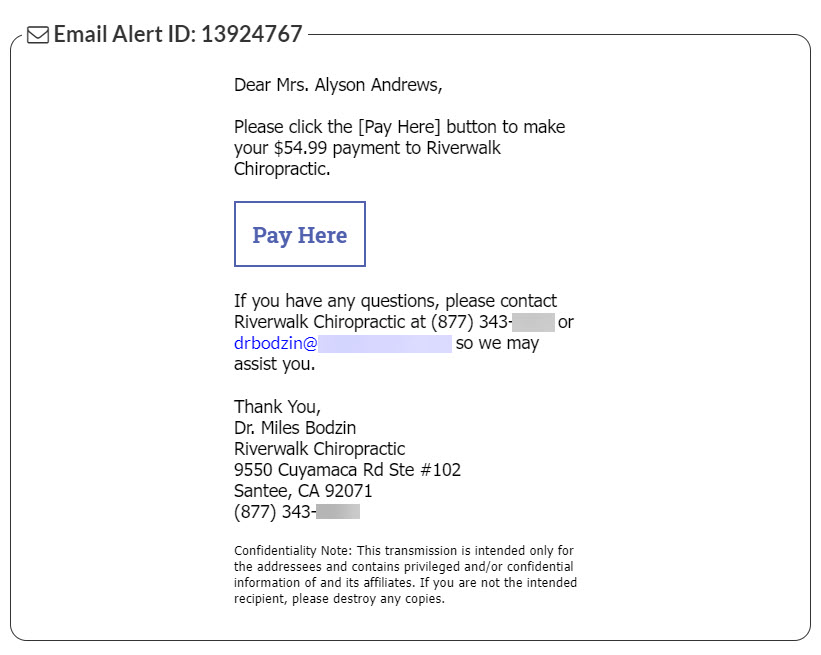
The patient receives their statement via email, which includes a secure online payment form for them to pay their bill.
Once the payment is made, the payment will post to the patient's ClinicMind® ledger.
Note: If you wish to preview eStatements prior to them being emailed to the patient, contact the ClinicMind® help desk via chat or ticket and mention that you are interested in the "Patient Balance Confirmation" feature.
Sample email the patient will receive:
Sample payment link with statement details: (Web & mobile friendly)

How to Change the Merchant Account used with ClinicMind® eStatements:
Access your Auto Debit System Setting within Cash Practice, see THIS article for additional steps
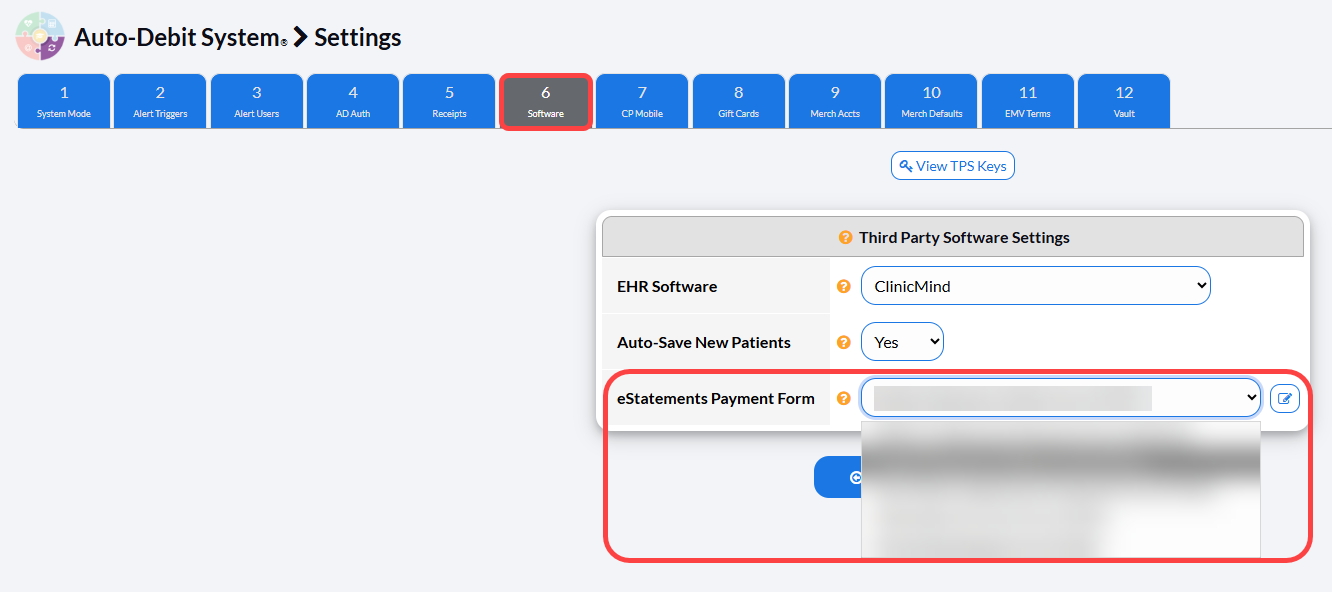
Go to Step 6 [Software]
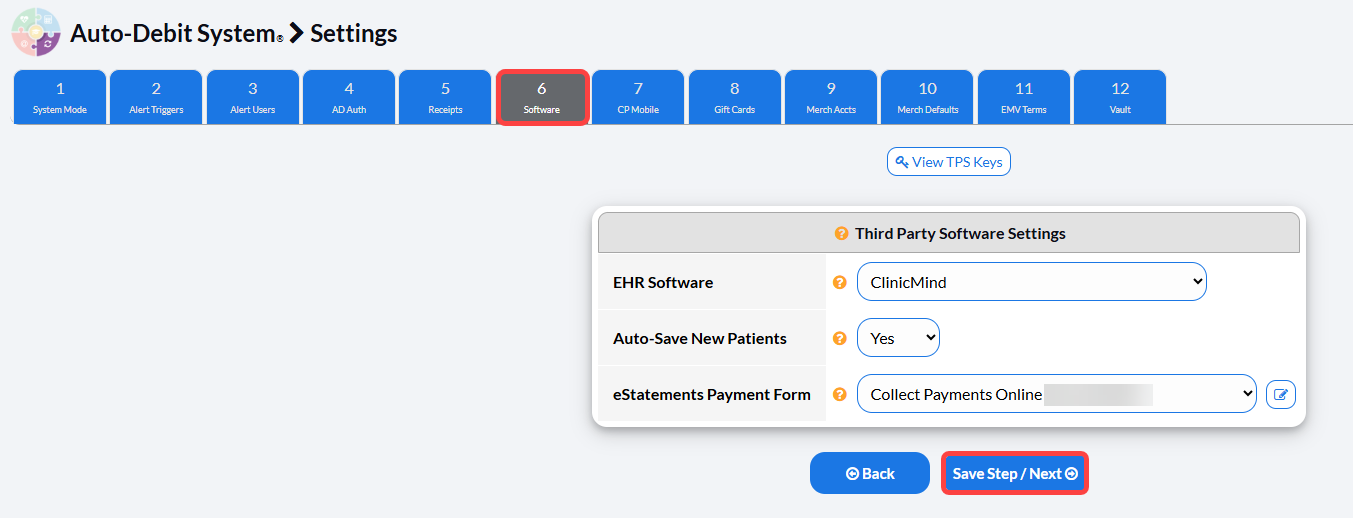
Change the [eStatement Payment Form]
Click [Save Step/ Next]
In Cash Practice:
The online payment will appear on your Posted Payment Report.
The payment will appear in the patient's Billing History.
All eStatements emailed will appear in the patient Alert History.