
Logo

Cash Practice® Systems Help Center

Search our knowledge base to get answers to your questions, access video training & more!

ClinicMind®: How to process product purchases through the ClinicMind® (Genesis) point of sale feature

ClinicMind® (Genesis®) Integration and Training

ClinicMind®: How to process product purchases through the ClinicMind® (Genesis) point of sale feature

Learn how to easily sell products through your Cash Practice integration by utilizing the Point of Sale feature. This allows you to quickly populate the price for the item and streamline the payment processing for a seamless shopping experience.

Last updated on 14 Sept, 2025

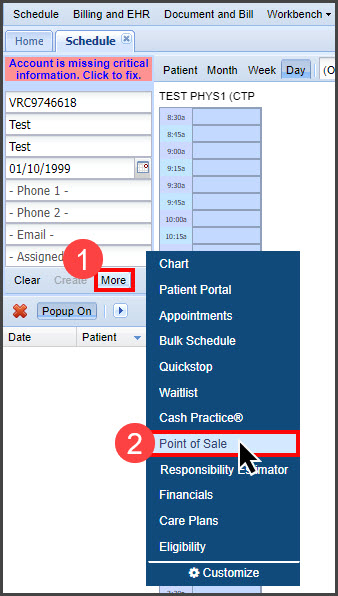
Step 1: Once you have a patient record selected in ClinicMind, click on the [More] drop-down menu and select [Point of Sale].
Image

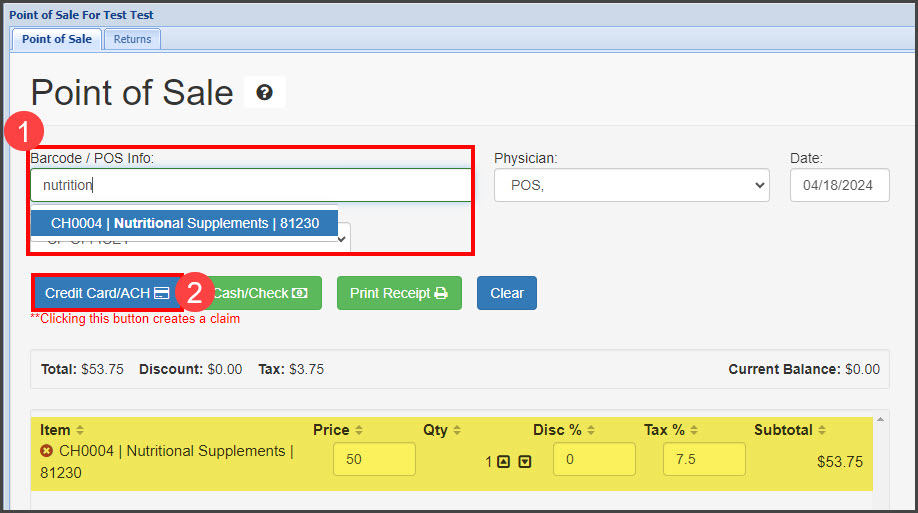
Step 2: In the "Barcode/ POS Info" field, begin typing the name of the product and select it from the drop-down menu. Once you select the item, it will then reflect the total for that product down below. Next, click on the [Credit Card/ ACH] button to open the Cash Practice Virtual Terminal.
Image

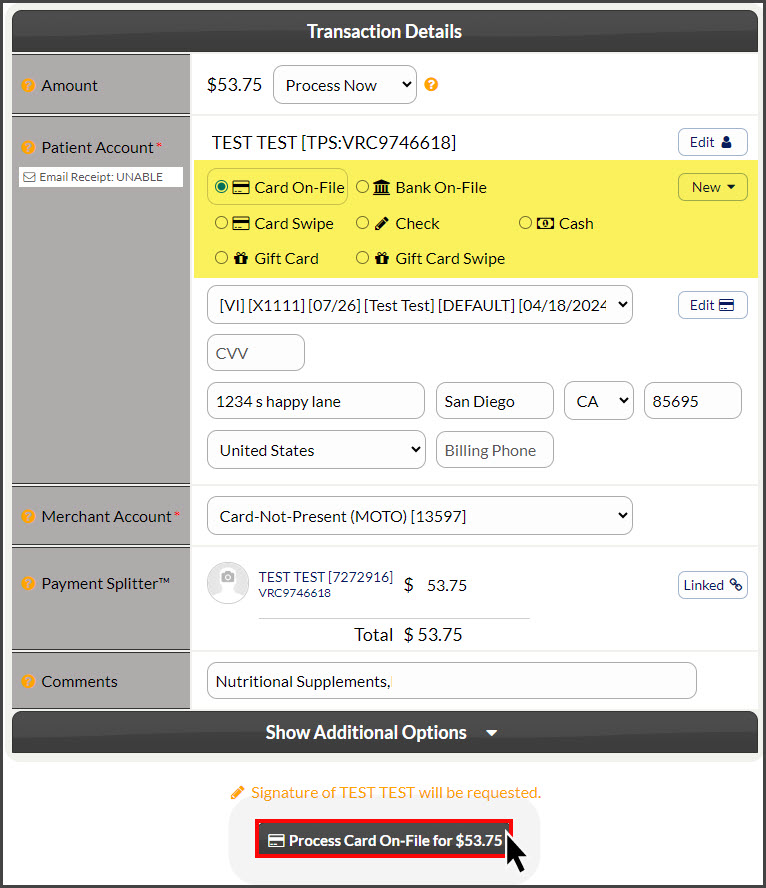
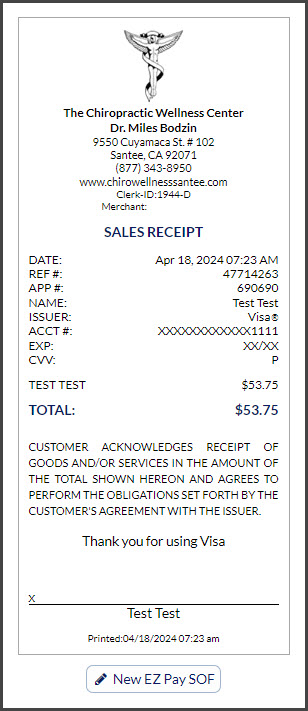
Step 3: Choose how to process this payment using the Virtual Terminal (in this example, we chose to use the card on file) and select the [Process Card On-File for $53.75] button. The accepted payment will then present a receipt for the purchase.
ImageImage

Did you find this article helpful?
Previous

ClinicMind® (Genesis®) CP eStatements

Next

© 2026 Cash Practice Systems. All rights reserved.