

Why would I give my staff individual usernames and passwords?
It is required by HIPAA that you create separate & unique usernames and passwords for your account users and not just give them your admin username to use. The purpose is to maintain security and prevent those you give access to from accessing areas of CashPractice.com you do not want them to have access to. Their Clerk-ID will identify their activity for tracking usage. In addition, you can control what the account user can do, when they can log in, and you can simply inactivate the account user if they are no longer employed at your office.
Click the Self Help button to use the Cash Practice® walkthrough when logged into your account.

Getting started:
Step 1: Log in to your account as the Admin/Owner (or as a user that has already been given permission to create new users).
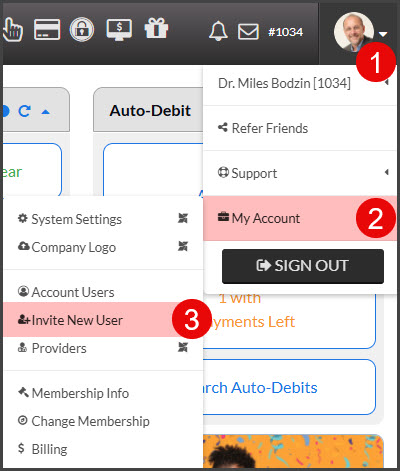
Step 2: Hover over the [User Profile] icon in the top right corner of your screen→ hover over [My Account] → click on [Invite New User].
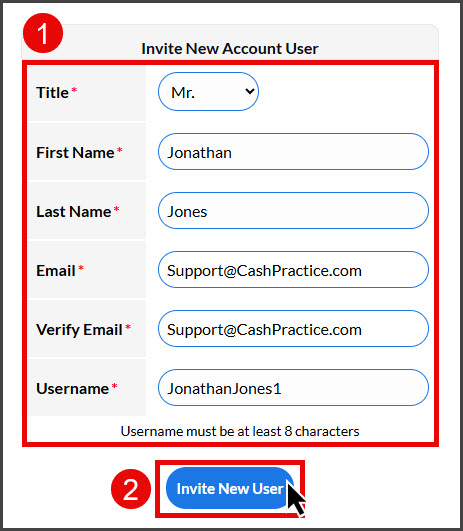
Step 3: Fill in all of the required fields and click [Invite New User].
NOTE: Your team member will receive an email with their temporary password, which will expire within 24 hours. Your team member will use their temporary password to log in and they will be prompted to update their password.
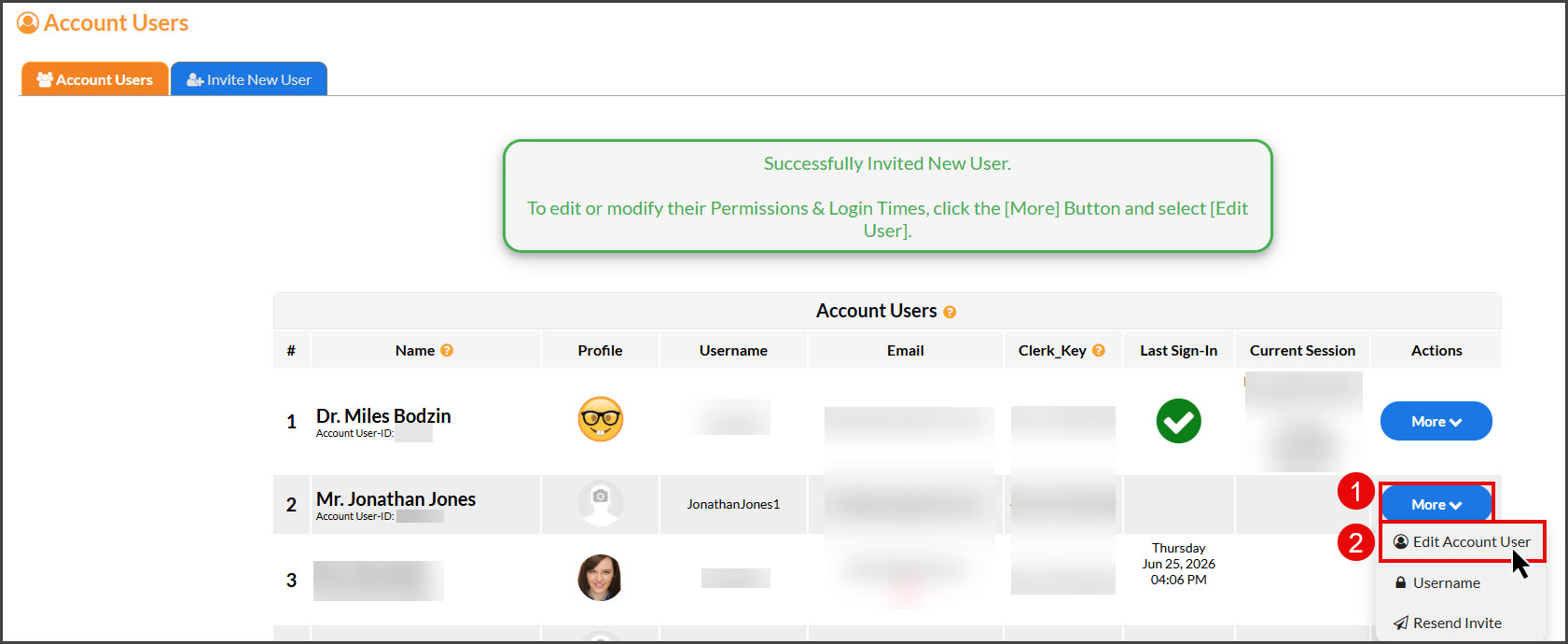
Step 4: From the [Account Users] list, click on the [More] button for the new user, then select [Edit Account User] from the drop-down.
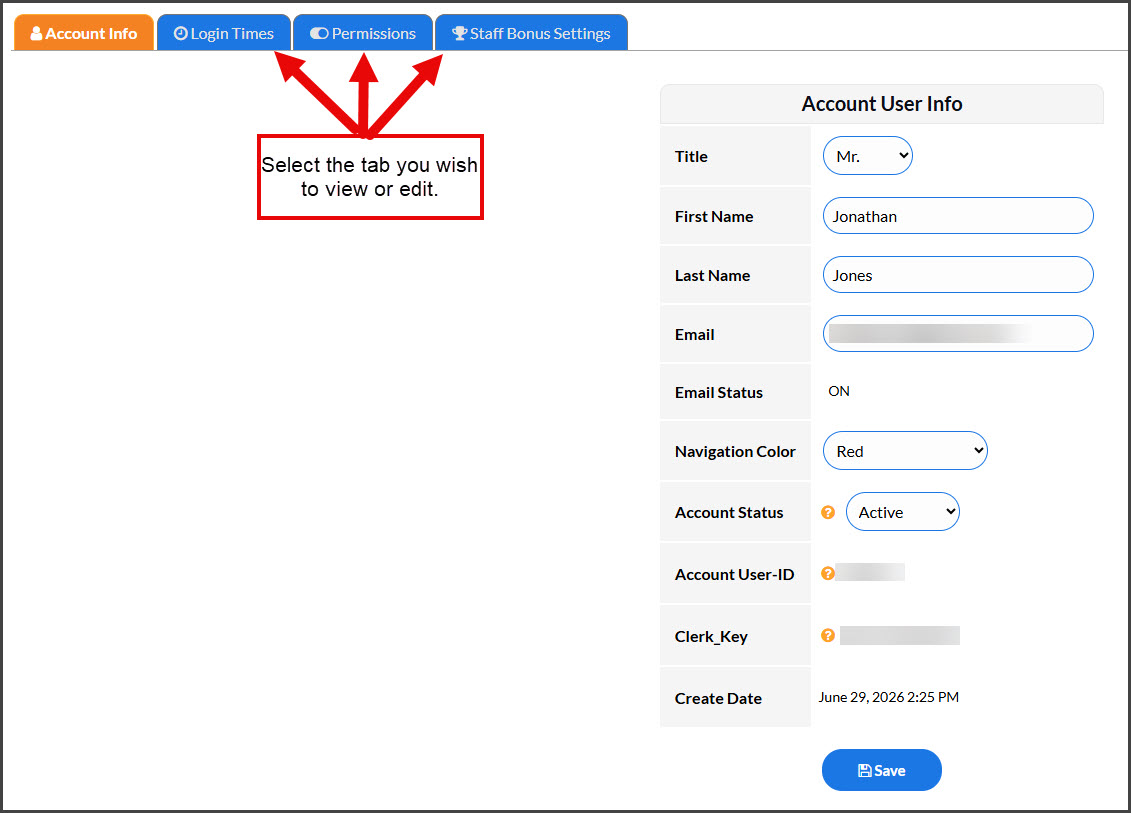
Step 5: Customize the account user
Click the [Login Times] tab to review your team members' login times and change their access days/times if necessary.
Click the [Permissions] tab to review your team members' permissions on what the user has access to and change if necessary.
Click the [Staff Bonus Settings] tab to change bonus amounts (optional).
Note: The new user will automatically be created with the default permissions (after you clicked [Save] in Step 3). You can leave the settings as-is or you can customize the new user in Steps 4-5. This includes setting login times and permissions. BY DEFAULT, ALL NEW ACCOUNT USERS WILL HAVE ACCESS TO LOG IN TO CASH PRACTICE® FROM 7:00 AM - 8:00 PM MONDAY -FRIDAY. If they need access beyond these set times, edit the login times (in Step 5) accordingly.
Some permissions will be pre-selected; you can toggle any permissions on or off. You can also select [Do Not Allow Access] to completely negate a user from being able to access a system or portion of the site. Click the [Save] button when done.
NOTICE: All account users who have not logged in for 6 months (180 days) will be automatically inactivated by the Cash Practice® System to increase account security.