Why would I need to inactivate my account user?
If an account user is no longer working with you, it is important that you disable their account. Account users cannot be deleted from CashPractice.com so that you have a record of their activity. However, you can inactivate their account.
NOTICE!: All account users who have not logged in for 6 months (180 days) will be automatically inactivated by the Cash Practice® System to increase account security.
Getting started:
Step 1: Log in to your account as the Admin/Owner or a user with permission.
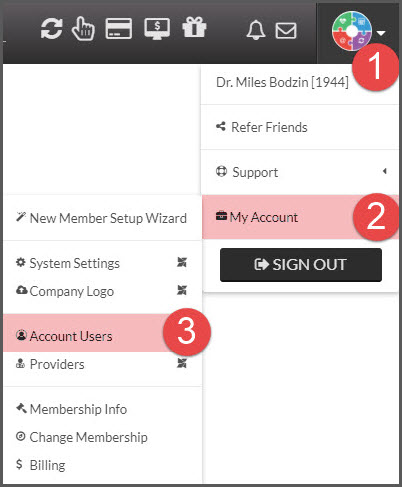
Step 2: Hover over the [User Profile] in the top right-hand corner→ hover over [My Account]→ click on [Account Users]
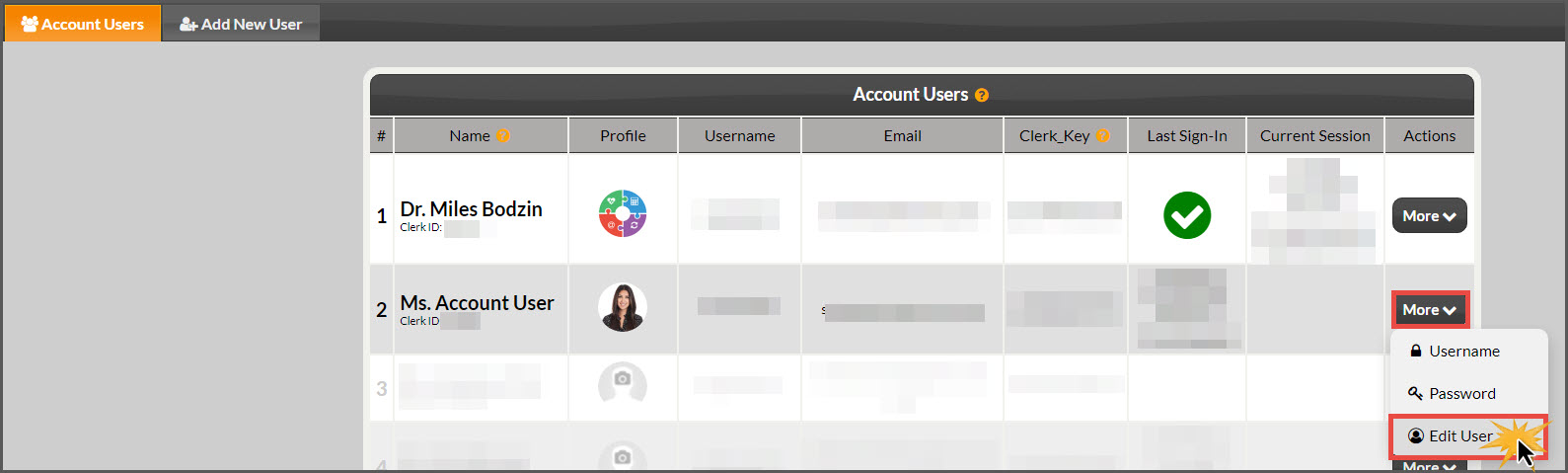
Step 3: Choose the Account User you wish to disable and click [More]→[Edit User].
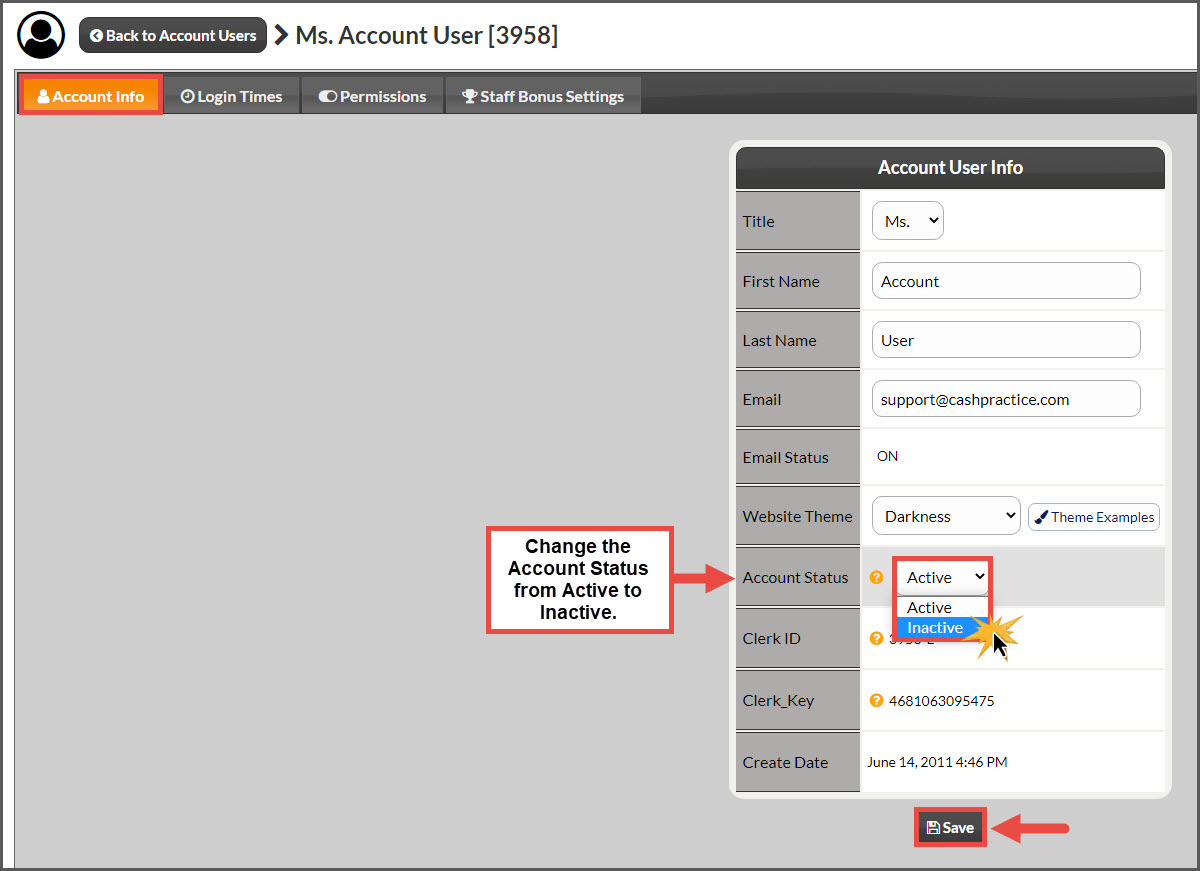
Step 4: Using the dropdown arrow, change the [STATUS] from [ACTIVE] to [INACTIVE] → [Save].