

Why customize your account theme?
Prevent Account Mix-ups: Instantly recognize who is logged in. Ideal for offices with shared workstations or multiple distinct user accounts.
Branded & Personal: Create a cohesive look that aligns with your personality or your practice's official color palette.
Your navigation theme color will display at the top of your Cash Practice® account.
Changing the Admin/Owner's Website Navigation Menu Color:
Step 1: Login as the Admin/Owner.
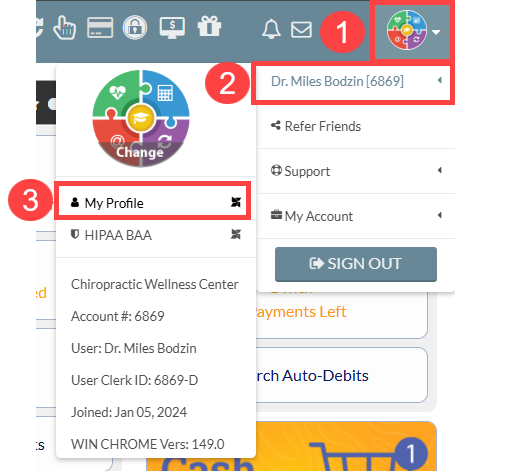
Step 2: In the top right corner:
Select the [User Profile Menu].
Click on the Admin/Owner's name.
Select [My Profile].
Step 3: Change the [Navigation Color] from the drop-down menu.
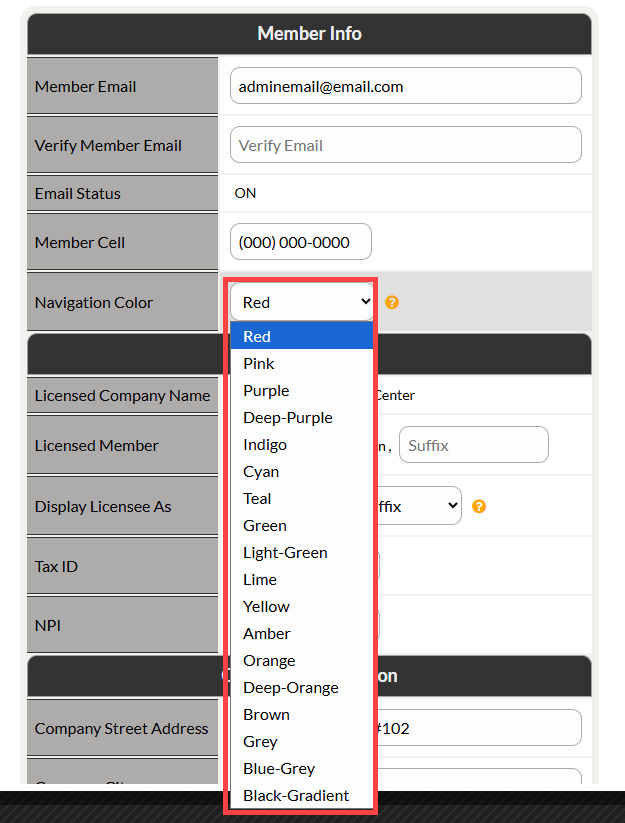
Step 4: Select [Save] at the bottom of the page to save your changes.

Account User: Changing your website theme
Step 1: Log into the Cash Practice® user account:
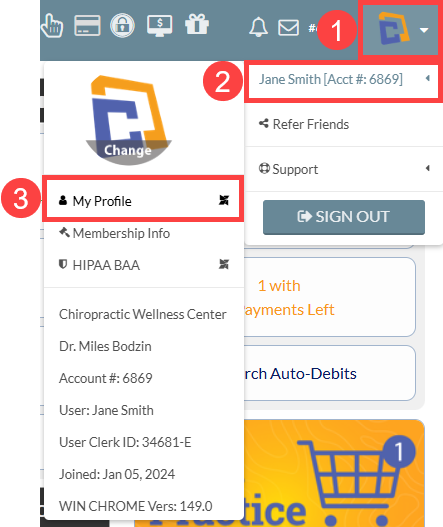
Step 2: In the top right corner:
Select the [User Profile Menu].
Click on the account user's name.
Select [My Profile].
Step 3: Change the [Navigation Color] from the drop-down menu.
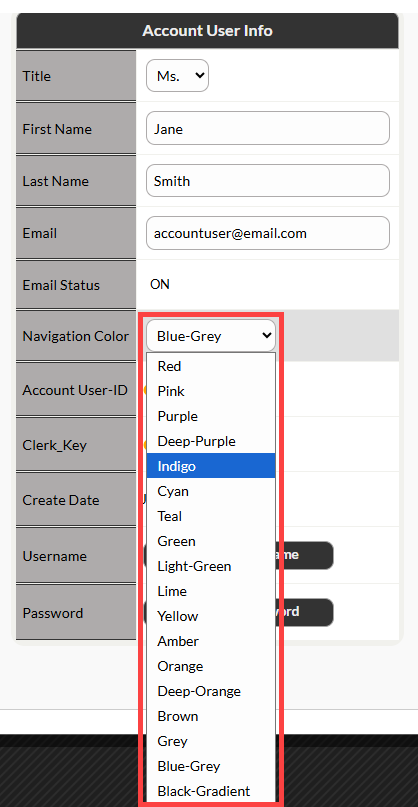
Step 4: Select [Save] at the bottom of the page to save your changes.