

Step 1: Login as the administrator, or as a user who has been given administrative privileges. (For more info on giving a user administrative privileges click HERE)
*Note: All users added into Cash Practice®, by default, have log-in times from 7:00 am - 8:00 pm Monday - Friday.
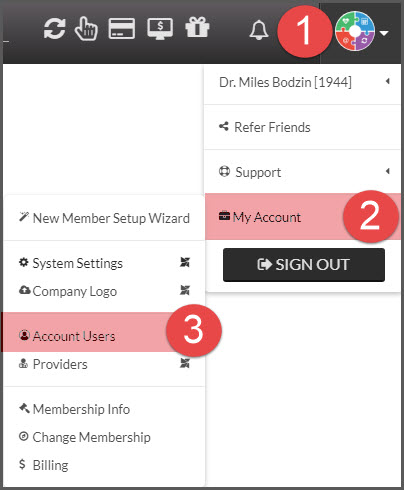
Step 2: Hover your mouse over the [User Profile] menu → [My Account] → click on [Account Users].
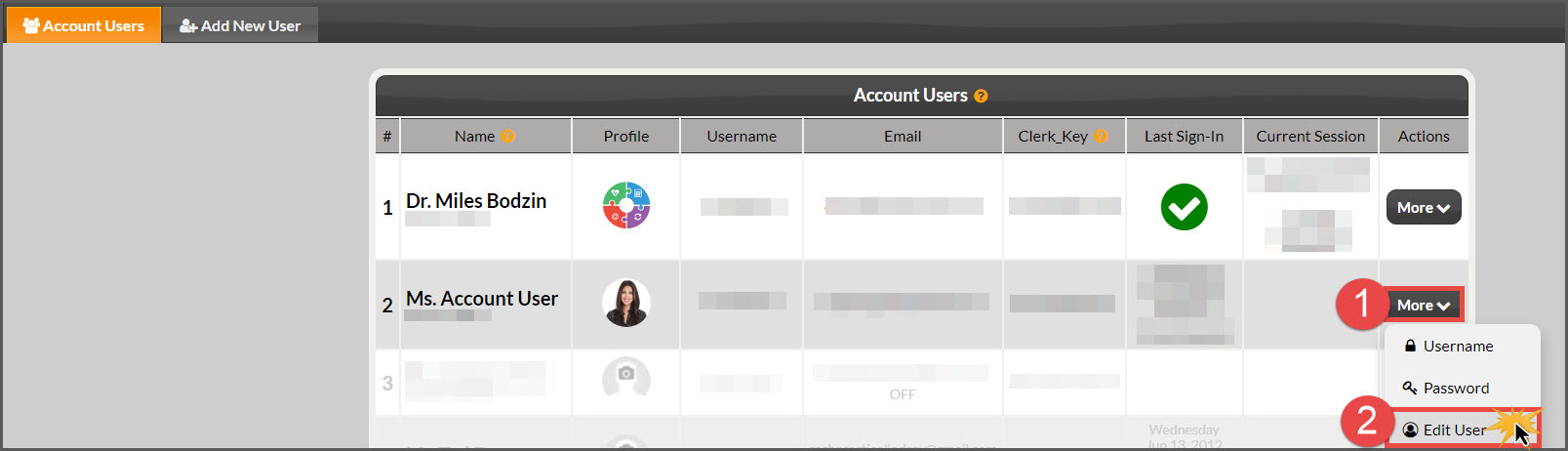
Step 3: Click the [Edit User] button for the account user you need to access.
Step 4: Click on the [Login Times] Tab.

Step 5: Edit the times or use the "Access" drop-down box to select [No Access] or [24-hour Access]. If the user will have the same login times for each day, you can set one, and then select [Apply to All].
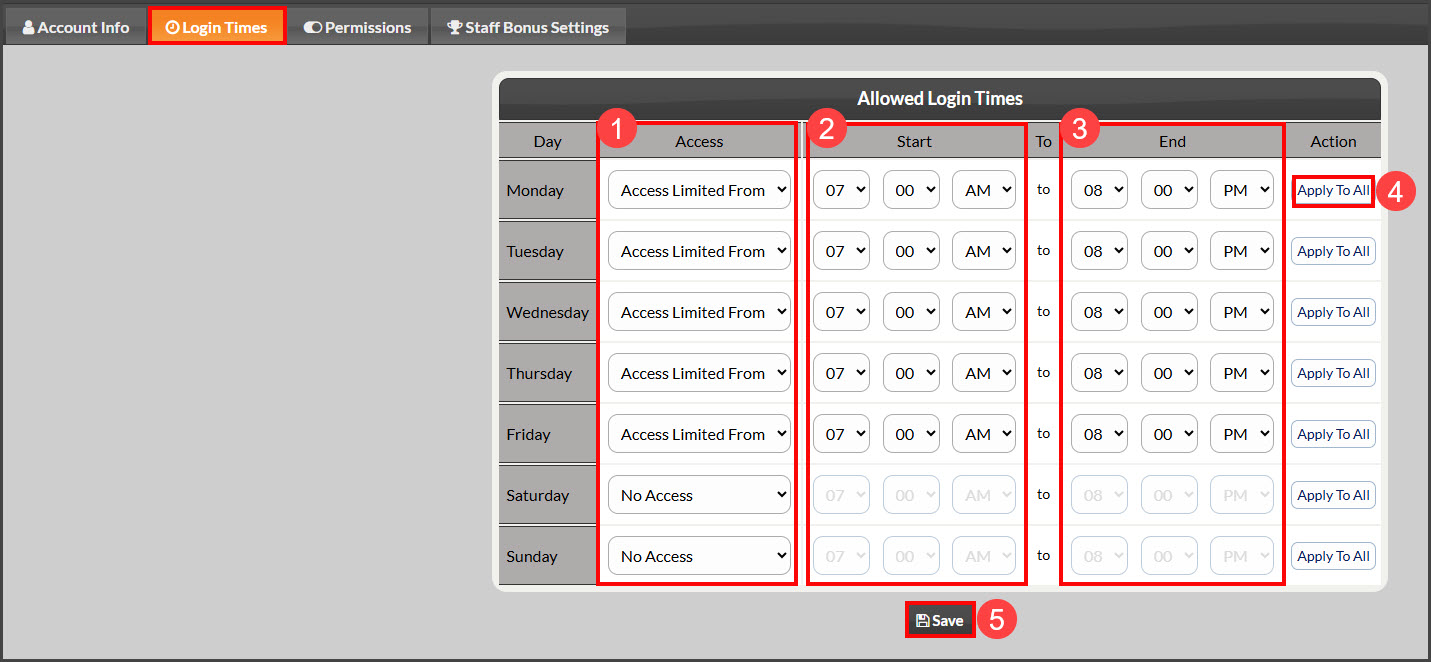
Step 6: Click [SAVE].