Comparison Reports are Crucial for Patient Retention
One of the biggest reasons a patient will drop out of care is due to the failure to effectively communicate the amount of progress they are making. It is crucial that the doctor does progress exams and provides the patient with a Wellness Score Progress Report so the patient knows how they are doing. A doctor who fails to do regular progress exams and/or fails to effectively communicate how the patient is progressing will suffer from poor retention.
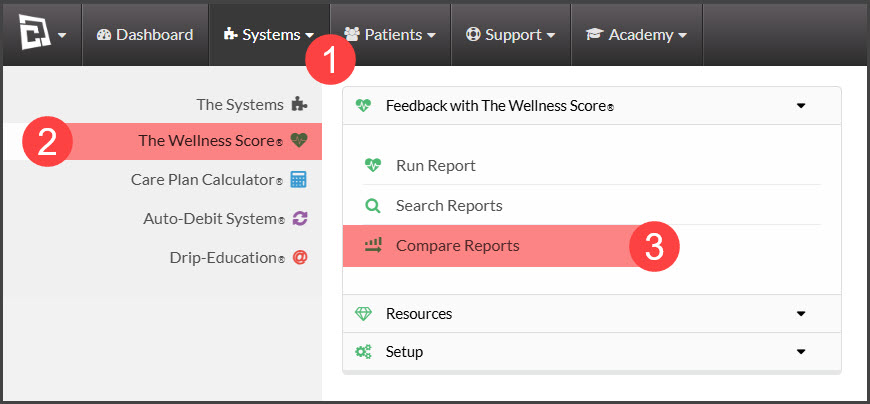
Step 1: Hover over [Systems] → click [The Wellness Score®]→ Under [The Wellness Score®] click on → [Compare Reports].
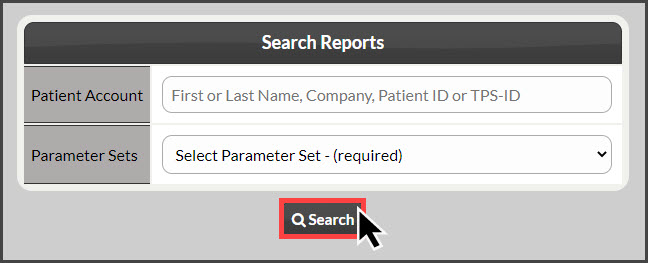
Step 2: Enter the Patient's Name, select the Parameter Set you wish to compare, and click the [Search] button. Please note you can only compare matching parameter sets.
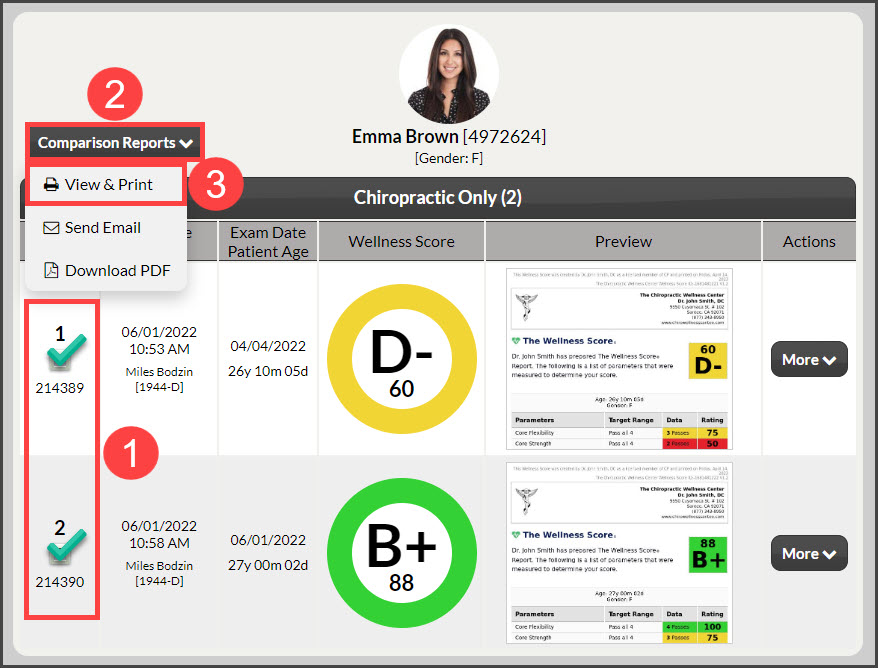
Step 3: From the list of Wellness Score® Reports, check the selector box in the first column next to the reports you want to compare. You can pick up to 5 to compare, although we recommend only picking 2 for the best printing results.
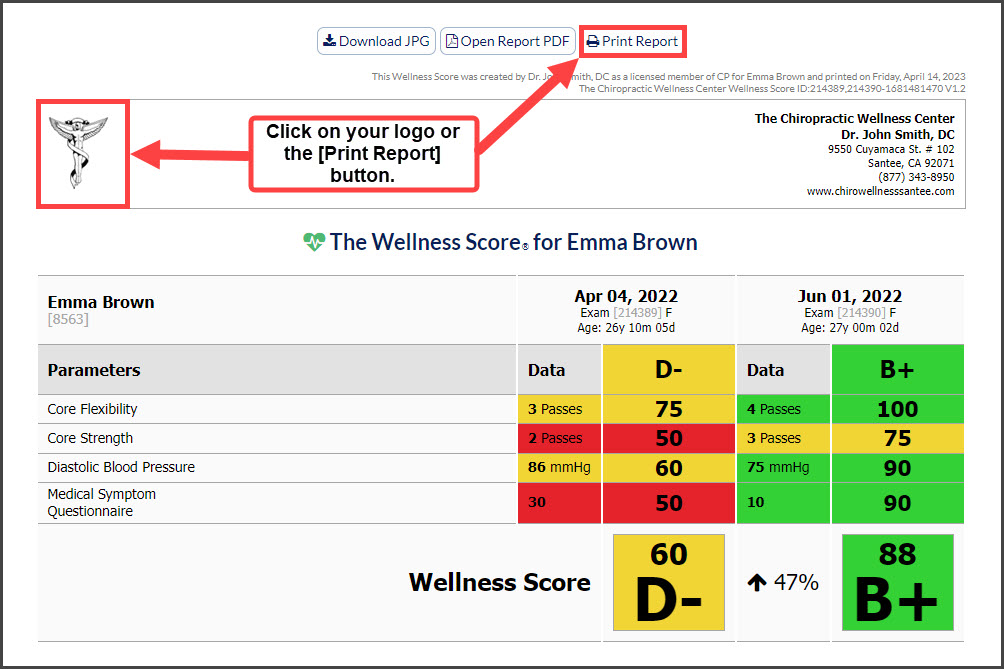
Step 4: Click the [Comparison Reports] button and select [View & Print] to open the report.