

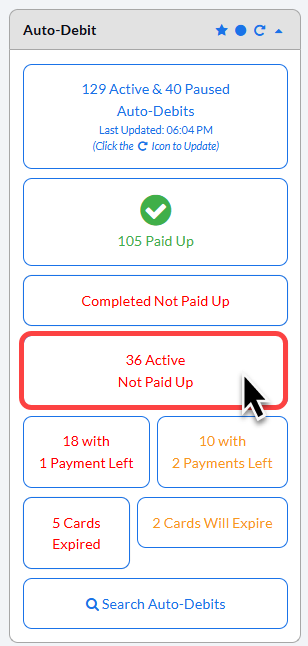
Step 1: From the Dashboard, click on the shortcut button labeled [Active Not Paid Up], to review your active auto-debits that are not paid up.
Step 2: Click [Investigate Short by X Payment] to view the patient's auto-debit transaction history.
The [Investigate] button allows you to easily review your patient's payment history to determine why the patient's auto-debit is not paid up to date.
Action Required: Investigate any payments displaying the [Not Paid Up to Date] alert

Step 3: Cross-reference the patient's billing history with your EHR/EMR/ledger to confirm if the declined amount was collected through another method (e.g., cash, check, or a one-time Virtual Terminal payment) rather than rescheduled.
For more information about investigating declined payments: Payments: How to handle declined payments
Step 4: Take Action to either Reschedule the payment or Cancel the payment.
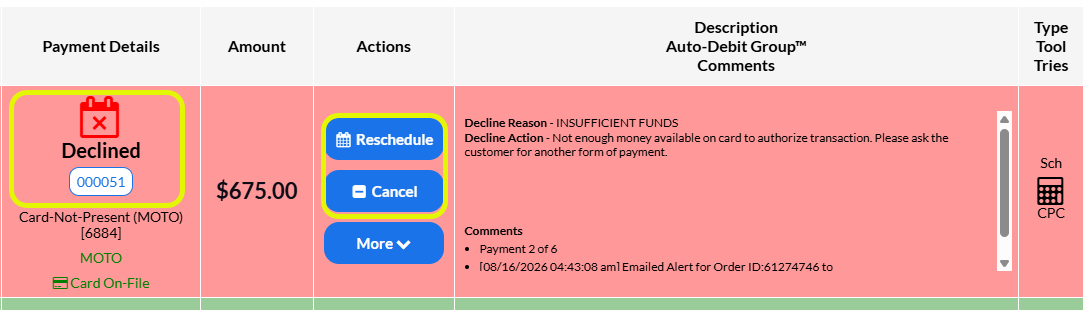
Cancel: If you have collected the funds another way, written off the amount, or have made other arrangements with the patient, then you can cancel the transaction. You will then need to remove the alert for the auto-debit payment by clicking on the [Remove Alert] button in the [Actions] column.
Reschedule: If a payment was not collected for the declined transaction, you will want to take action & collect payment for the transaction.
Reschedule the transaction (Only available if payment has not been canceled on PPRG). Alert will automatically be removed.
Process one-time payment using the VT, SS or EZS→ then remove the alert
Collect cash or check over the counter→ then remove the alert
If your office is unsure about the best action to take, please reach out to our Training & Support Team by email at support@cashpractice.com or by phone at (877) 343-8950 x102.