Logo

Cash Practice® Systems Help Center

Search our knowledge base to get answers to your questions, access video training & more!

Reports: How to export a list of auto-debits into an Excel spreadsheet

Auto-Debit System® (Frictionless Payments)

Reports: How to export a list of auto-debits into an Excel spreadsheet

Last updated on 13 Sept, 2025

Getting Started:

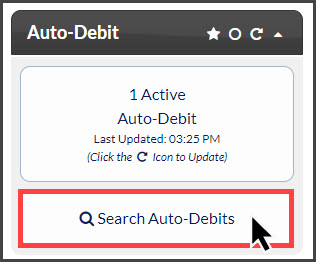
Step 1: From the Dashboard, click on the [Search Auto-Debits] button. 
Image

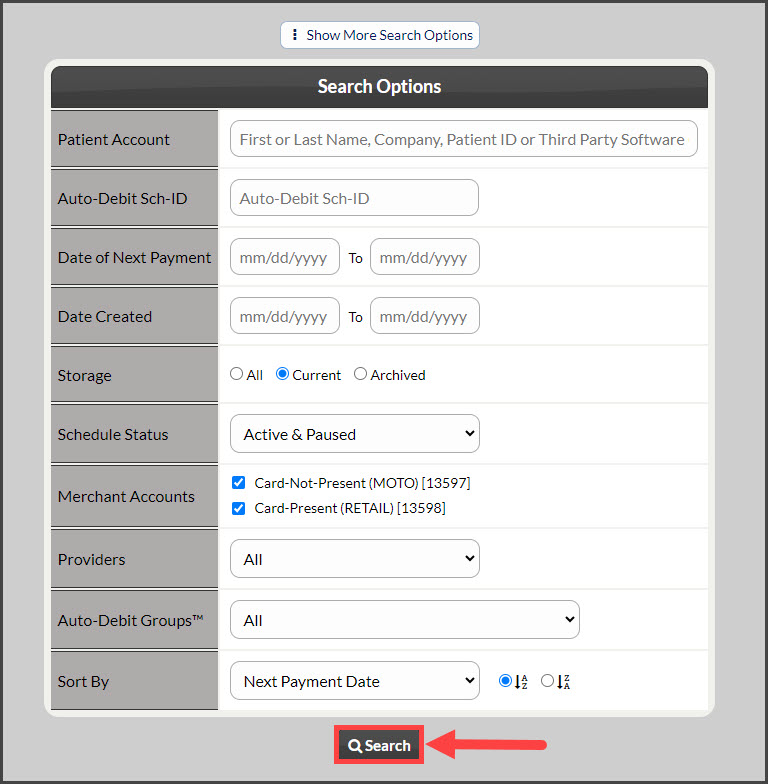
Step 2: From the Search Options screen, enter any specific search criteria desired for the list. Click the [Search] button at the bottom of the screen. 
Image

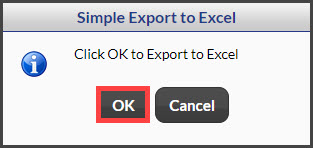
Step 3: Once the page loads, click the [Export to Excel] button on the left side of the page. Click [OK] to proceed. 

ImageImage

Step 4: Click the [Download Excel File].

Image

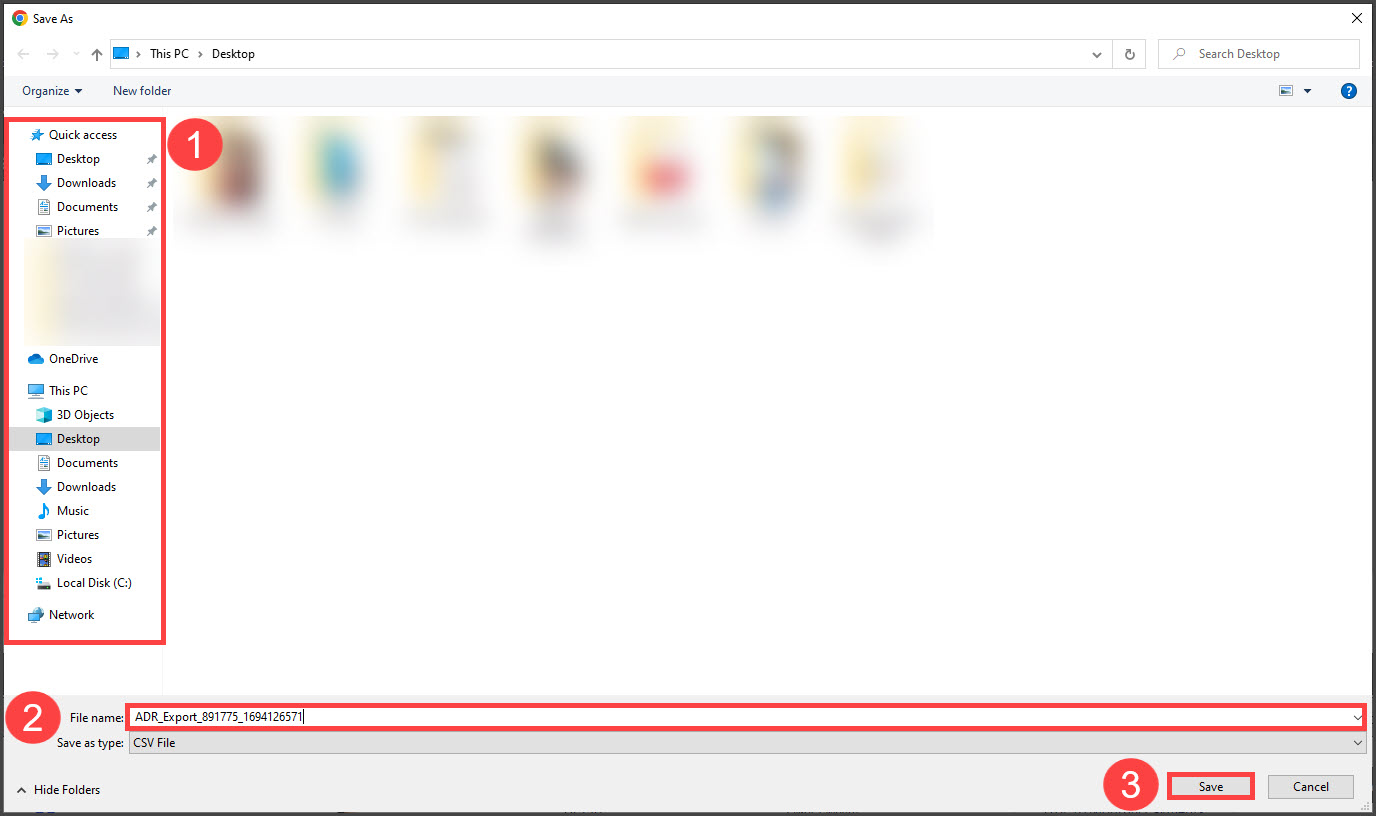
Step 5: Saving!

  1. Select the location where this file will be saved.

  2. Optional: Rename the file so it's easier to find or leave it as-is.

  3. Select [Save]

Image

Did you find this article helpful?
Previous

How to Add a Patient's Card or Bank Account to the Billing Vault

Next

© 2026 Cash Practice Systems. All rights reserved.