What Your Office Needs to Do to Get Started:
App Download: Download the app by searching for "Cash Practice" in either the Apple App Store or Google Play Store.

Hardware & Setup: * If you would like to swipe, insert, or tap payments, CLICK HERE to purchase our optional Bluetooth card reader. You will be notified in 2 to 3 business days when your card reader has shipped and your app is ready to use.
If you prefer to manually key-enter card numbers without a reader, please email MerchantAccounts@CashPractice.com to request activation. Please allow 2 to 3 business days for this internal setup to be finalized.
Grant Mobile Permissions: Before anyone can log into the app, the account Administrator must enable mobile device access. CLICK HERE for step-by-step instructions on how to grant mobile permissions.
⚠️ Important Account Policies & Requirements
Account Requirements: Processing transactions within the app requires a Retail Merchant Account and is subject to standard merchant fees.
Gateway Cancellation Policy: If you cancel your CP Mobile™ Gateway (for Android and Apple devices), there will be a $25 fee each time you need to reactivate the gateway.
Setting Up Your CP Mobile & Bluetooth Card Reader Device
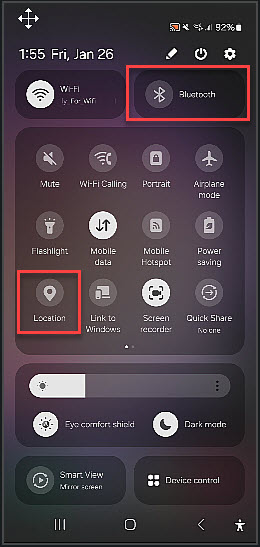
Step 1: Turn on location & Bluetooth settings from your phone/tablet.
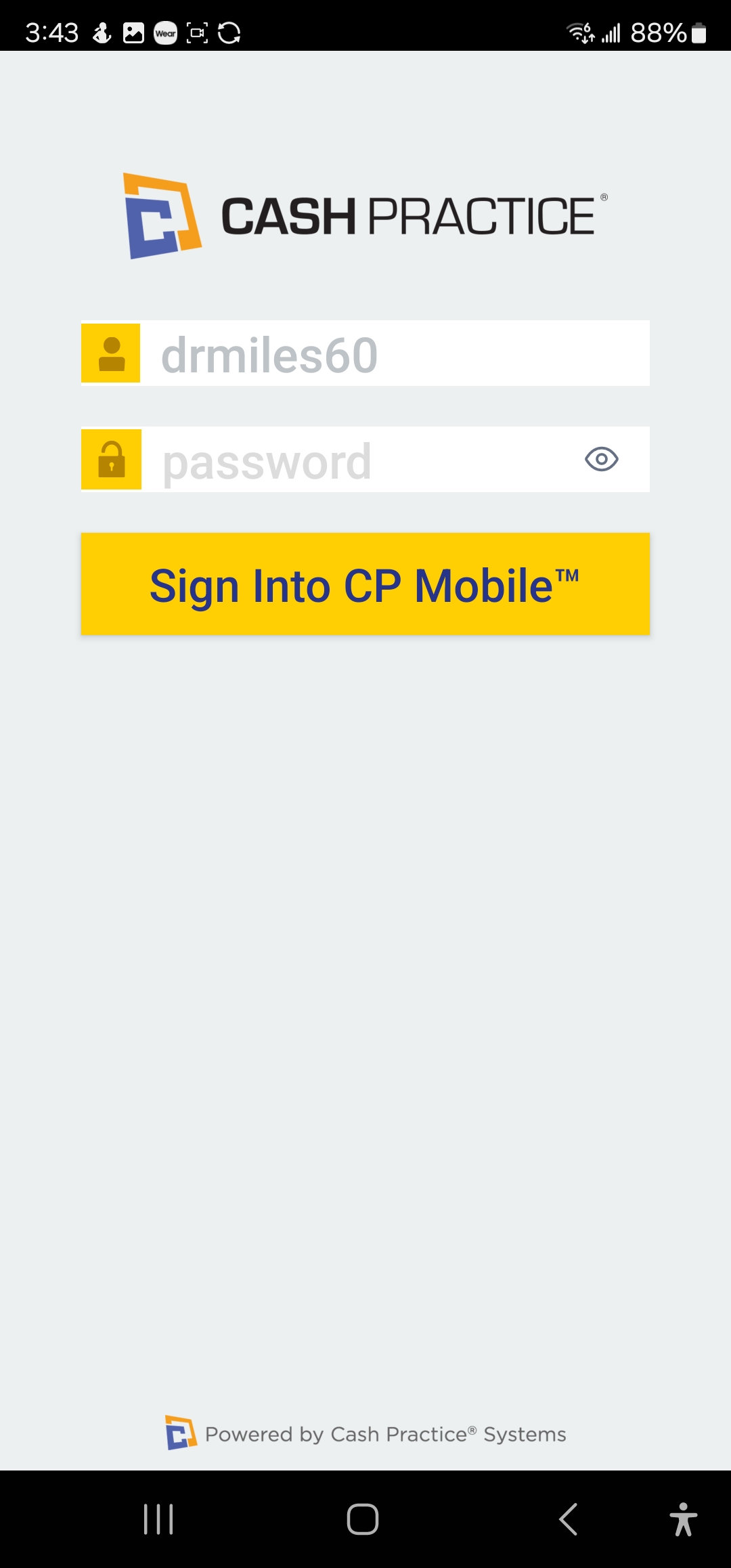
Step 2: Sign into the CP Mobile App.
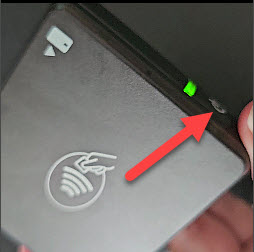
Step 3: Power on the Bluetooth card reader by pressing the [Power] button.
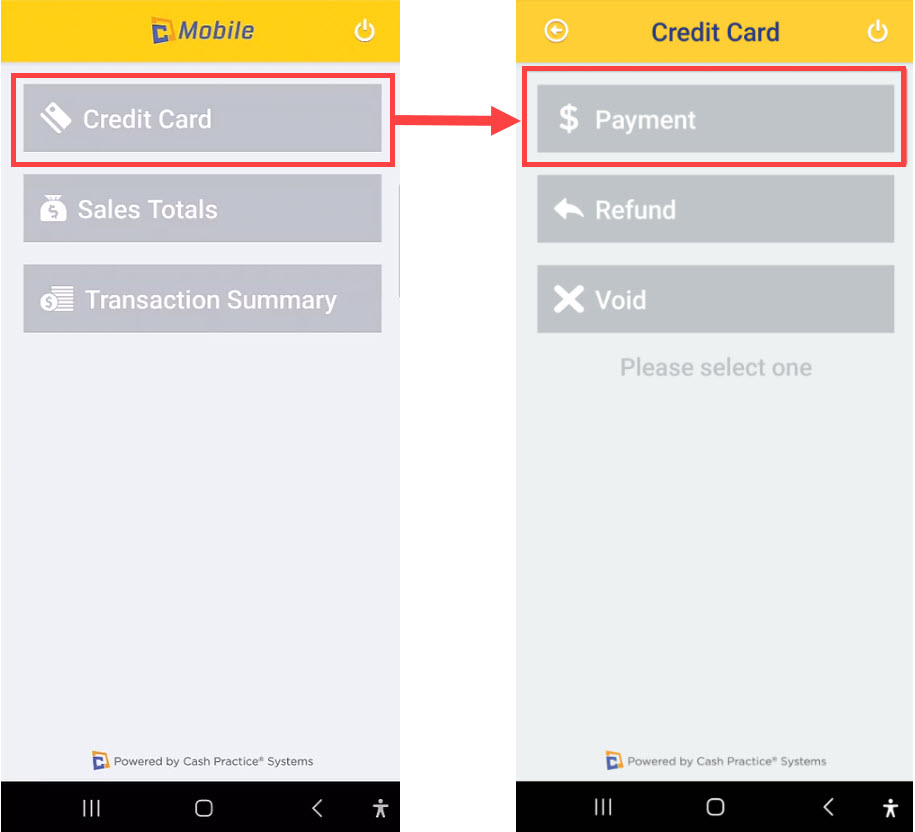
Step 4: Sync the Bluetooth card reader by running a test transaction by clicking the [Credit Card] option and then [Payment].
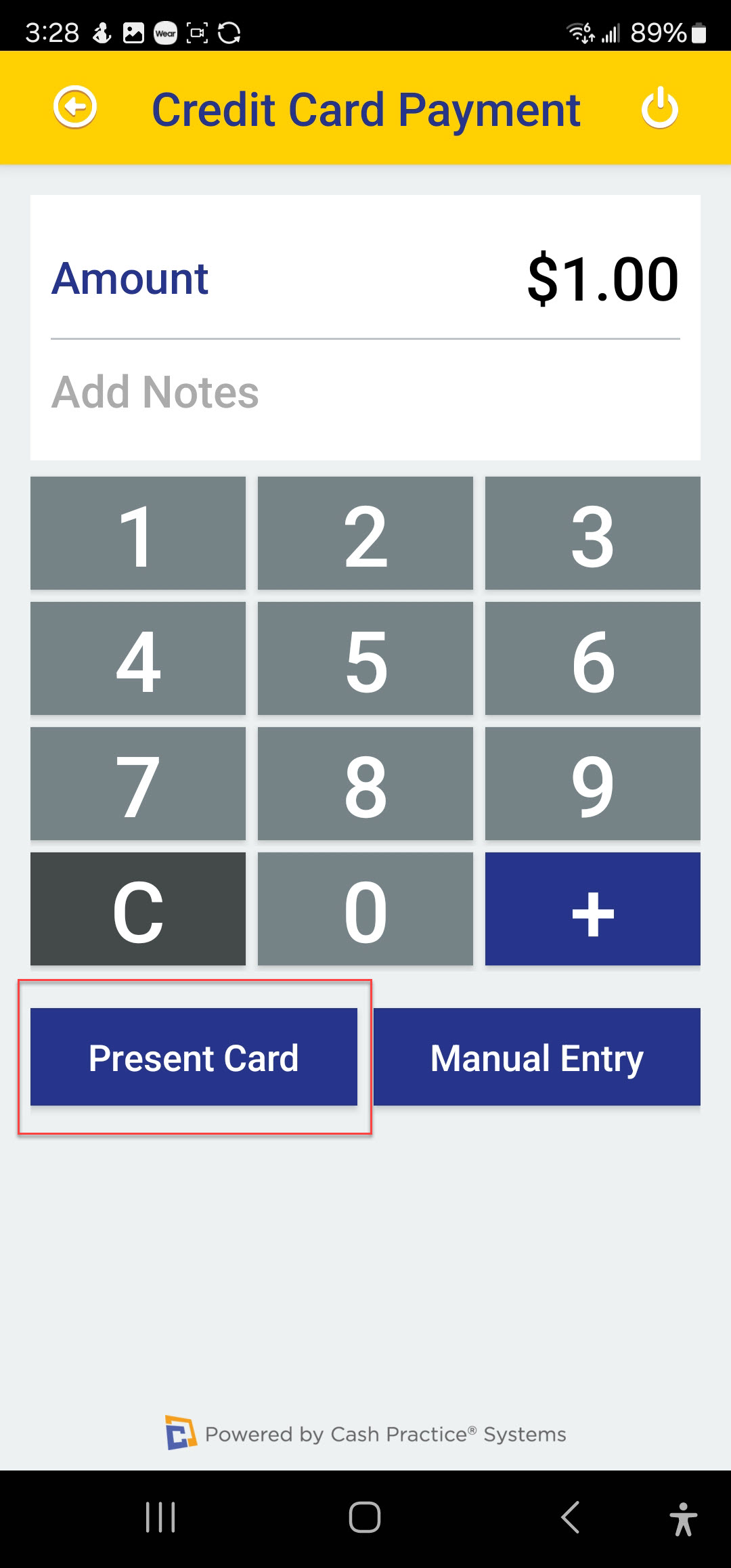
Step 5: Enter a small test amount to be processed on your card and select [Present Card].
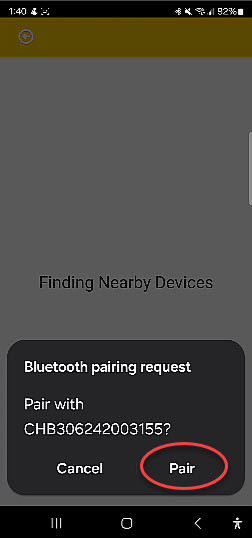
Step 6: When prompted to pair the device, click the [Pair] button.
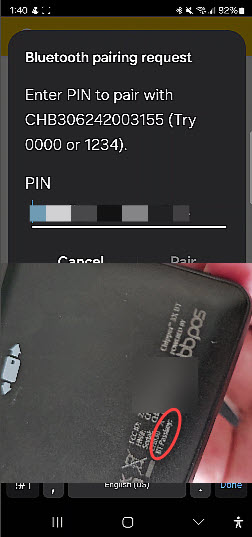
Step 7: Enter the [BT Pass Key] from the back of the Bluetooth card reader when prompted for a PIN.
Step 8: If you did this correctly, you'll see a message on the screen that the connection was successful and you're good to go and will be prompted to present the card. If this didn't work, you entered the BT Pass Key incorrectly and must re-try step 6.
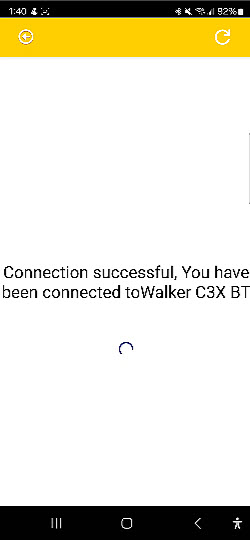
Step 9: It will next ask you to present the card, whether you tap it, insert it, or swipe it. Once the payment is approved, it will bring you to a screen to sign the receipt.
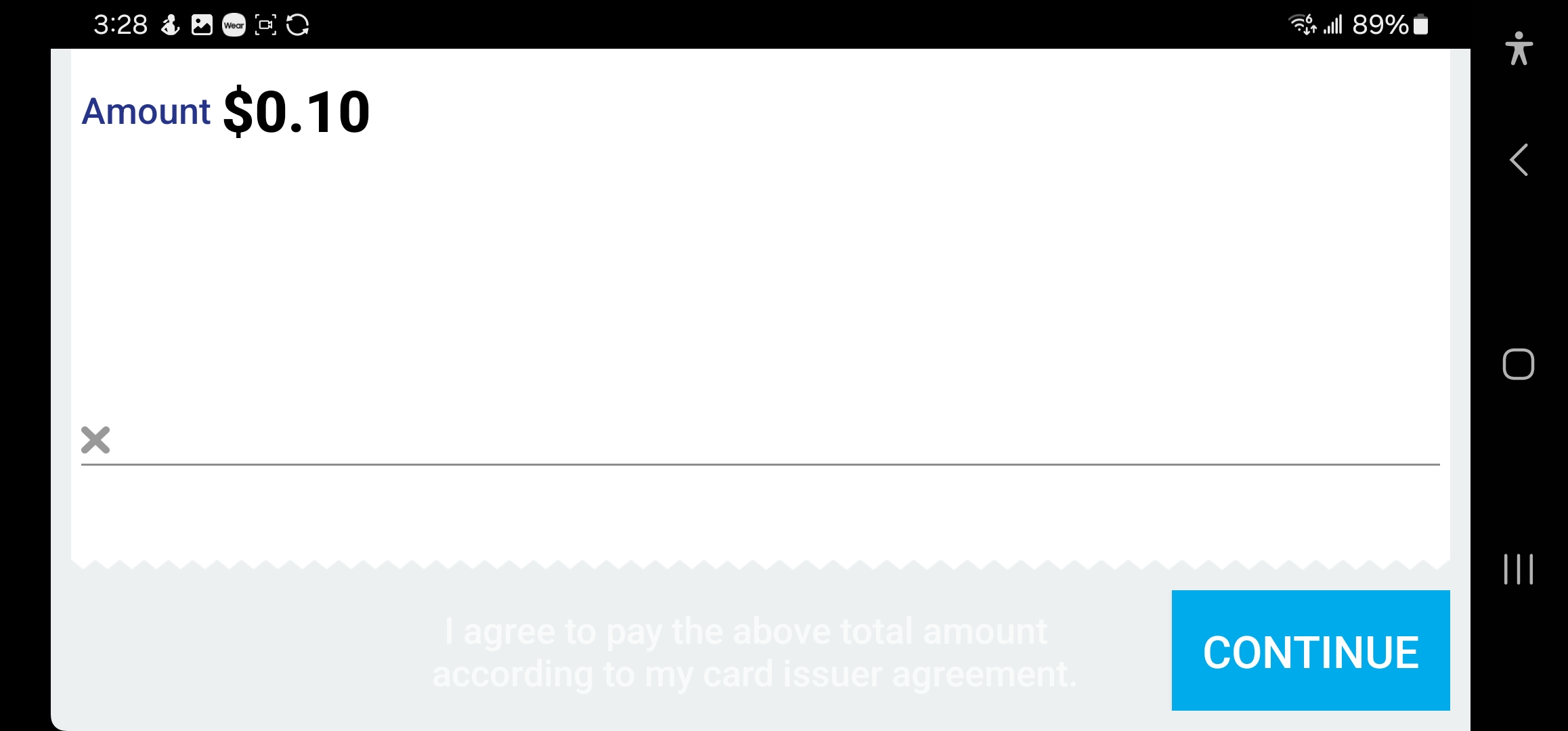
Step 10: Click the [Continue] button once the signature is complete.
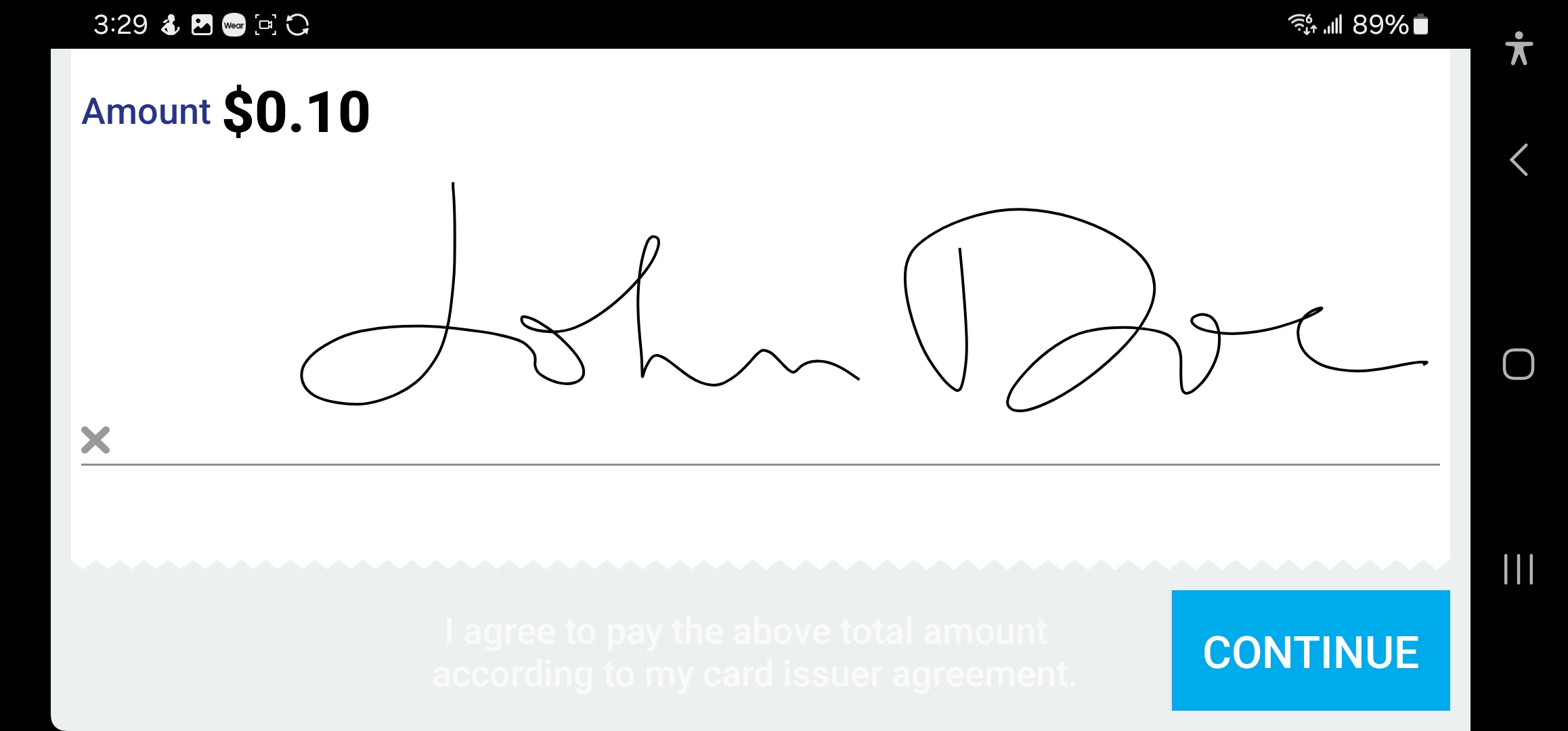
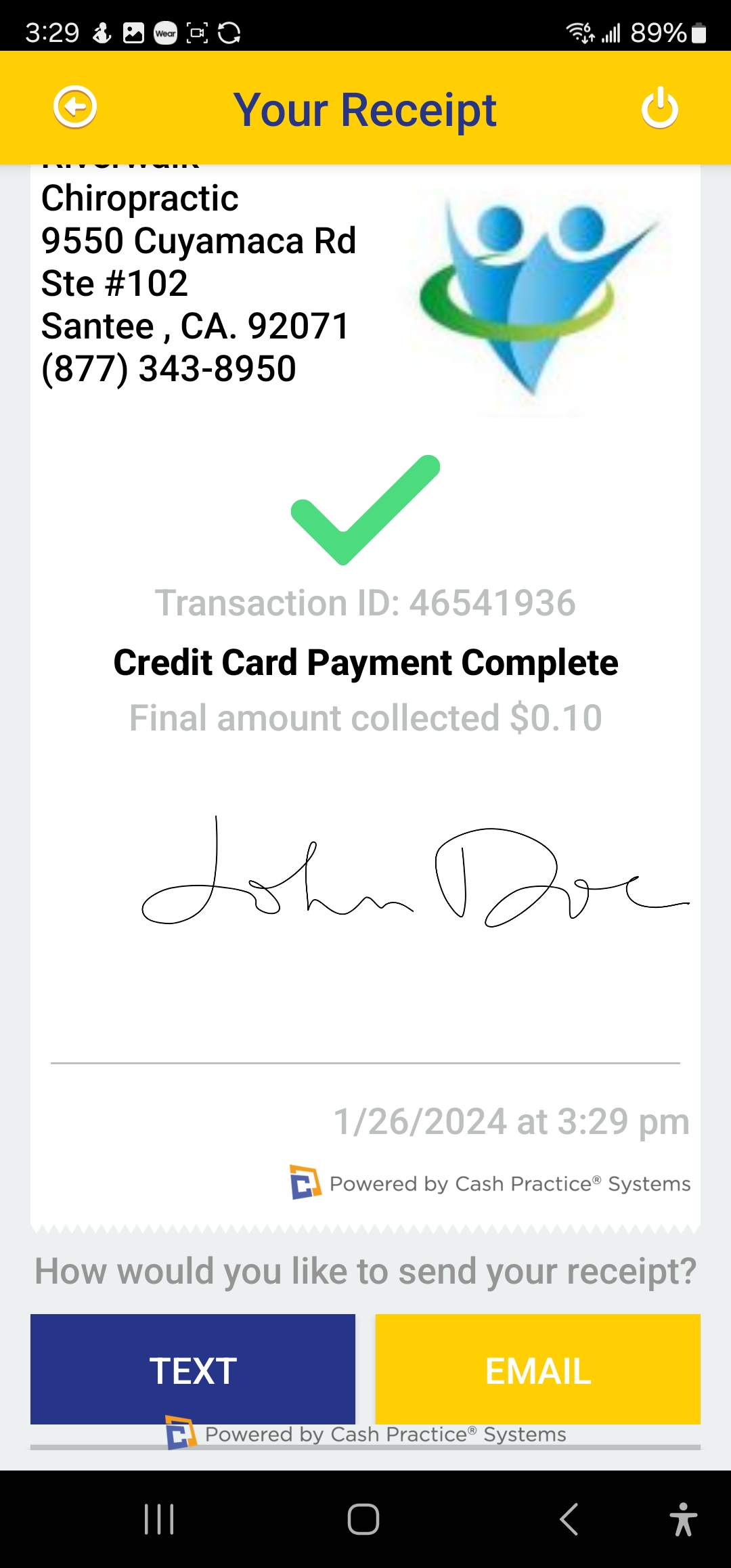
Step 11: The page will then load with a signed receipt, which you can text or email.
Additional Details:
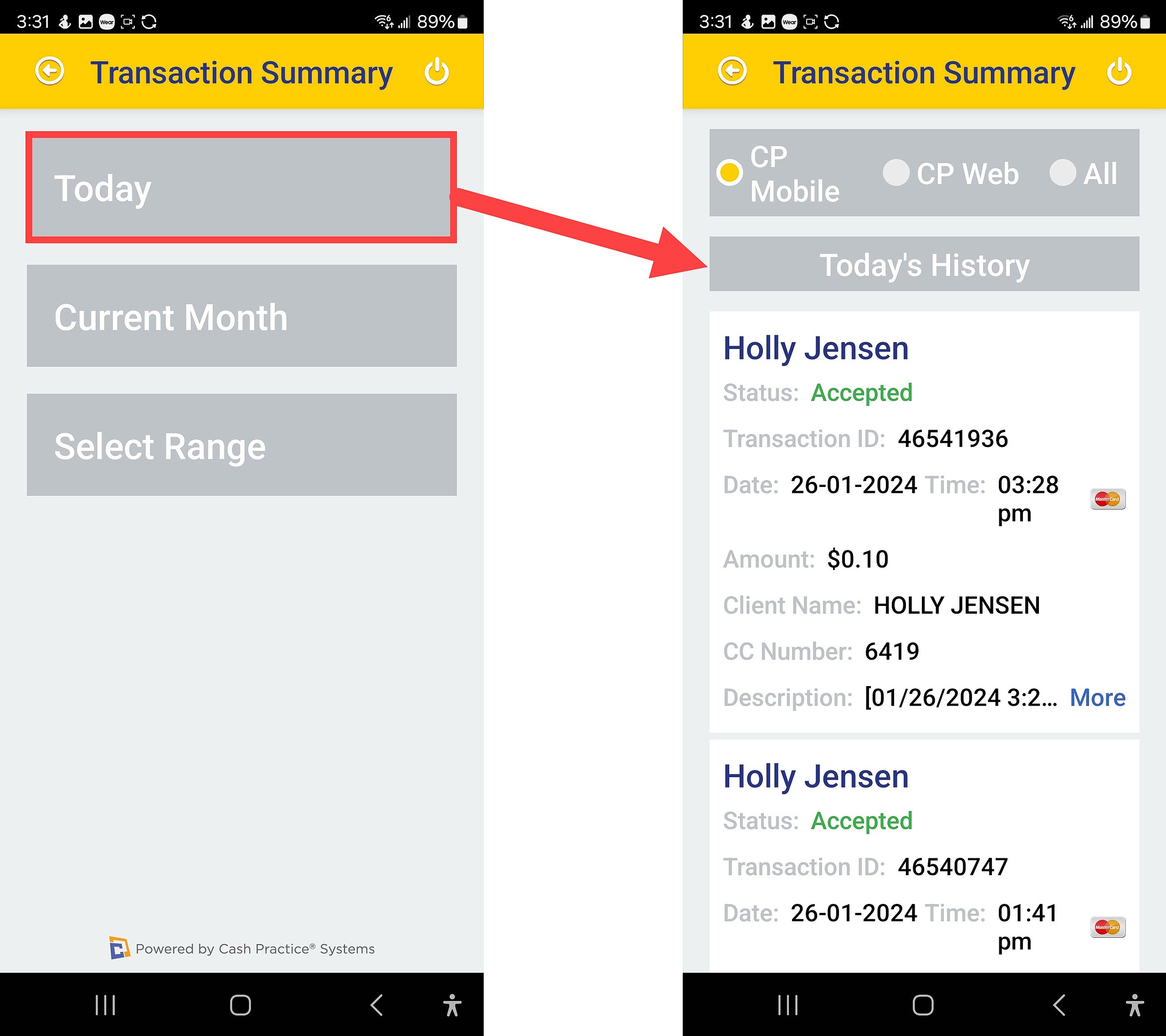
On the Home page, you can review a transaction summary report of the CP Mobile transactions that have been processed. In the example below, all transactions from [Today] were searched.