

What Your Office Needs to Do to Get Started:
App Download: Download the app by searching for "Cash Practice" in either the Apple App Store or Google Play Store.

Hardware & Setup: * If you would like to swipe, insert, or tap payments, CLICK HERE to purchase our optional Bluetooth card reader. You will be notified in 2 to 3 business days when your card reader has shipped and your app is ready to use.
If you prefer to manually key-enter card numbers without a reader, please email MerchantAccounts@CashPractice.com to request activation. Please allow 2 to 3 business days for this internal setup to be finalized.
Grant Mobile Permissions: Before anyone can log into the app, the account Administrator must enable mobile device access. CLICK HERE for step-by-step instructions on how to grant mobile permissions.
⚠️ Important Account Policies & Requirements
Account Requirements: Processing transactions within the app requires a Retail Merchant Account and is subject to standard merchant fees.
Gateway Cancellation Policy: If you cancel your CP Mobile™ Gateway (for Android and Apple devices), there will be a $25 fee each time you need to reactivate the gateway.
Granting Mobile Permissions
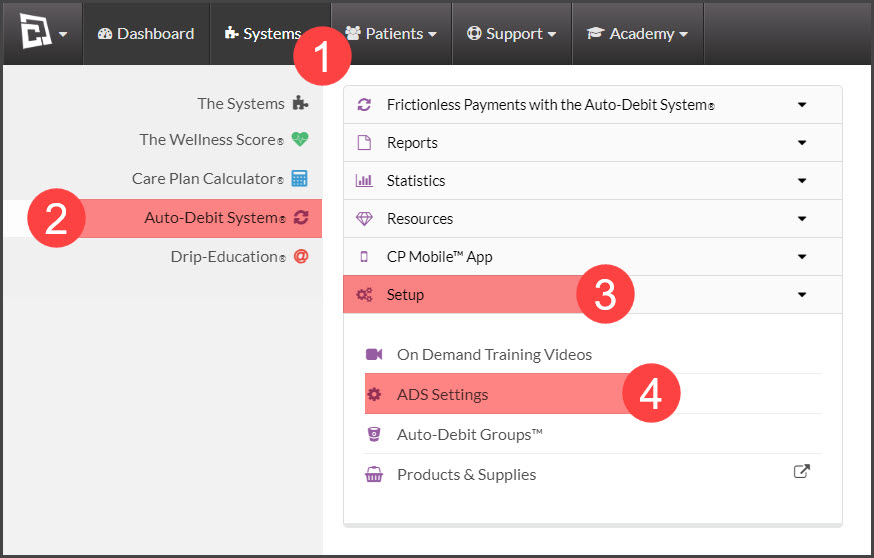
Step 1: Sign in as the Administrator on the account and go to the [Systems] menu → click on [Auto-Debit System®] → [Setup] → [ADS Settings].
Step 2: Go to [Step 7].
Step 3: Change the CP Mobile™ Access to the desired level of access.
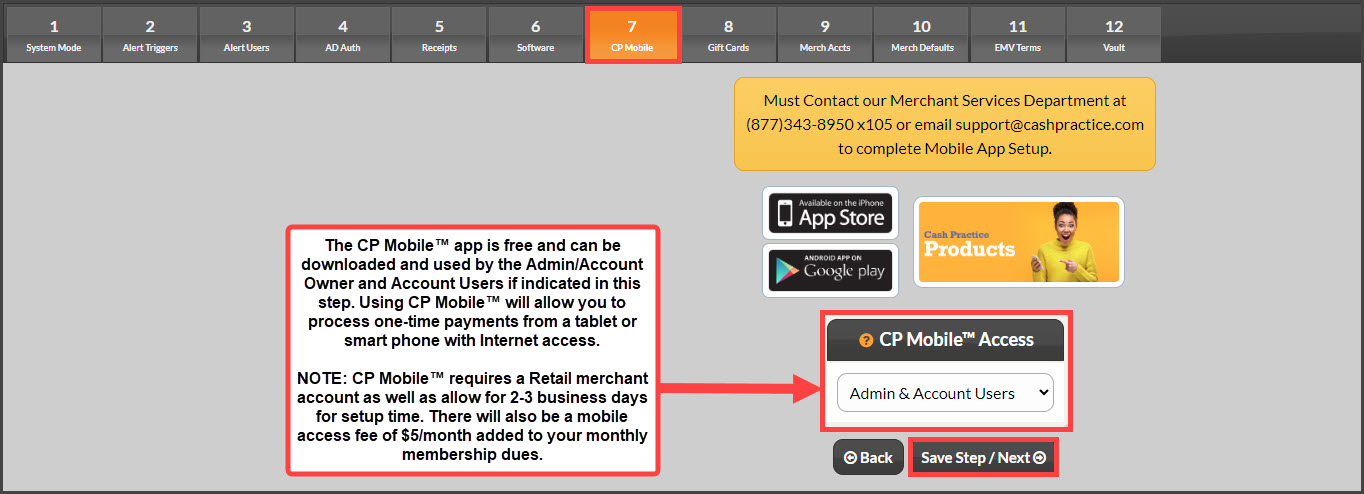
[No Access to CP Mobile™]: No access to processing with CP Mobile™ allowed
[Admin Only Access]: Only the Administrator (ie: doctor) on the account will have the ability to process with CP Mobile™
[Admin & Account Users]: Both the Administrator and Account Users will be able to process with CP Mobile™.
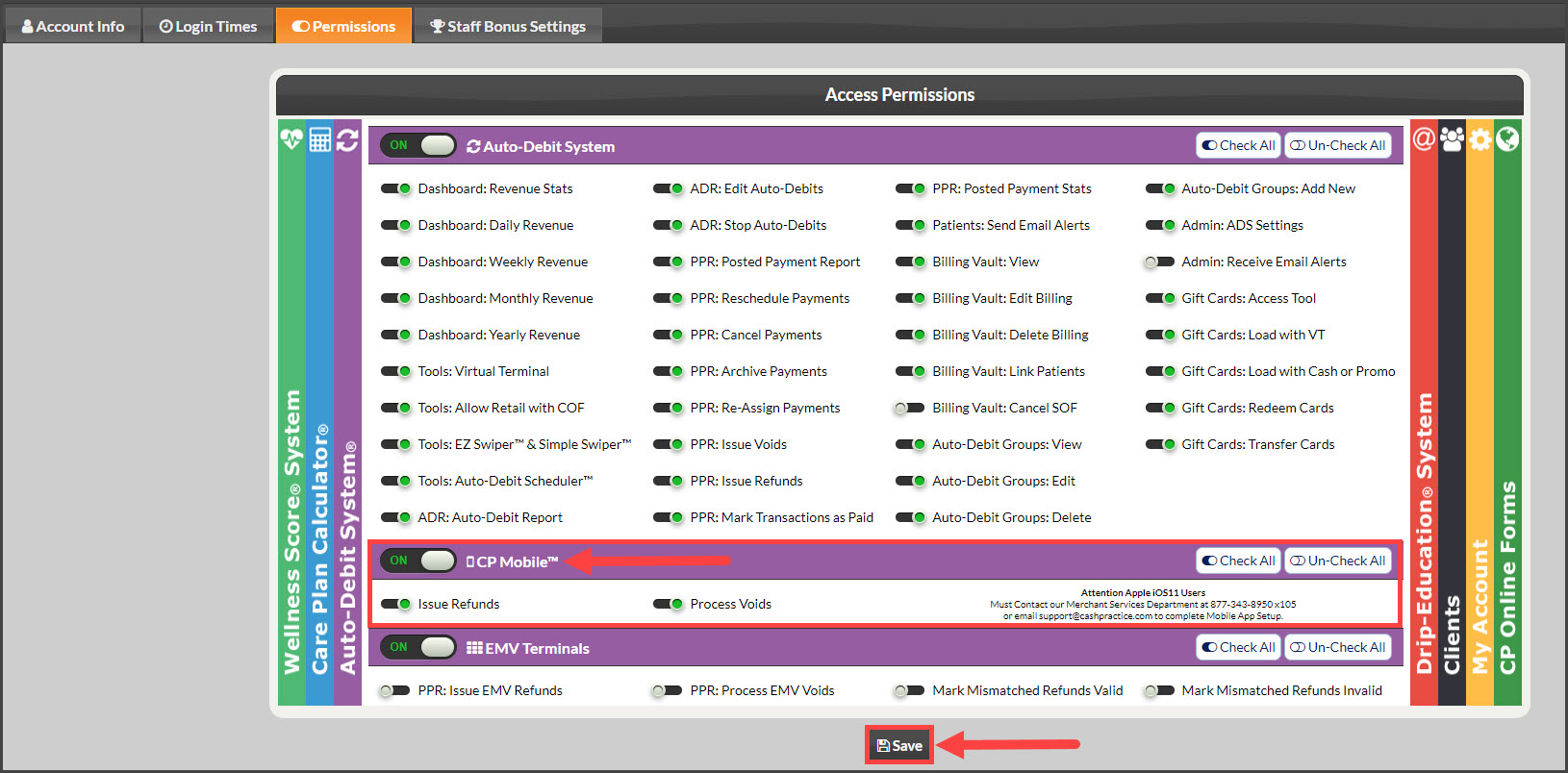
Step 4: Please note account users have individual permission for CP Mobile™, so each account user must also have permission to access CP Mobile™ as well. Click HERE to learn how to manage account users' permissions.
Account User permissions can be individually set up to:
Allow or Deny permission to log in to CP Mobile™
Allow or Deny permission to Issue Refunds from CP Mobile™
Allow or Deny permission to Process Voids from CP Mobile™
Step 5: You're now ready to process payments in the app. Sign in to the CP Mobile™ App and pair the optional Bluetooth card reader by following these instructions.
Note: When signing into CP Mobile™, you will use the same username and password you use when signing into your Cash Practice® Systems account.