Option 1: From the patient's ChiroHD ledger
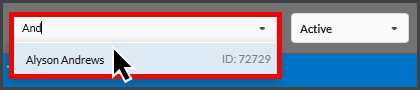
Step 1: From ChiroHD, type in your patient's first or last name in the [Search for a Patient] field and select the patient from the drop-down menu.
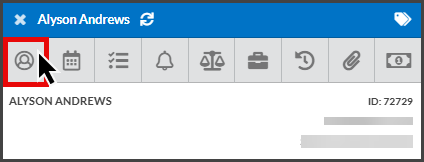
Step 2: Click on the patient's profile icon to open their ledger.
Step 3: Select the [Cash Practice Contact] button to open their Cash Practice patient record.

Step 4: From the patient's Cash Practice patient record:
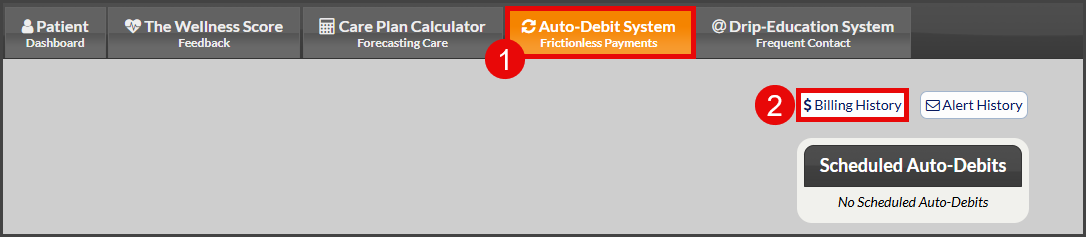
1. Click on the [Auto-Debit System] tab.
2. Next, click on the [Billing History] button.
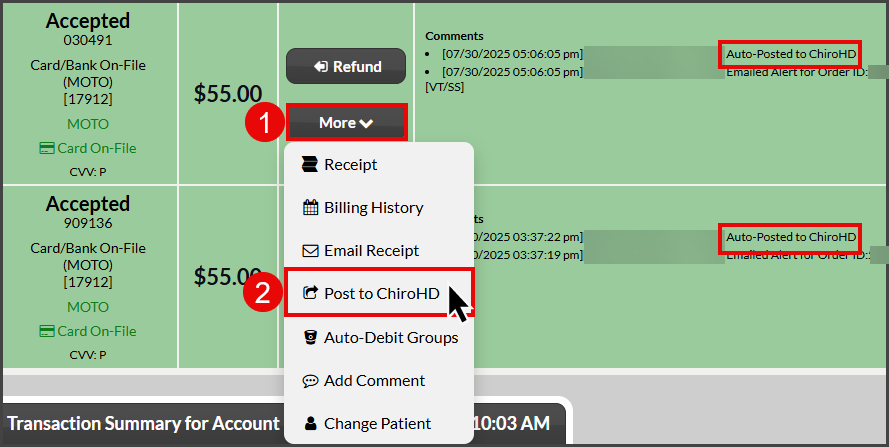
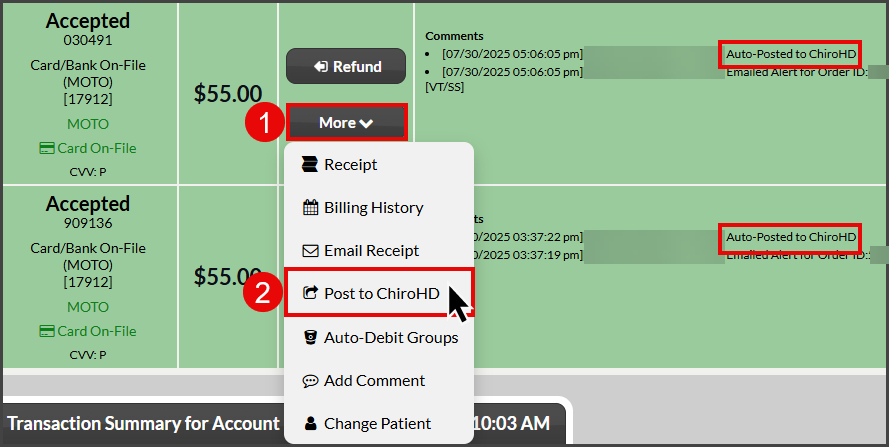
Step 5: Locate the transaction you need to manually sync to ChiroHD:
NOTE: Cash Practice will apply an automated comment that the payment has been auto-posted to the patient's ledger. If the transaction still does not show in the patient's ledger, proceed with the instructions below.
Click on the [More] drop-down menu.
Select [Post to ChiroHD].
Option 2: From the "End of Day Report" directly in Cash Practice
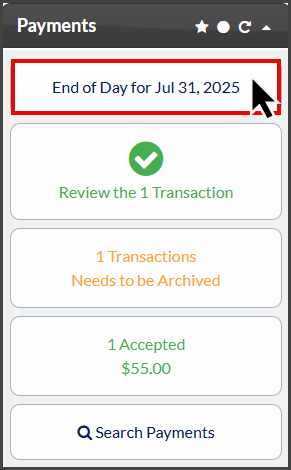
Step 1: Under the "Payments" section, click on the [MM/DD/YYYY] button.
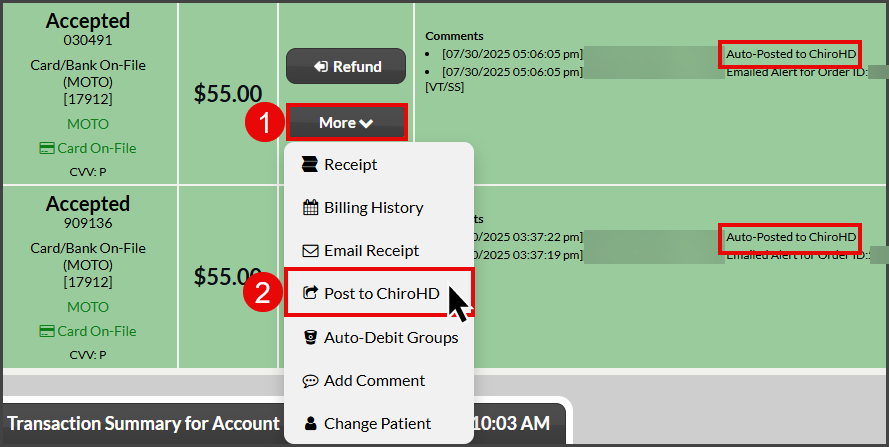
Step 2: Locate the transaction you need to manually sync to ChiroHD:
NOTE: Cash Practice will apply an automated comment that the payment has been auto-posted to the patient's ledger. If the transaction still does not show in the patient's ledger, proceed with the instructions below.
Click on the [More] drop-down menu.
Select [Post to ChiroHD].
Option 3: From the "Posted Payments Report Generator™" directly in Cash Practice
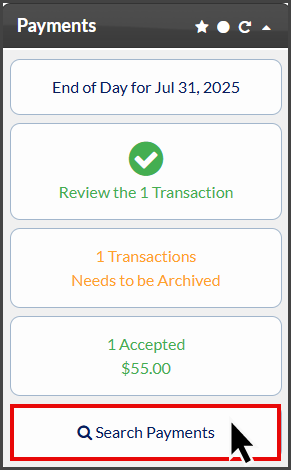
Step 1: Under the "Payments" section, click on the [Search Payments] button.
Step 2: Use the search options to define what transactions you are looking for. For more search options, click on the [Show More Search Options] tab at the top.
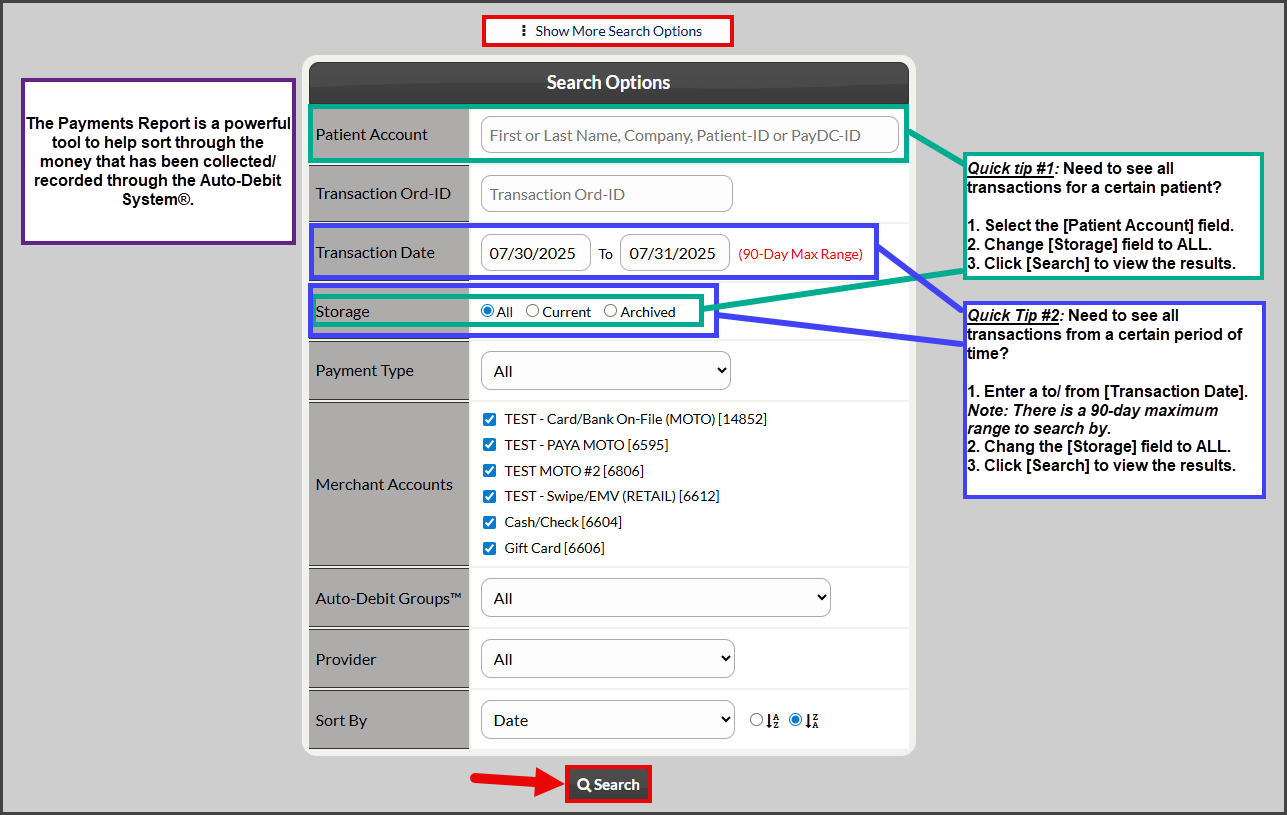
Step 3: Locate the transaction you need to manually sync to ChiroHD:
NOTE: Cash Practice will apply an automated comment that the payment has been auto-posted to the patient's ledger. If the transaction still does not show in the patient's ledger, proceed with the instructions below.
Click on the [More] drop-down menu.
Select [Post to ChiroHD].