Did the insurance company send you an Explanation of Benefits (EOB) with a credit card number as a way to collect payment from them? If Yes- then please follow these instructions:

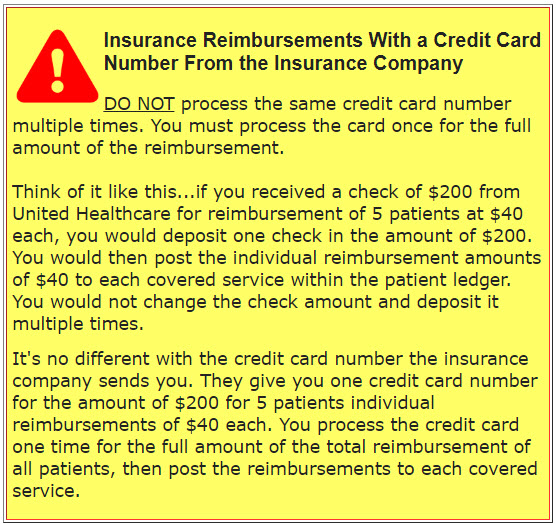
There is no trick to processing the payment with the credit card number that the insurance company provided as payment with the EOB. You will simply create a [Patient] record in your Cash Practice account using the name of the insurance company and process the credit card payment through CashPractice.com as 1 entire (full) payment. Do not run the credit card reimbursement as individual amounts, as this may flag the processing bank's risk department. Then, manually post the individual reimbursements to the related patient ledger(s) in your Patient Management Software.
(**Note: If using iPatientCare, DO NOT run the payment in that software. Open a NEW browser and log in to your CashPractice.com account, following the instructions in this article.)
DO NOT POST THE CREDIT CARD PAYMENT UNDER A PATIENT ACCOUNT. You will make or attach an account using the name of the Insurance Company. (See below.)
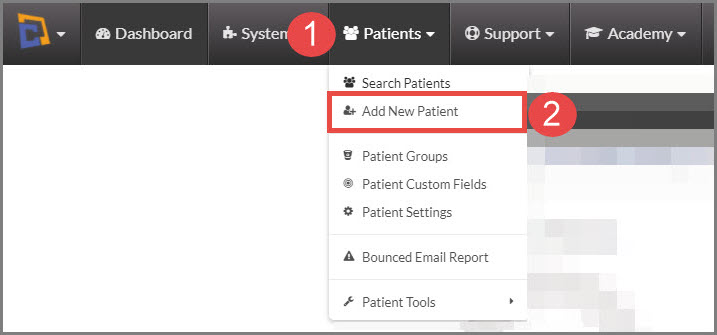
Step 1: From the Dashboard, hover over the [Patients] menu near the top-left → click [Add New Patient].
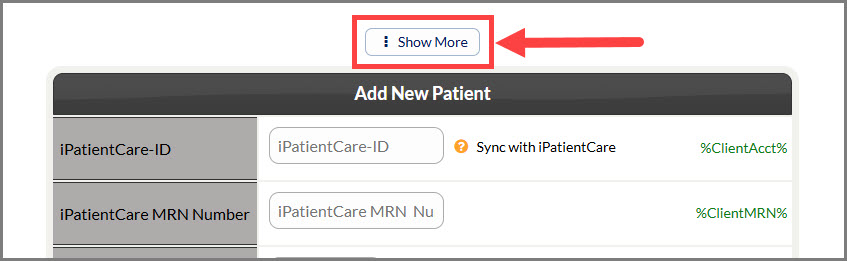
Step 2: Click on the [Show More] button at the top of the page.
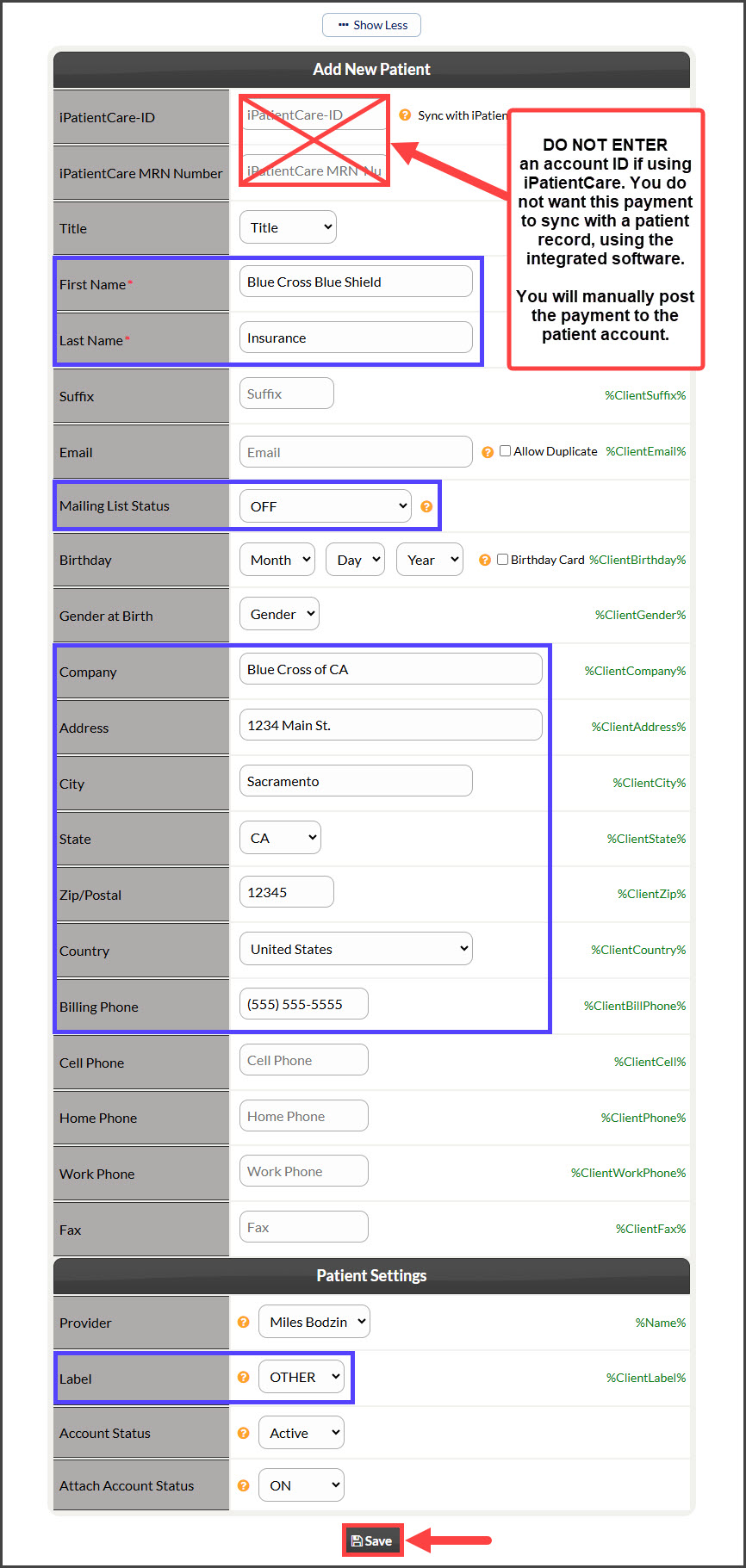
Step 3: Do not add a patient name; instead you will use the name of the insurance company to create an account. From the example shown below, we recommend that you only enter the following fields:
Enter the insurance company name in the [First Name] field. (i.e. Blue Cross, Aetna, United, etc.)
Enter the [Last Name] as: Insurance
Change the [Mailing List Status] to: Off
Enter the company name, full address & billing phone number.
Change the [Label] to: Other
Click [Save]
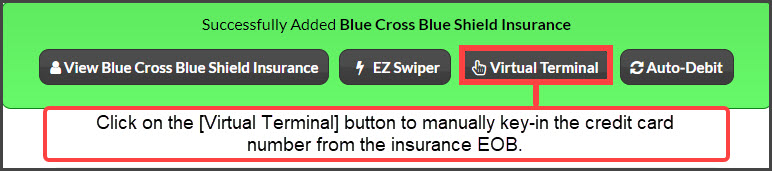
Step 4: After saving the account, you will see a green message box. Click on the [Virtual Terminal] button to process a one-time payment.
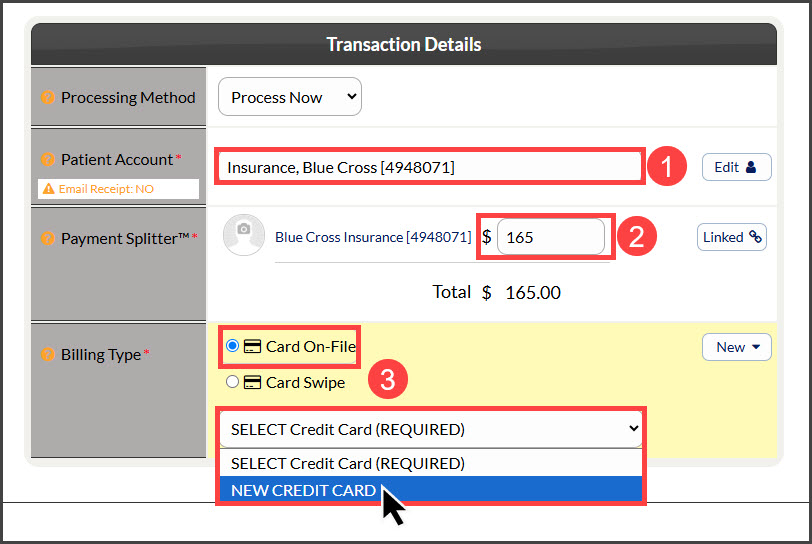
Patient Account: Select the name of the Insurance Company (if it hasn't auto-filled).
Amount: Enter the full amount of the insurance payment (Do not run the payment broken down into smaller amounts).
Billing Type: Select "Card On-File" and select [NEW CREDIT CARD] from the drop-down menu
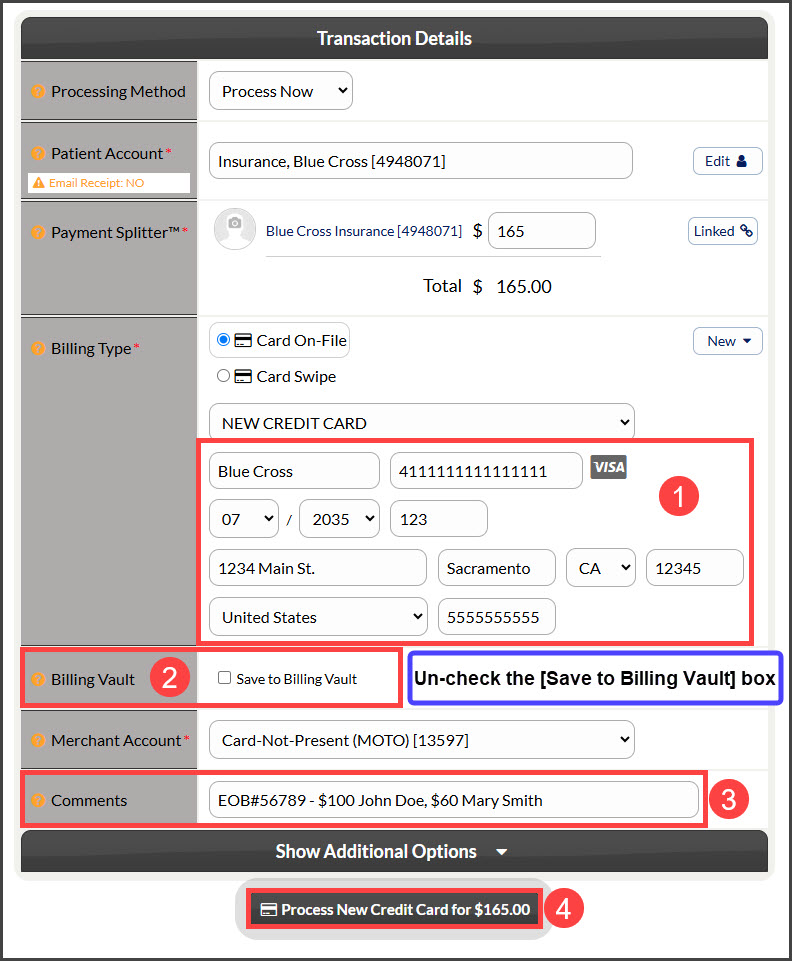
Billing Type: Fill in the empty fields with the billing information (name on card, card number, billing address, etc).
Billing Vault: Un-check the [Save to Billing Vault] button (you will never receive the same card number again moving forward so there is no need to save these insurance card numbers to the billing vault).
Comments: Type in a comment describing the payment. (Example: Enter the EOB Reference #, each patient name & amount)
Click on the [Process New Credit Card for $X] button.
Step 5: If the transaction is approved (you will see a receipt and see the approved transaction on the Posted Payment Report), you will manually split and post the insurance payment into iPatientCare - see Step 6.
NOTE: The comment you made during the transaction will show in the [Comments] column.


Step 6: From within iPatientCare:
From the menu on the left of the screen in iPatientCare
Select [Billing] → [Payment] → [Payment List].
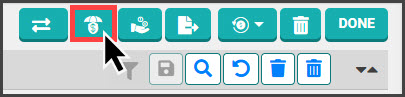
Click the Insurance Payment button in the top-right corner
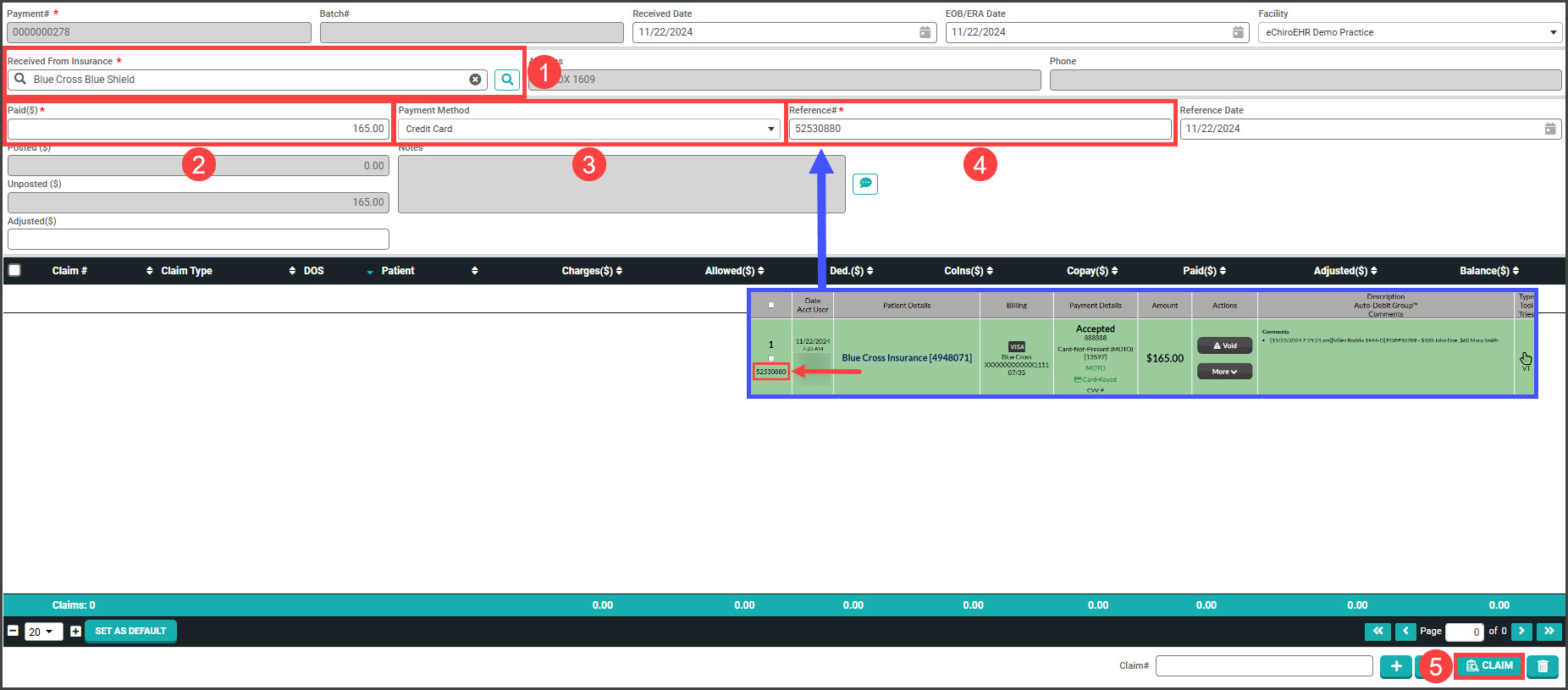
Step 7: Enter the required information
Type the insurance company name in the [Received from Insurance] search box and select the match
Enter the amount of the transaction in the [Paid($)] field
Select the [Payment Method] from the drop-down menu
Enter the [Reference#] - this is the transaction ID from Cash Practice (see sample image of where to locate this in Cash Practice)
Click the [Claim] button in the lower right corner where you will apply the payment to the open claims
For further assistance with claims, please get in touch with the iPatientCare support team.