With a button click within your iPatientCare EHR, you can synchronize/import all transactions processed within Cash Practice. This means NO MANUAL POSTING! (Yeah, this is pretty cool!)
All payments processed within iPatientCare will be auto-posted; however, if any auto-debits, refunds, or voids are performed, we recommend that you synchronize/import transactions each business day.
For more information about best practices for daily procedures, click HERE.
Getting Started:
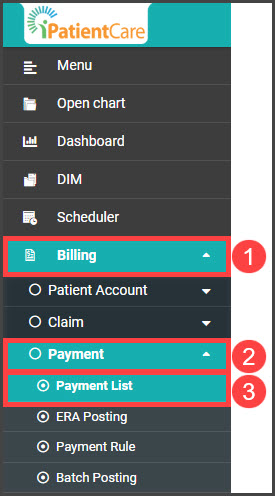
Step 1: From the menu on the left of the screen in iPatientCare, click [Billing] → [Payment] → [Payment List].
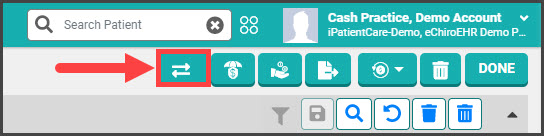
Step 2: Click on the [Patient Payment] button at the top right corner of the screen.
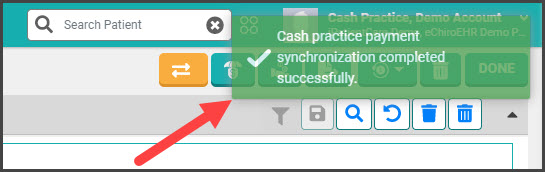
Step 3: The page will refresh, and a success message will appear in the top right corner of the page, as seen in the image below: