

My Virtual Reports is our processing bank's website where you can access the following information:
Monthly Merchant Statements (up to the last 18 months)
Daily Batch Summaries
Funding (deposits)
12-month Volume Summary
12-month Chargeback Summary
Chargeback Search
Transaction Search
Returns and Credit Search
My Virtual Reports works best with Chrome or Edge. If you are experiencing trouble (ie: links / drop-down menus not working), please try another browser before contacting us. If you have a MAC - Firefox is the recommended browser to use when accessing this site.
You will only have access to the last 18 months of your merchant statements through My Virtual Reports, therefore be sure to save your merchant statements to your computer or print them out.
The My Virtual Reports website is www.MyVirtualReports.com
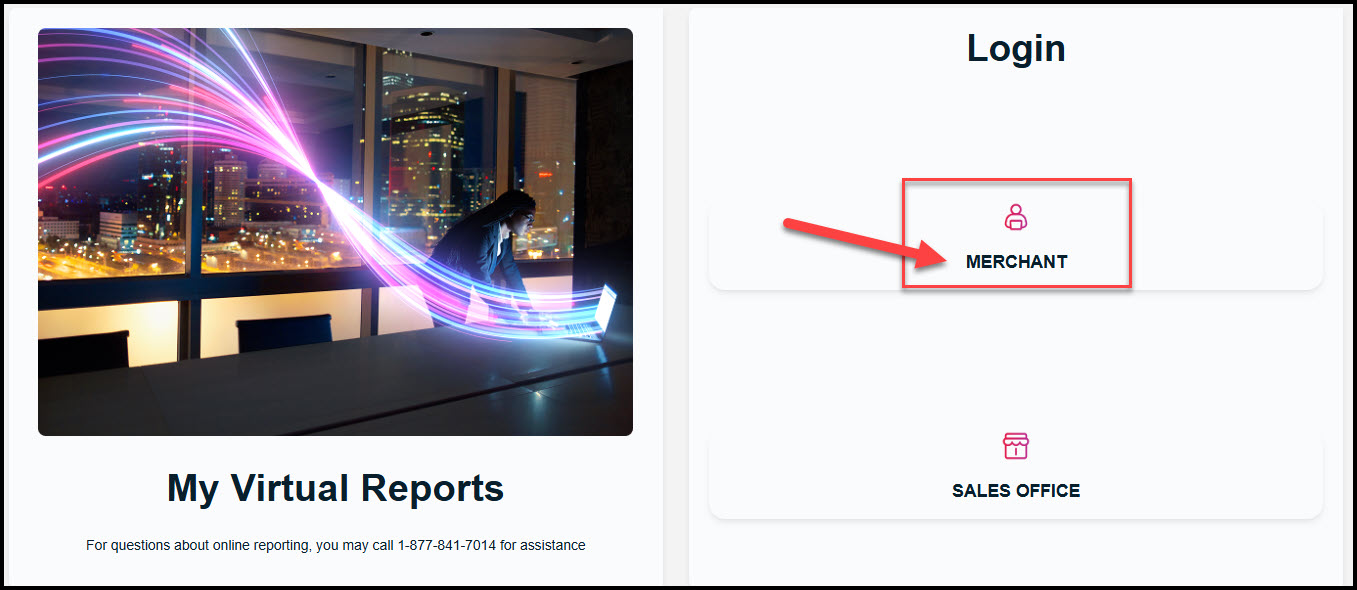
On this page, click [Merchant] to proceed to the login page:
If this is your FIRST time logging into My Virtual Reports and you need to create a username & password - click HERE.
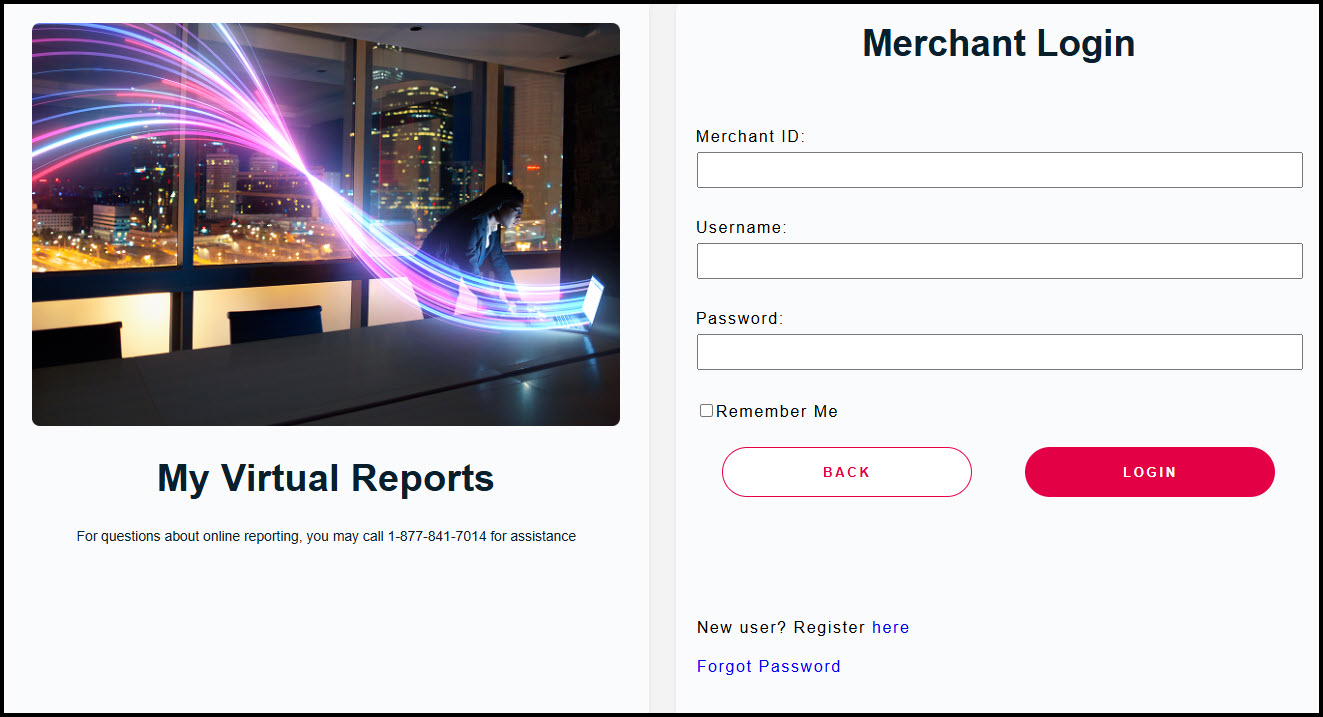
On the My Virtual Reports Merchant Login screen, enter your Primary Merchant ID Number, your MVR username and password. Then click [LOGIN]:
If you need your Merchant ID number, please contact us at (877) 343-8950 x 105 or MerchantAccounts@CashPractice.com
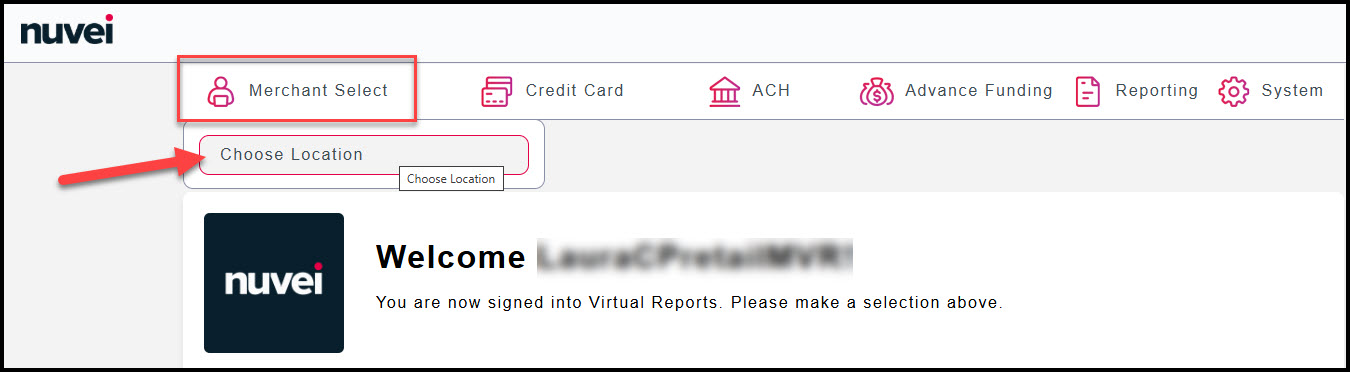
If you have both the MOTO & RETAIL merchant accounts, you can toggle between the merchant accounts within your same login. To do so, click the [Merchant Select] button in the toolbar at the top left of your screen. Then click [Choose Location]:
If you do not have the [Merchant Select] button, we can have that added to your My Virtual Reports account. Please either give us a call at (877) 343-8950 x 105 or send us an email to MerchantAccounts@CashPractice.com
You will only have access to the last 18 months of your merchant statements through My Virtual Reports, therefore be sure to save your merchant statements to your computer or print them out.
Accessing your MOTO Merchant Account (keyed transactions including auto-debits):
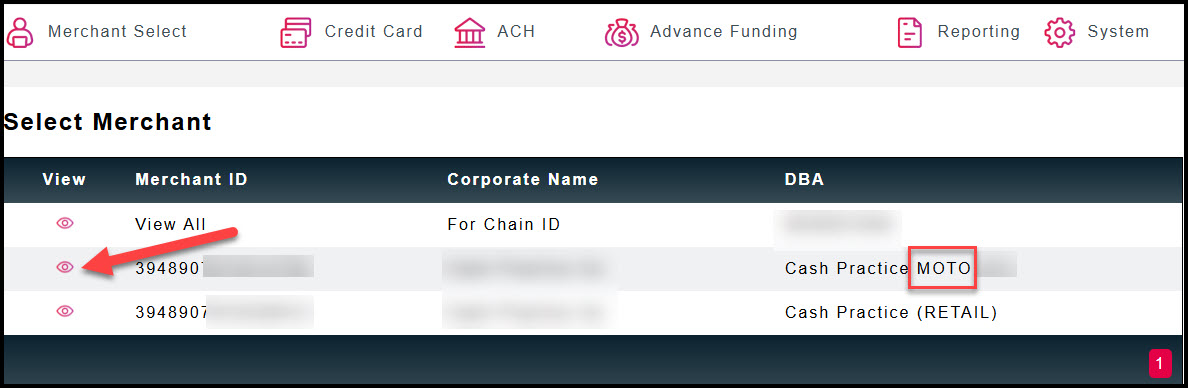
Click the pink eyeball icon icon next to your MOTO merchant account number. This will take you to [Single Merchant Mode]. Do not click the pink eyeball icon next to [View All] as that does not work.
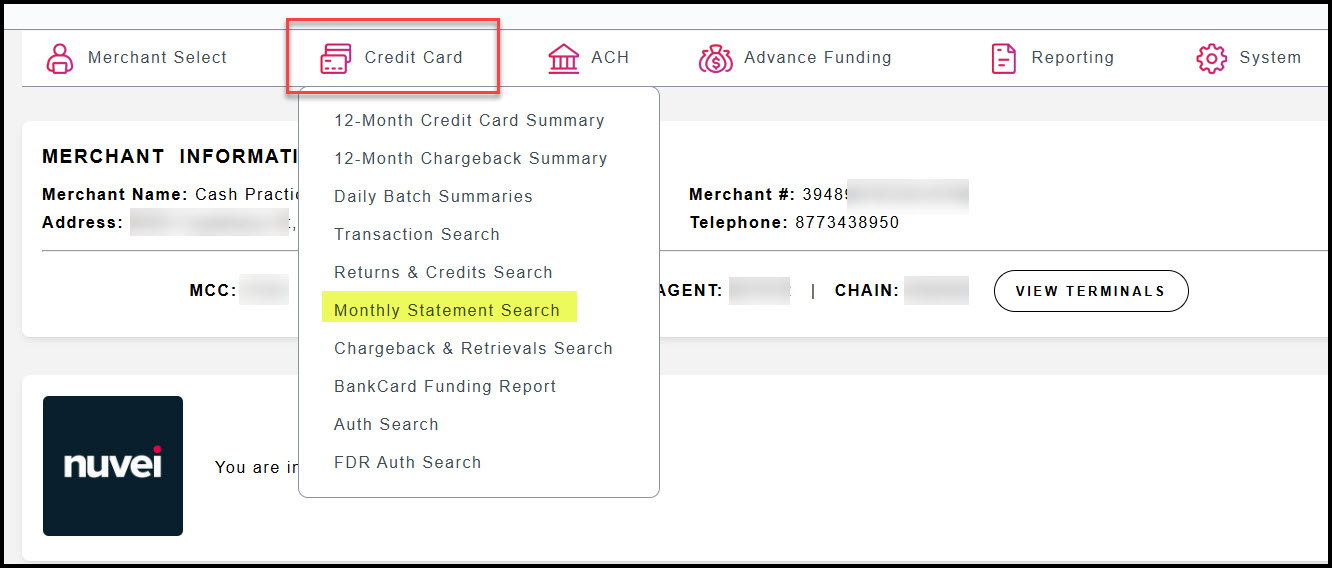
Click the [Credit Card] button in the toolbar at the top left of your screen and then select your desired option. You can access your merchant statements, view funding (deposits), daily batch summaries, and chargeback information.
To access your monthly merchant statements, click [Monthly Statement Search]:
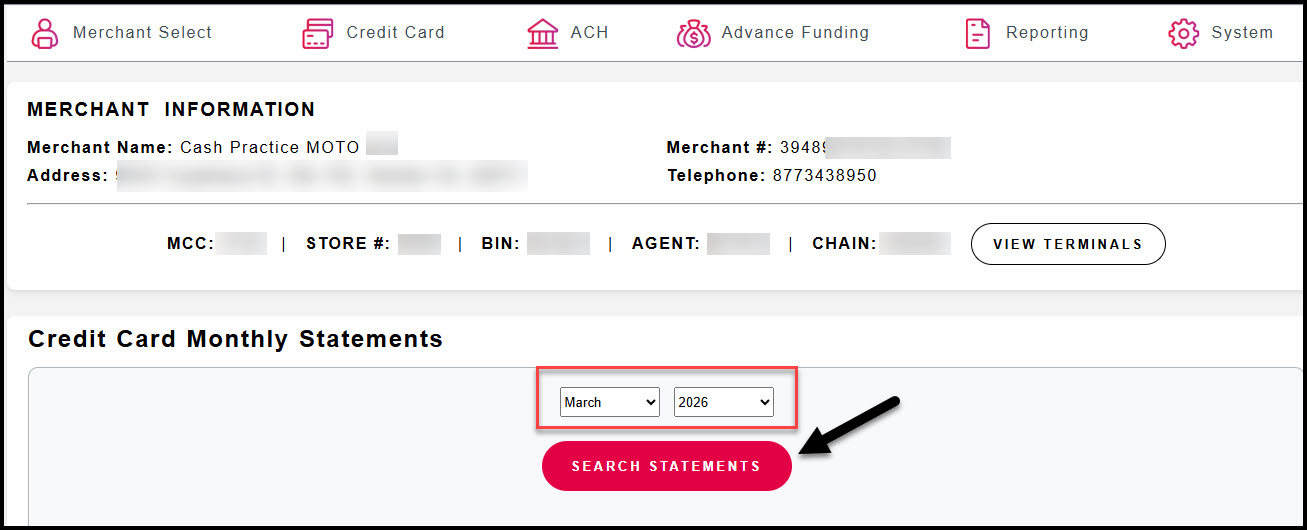
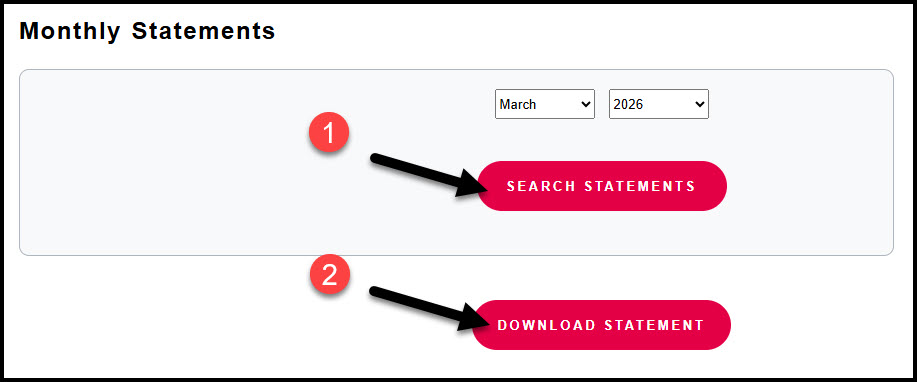
On the new screen, below the [Credit Card Monthly Statements] section, select the month and year you would like to view from the drop-down menu. It defaults to last month. Click [Search Statements]:
Next, click the [Download Statement] link:
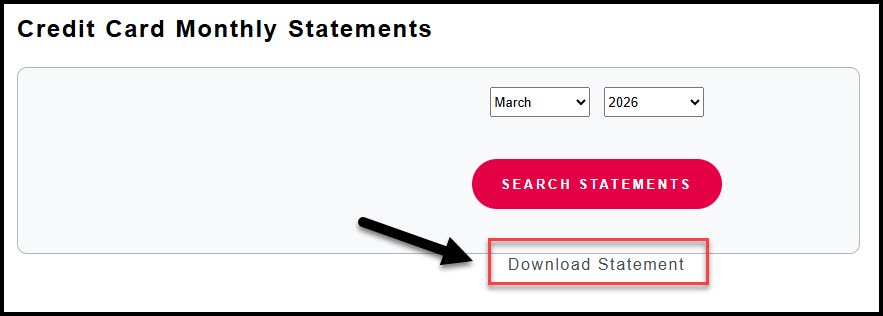
Your statement will typically download to the toolbar at the bottom of your screen. Click the document in the toolbar to open your statement.
Print or save your MOTO statement to your computer.
Accessing your EFT Merchant Account:
If you have the EFT merchant account (for processing bank account transactions using a routing number and account number), you can access information for EFT as long as you are under the MOTO single merchant mode (the RETAIL single merchant mode will not have access to your EFT merchant account information).
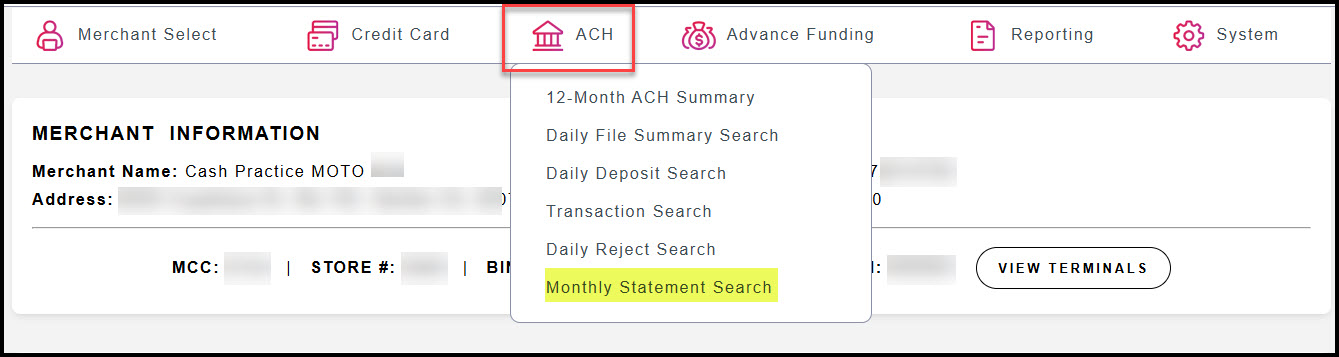
To access your EFT account information (and you are under the MOTO single merchant mode), click [ACH] in the toolbar at the top of your screen. Click the desired option from the drop-down menu.
To access your EFT monthly merchant statements, click [Monthly Statement Search] from the drop-down menu:
On the new screen, select the month and year you would like to view from the drop-down menu. Click [Search Statements]. Your EFT statement will be displayed on the page.
To download a copy of your EFT statement, click [Download Statement]:
Accessing your RETAIL Merchant Account (swiped transactions):
You will follow the same steps as listed above for accessing your MOTO merchant account.
Click the [Merchant Select] button in the toolbar at the top left of your screen
Click [Choose Location]
Click the pink eyeball icon icon next to your RETAIL merchant account. This will take you to [Single Merchant Mode]. Do not click the pink eyeball icon next to [View All] as that does not work.
Click the [Credit Card] button in the toolbar at the top left of your screen and then select your desired option
To access your RETAIL monthly merchant statements, click [Monthly Statement Search] from the drop-down menu
On the new screen, below the [Credit Card Monthly Statements] section, select the month and year you would like to view from the drop-down menu. It defaults to last month. Click [Search Statements]
Click the [Download Statement] link
Print or save your RETAIL statement to your computer
You will only have access to the last 18 months of your merchant statements through My Virtual Reports, therefore be sure to save your merchant statements to your computer or print them out.