Getting Started:
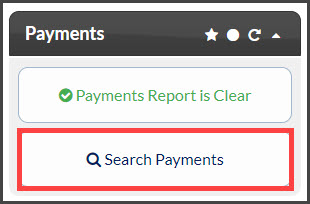
Step 1: From the Dashboard, click the [Search Payments] button under the "Payments" section.
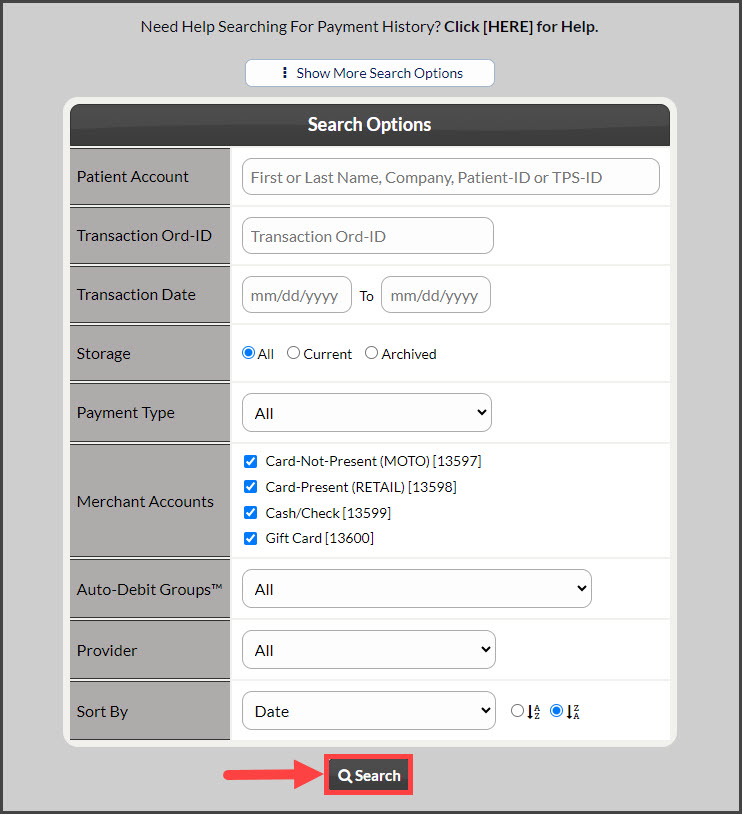
Step 2: From the Search Options screen enter any specific search criteria desired for the list. Click the [Search] button at the bottom of the screen.
Step 3: Once the page loads, click the [Exports] button on the left side of the page. Select [Export to Excel] → Click [OK] from the drop-down menu.

Step 4: Click the [Download Excel File] button.

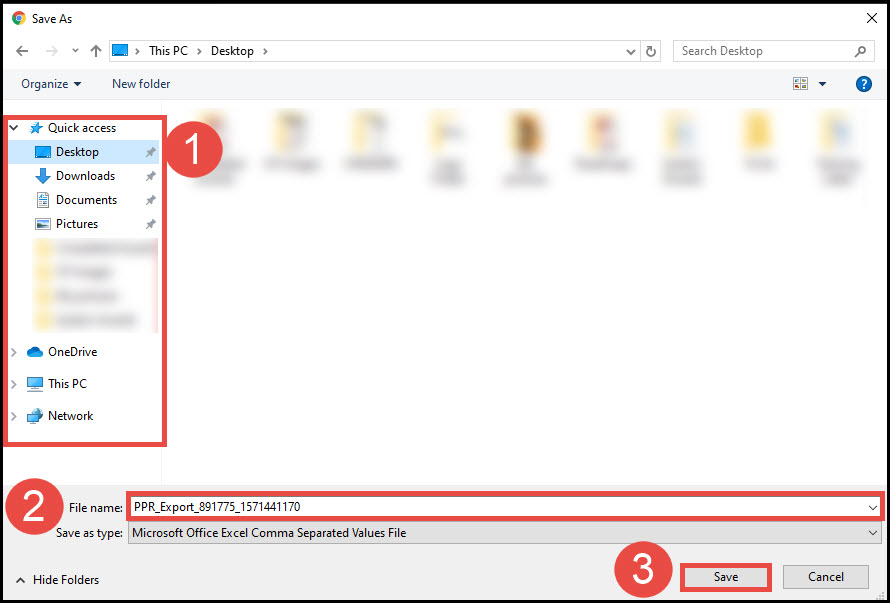
Step 5: Saving!
Select the location where this file will be saved.
Optional: rename the file so it's easier to find or leave as-is.
Select [Save]