
Logo

Cash Practice® Systems Help Center

Search our knowledge base to get answers to your questions, access video training & more!

Preferences: How To Turn a Transparent/PNG Logo Into a JPEG File - Dell Computer

My Account Guide

Preferences: How To Turn a Transparent/PNG Logo Into a JPEG File - Dell Computer

Is the background of your logo turning black once uploaded to Cash Practice®? This is typically caused by having a transparent background or your logo being a PNG file. Please read the information below to walk through the steps of changing your logo from PNG to JPEG.

Last updated on 14 Sept, 2025

Getting Started: 

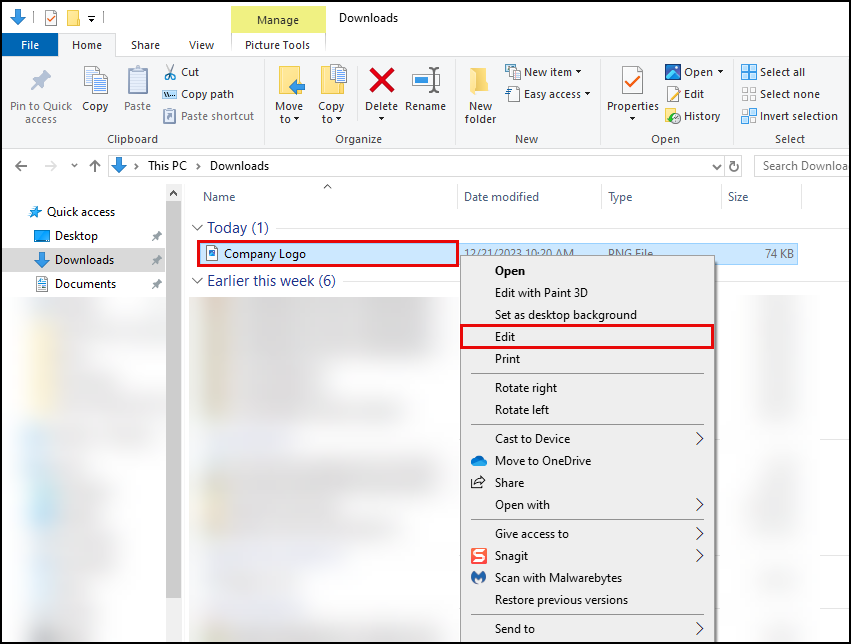
Step 1: Open the File Explorer on your computer, and navigate to where your logo is stored on your computer. Once your logo has been located, right-click on the file and select the [Edit] option. 
Image

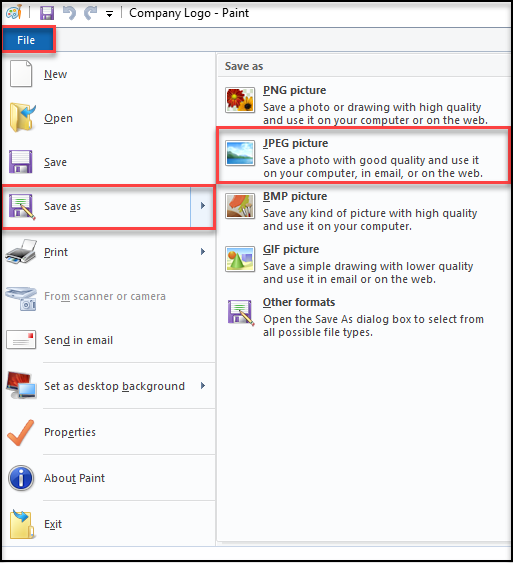
Step 2: Now that your logo has opened, click the [File] tab in the top left corner → [Save As] → select [JPEG picture].
Image

Step 3: Confirm the file name & select [Save].

Image

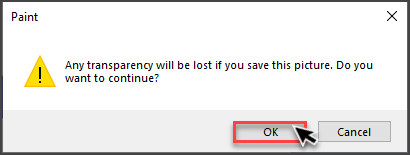
Step 4: An alert will pop up asking you if you would like to continue, select [OK]. To avoid the logo's background turning black we need to remove the transparency. 
Image

Step 5: Upload your new Logo to your Cash Practice® account as shown HERE


For assistance, please email Support@CashPractice.com or call (877) 343-8950 x102.

Did you find this article helpful?
Previous

How to edit your Cash Practice account user email address

Next

© 2026 Cash Practice Systems. All rights reserved.