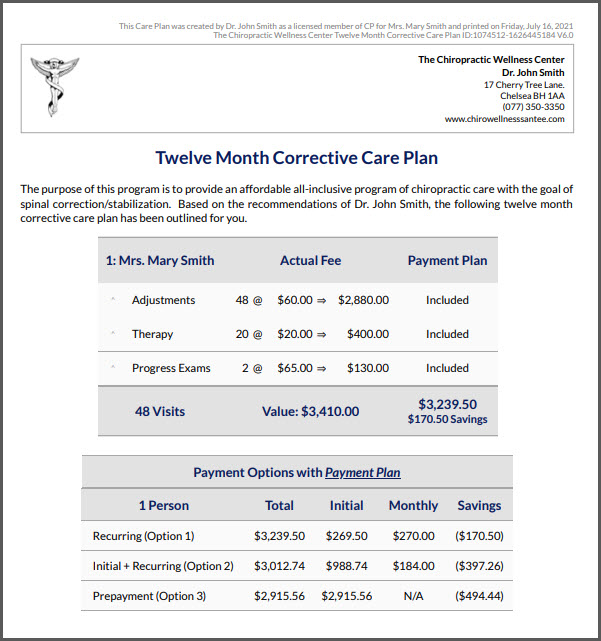
We are so proud to have members from across the globe using our program! Our system has common currency types that can be selected from within the account that will reflect on your cash plans and other locations where currencies are shown. The instructions below walk through where to access and update the currency to fit your specific region. If your currency is not listed, please reach out to us by email at support@cashpractice with this request and we will send this off to our Engineering Department for review.
Please note: This setting will only be available when logged in as the Admin or an Account User with Admin permissions. Click HERE for more information.
Getting started:
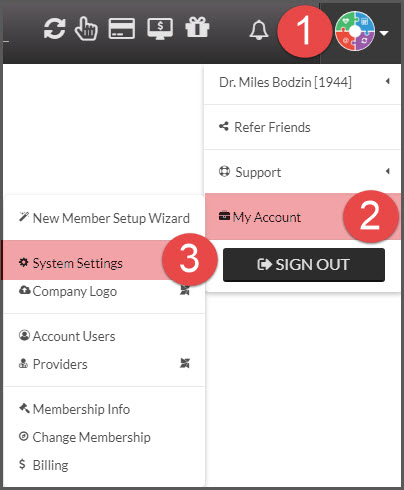
Step 1: Head to the [User Profile] →[Click on [My Account] → [System Settings].
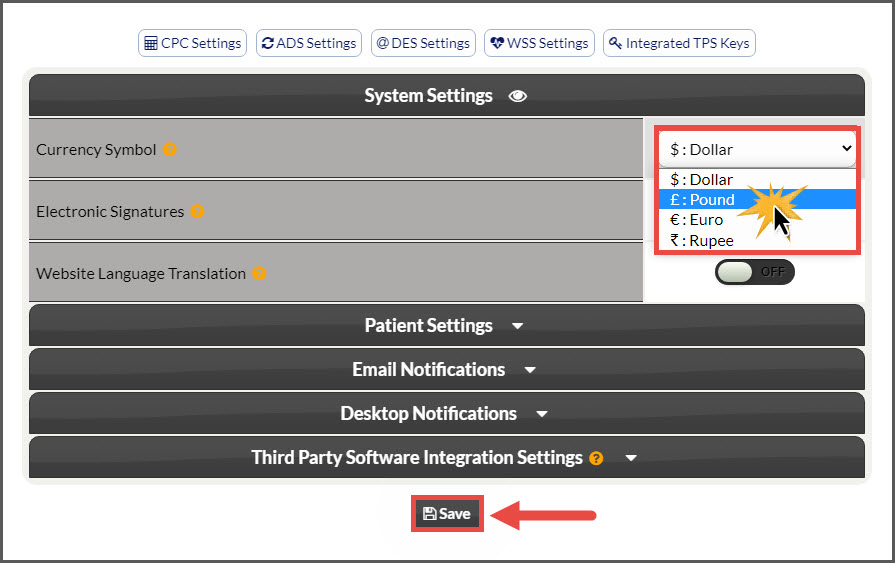
Step 2: From the Settings page, locate the "Currency Symbol" section.
Step 3: From the drop-down menu, select your region's currency. The available currencies are:
$ Dollar
£ Pound (GB)
€ Euro
₹ Rupee
After the selection has been made, scroll to the bottom of the page and click the [Save] button.
Example: