

Learn how to set page margins, and remove header and footer information from your printer set-up when you print your Wellness Score Report. Let's look at the steps below:
Start here: What browser am I using?
For Google Chrome: Preferred Browser
Step 1: Click on the [Logo] or [ Print] button on your Wellness Score Report to bring up the print options window.
Step 2: In the [Print Setup] window, select your desired options as shown below:
Destination: Select the printing destination (ie. which printer you will be using)
Color: Choose Color or Black and White
Under More Settings:
Margins: To remove margins, select [None] from the drop down list. This will maximize the space used on each page of the Wellness Score Report.
Options: Turn on or select [Background Graphics] especially when printing in color to show the background colors of the report.
Deselect or turn off [Headers & footers] to exclude the URL at the top or bottom of each page.
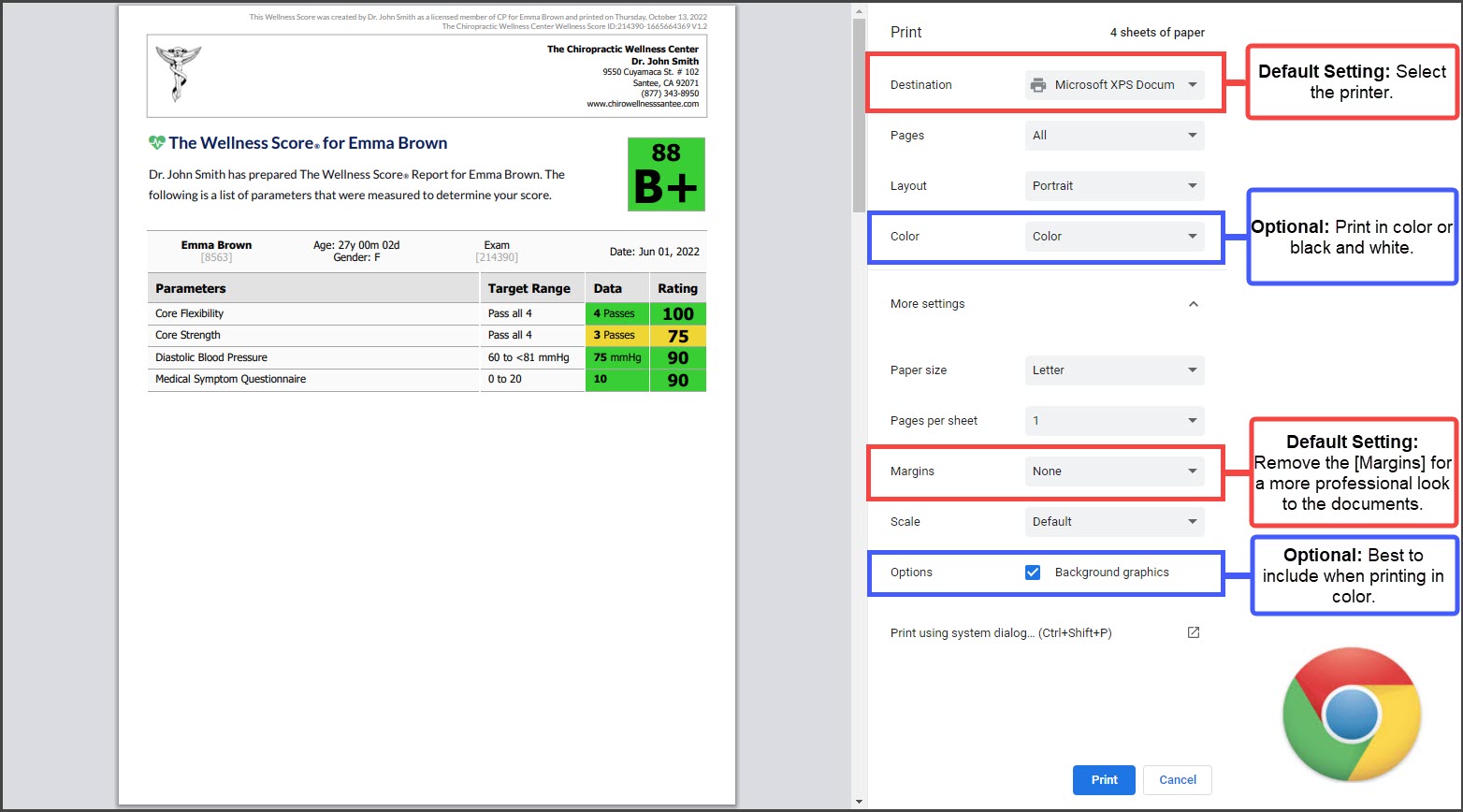
Step 3: Once the printing preview has updated and looks as intended, select [Print] to print your report.
For Microsoft Edge:
Important: We do not recommend using Microsoft Edge when using the CashPractice.com website as certain functions may be missing or will not work properly.
Step 1: Click on the [Logo] or [ Print] button on your Wellness Score Report to bring up the print options window.
Step 2: In the [Print Setup] window, select your desired options as shown below:
Destination: Select the printing destination (ie. which printer you will be using)
Color: Choose Color or Black and White
Under More Settings:
Margins: To remove margins, select [None] from the drop down list. This will maximize the space used on each page of the Wellness Score Report.
Options: Turn on or select [Background Graphics] especially when printing in color to show the background colors of the report.
Deselect or turn off [Headers & footers] to exclude the URL at the top or bottom of each page.
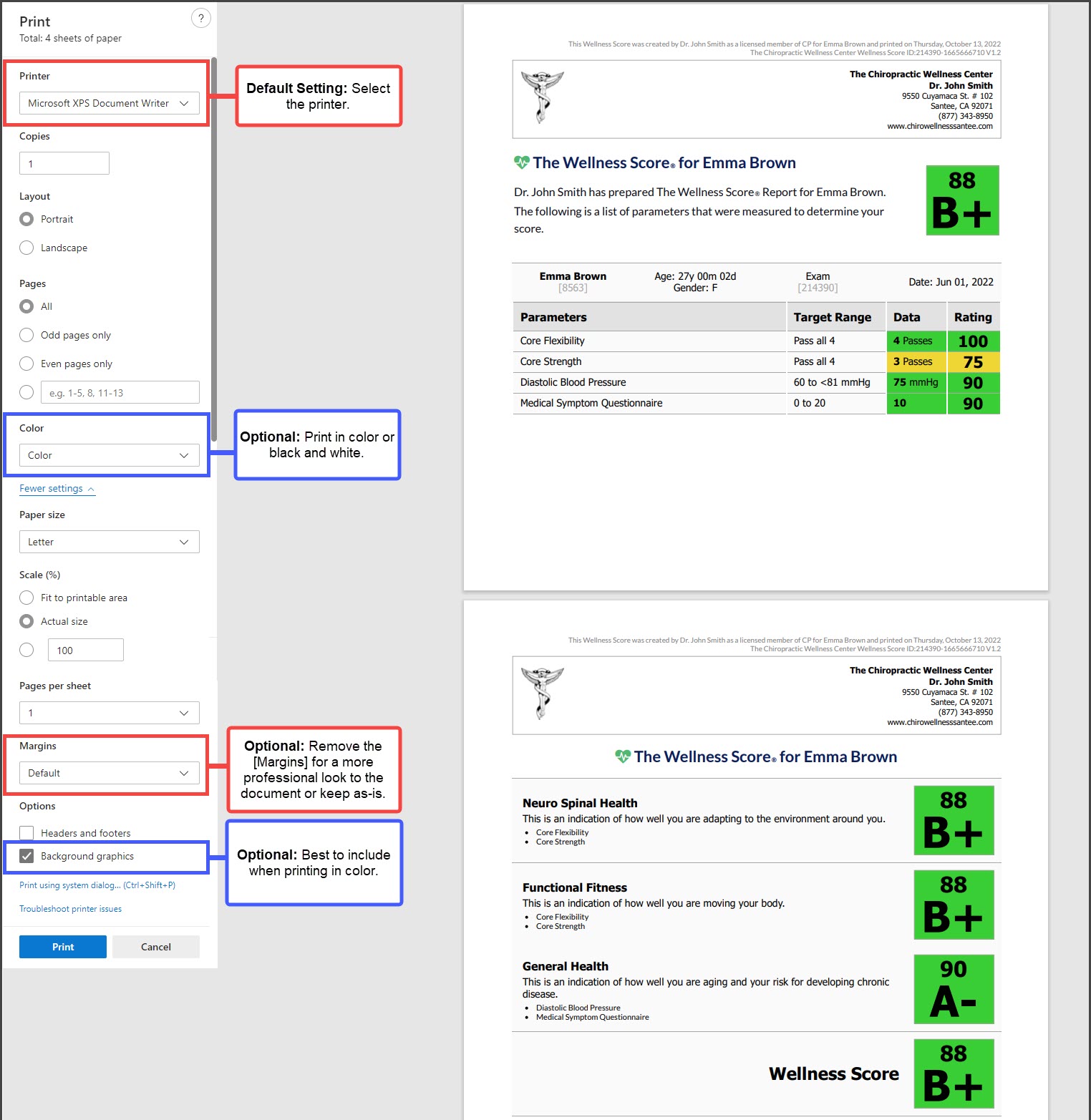
Step 3: Once the printing preview has updated and looks as intended, select [Print] to print your report.