This guide explains how to send your patients an online payment form for their auto debit reminders, either automatically or manually. Let's look at the steps:
To send an online payment form automatically for Auto-Debit Reminders:
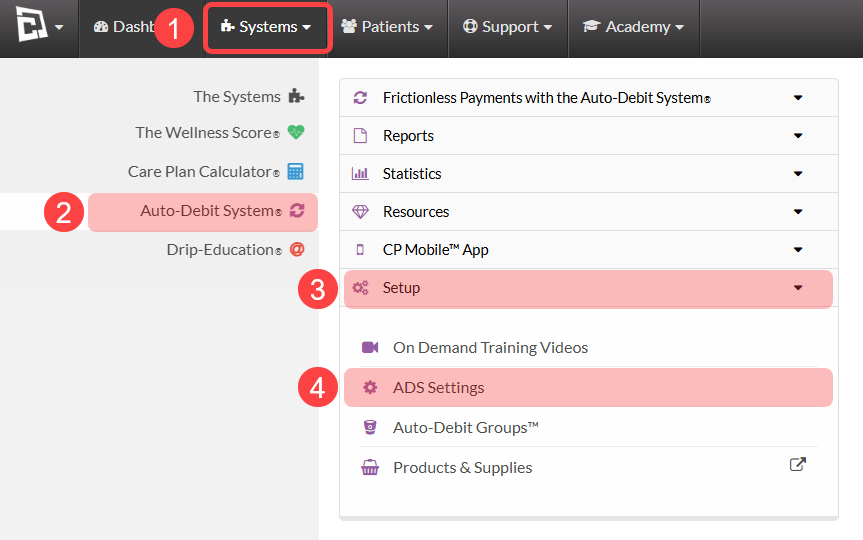
Step 1: Access your Auto-Debit System Settings
Click on the [Systems] menu
Select [Auto-Debit System®]
Choose [Setup]
Click [ADS Settings]
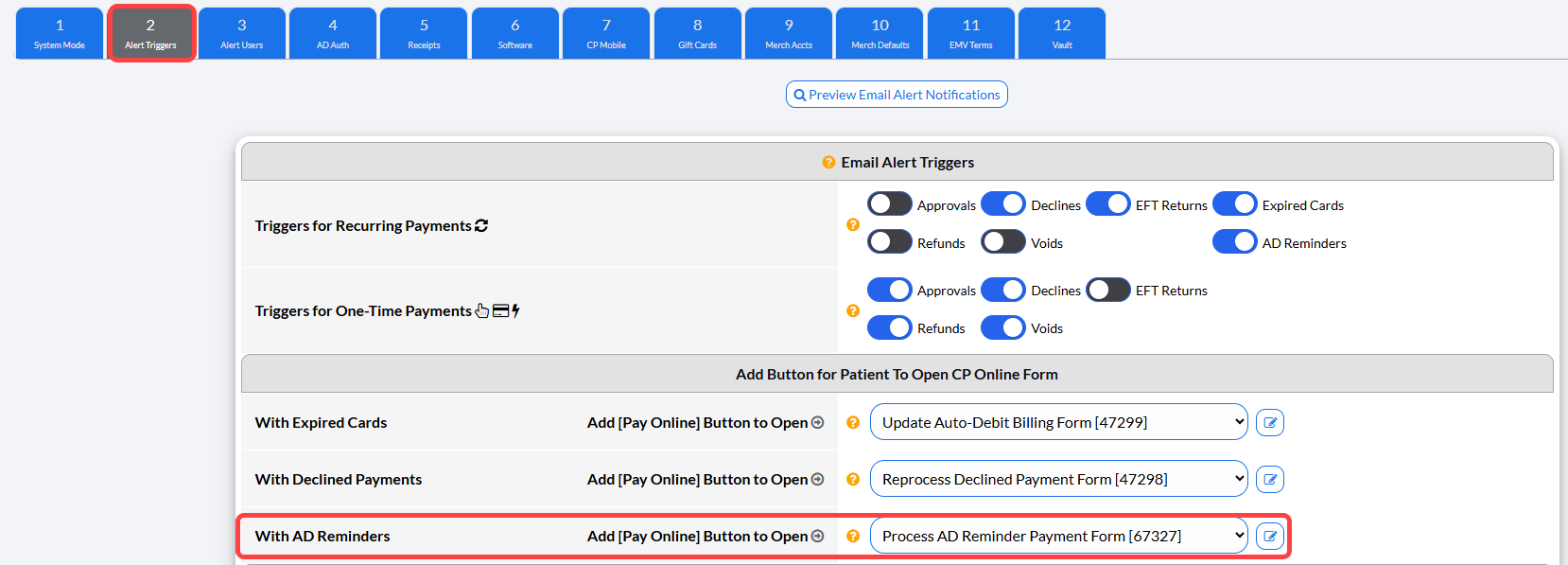
Step 2: Select [Step 2: Alert Triggers] to access your CP Online Form automations for your AD Reminder.
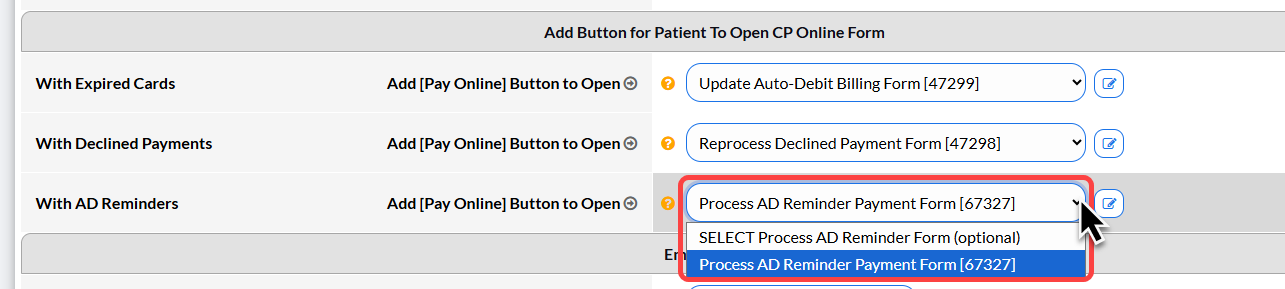
Step 3: Select your CP Online Form for your AD Reminders
Choose the CP online form to be automatically emailed to your patient on the due date of their Auto-Debit Reminder. You can pick from available forms in the dropdown menu.
Step 4: Click [Save Step/Next] to save your changes.
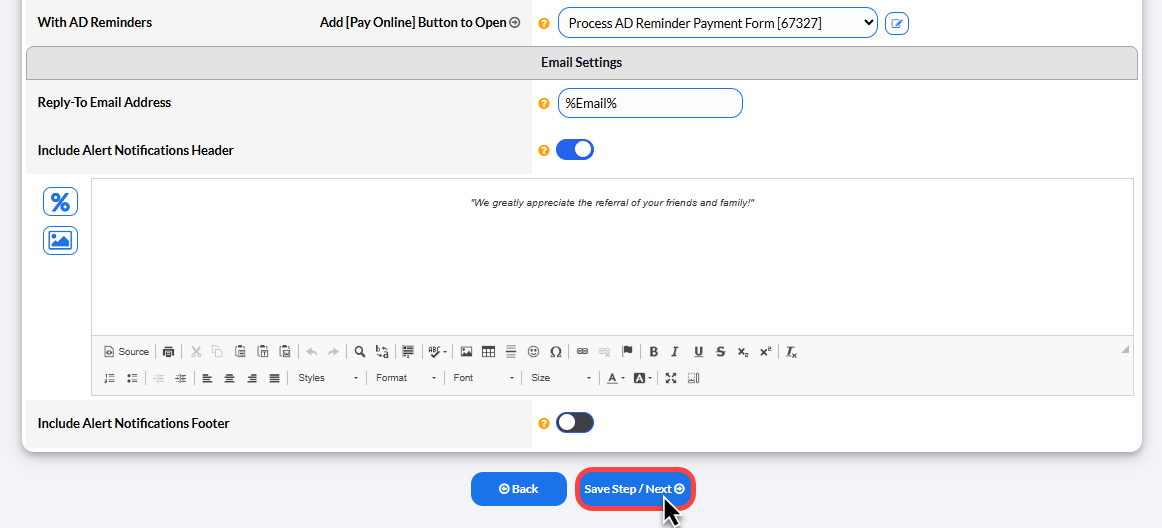
To send an online payment form manually for Auto-Debit Reminders:
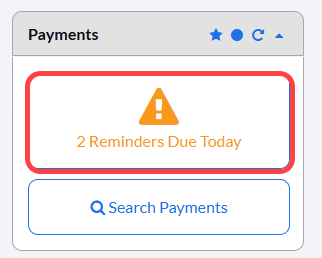
Step 1: On it's due date, the Auto-Debit Reminder will appear in your Payments Report on your Dashboard.
Click the reminder to take action.
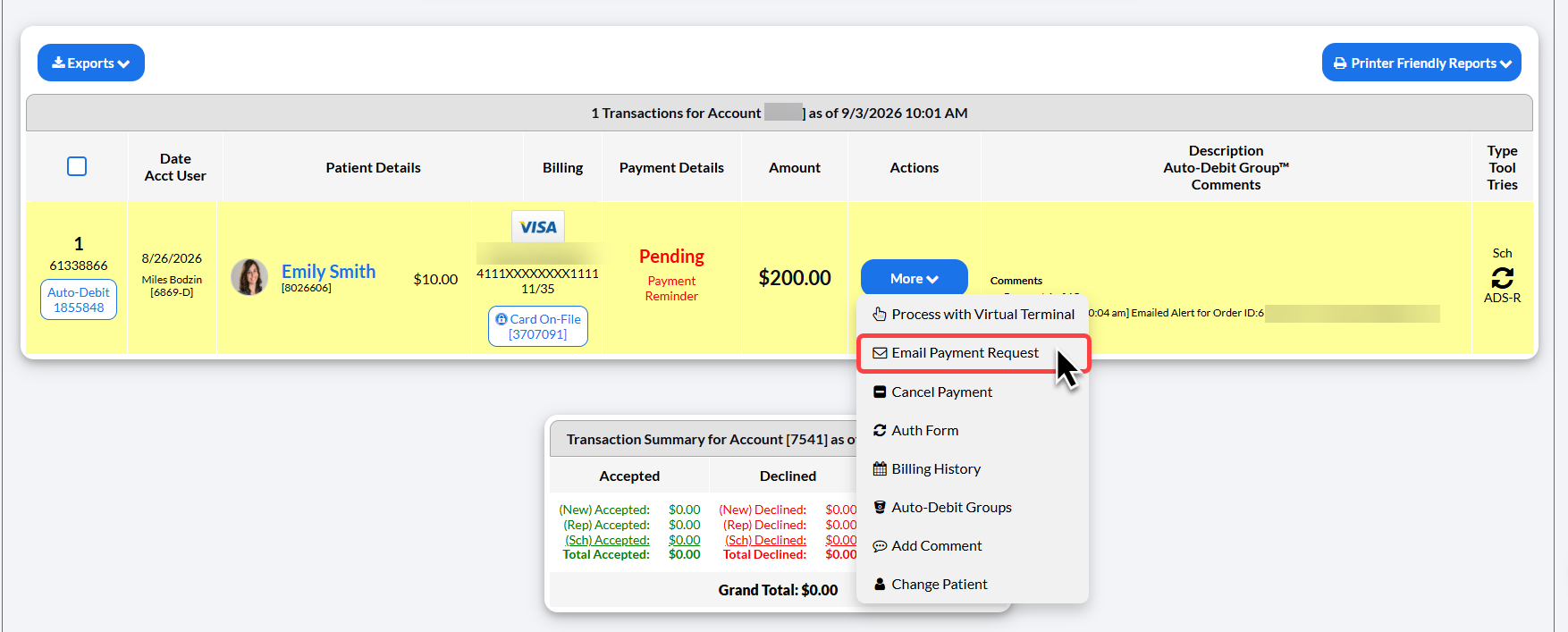
Step 2: Click the [More] button next to the Pending Payment Reminder and select [Email Payment Request]
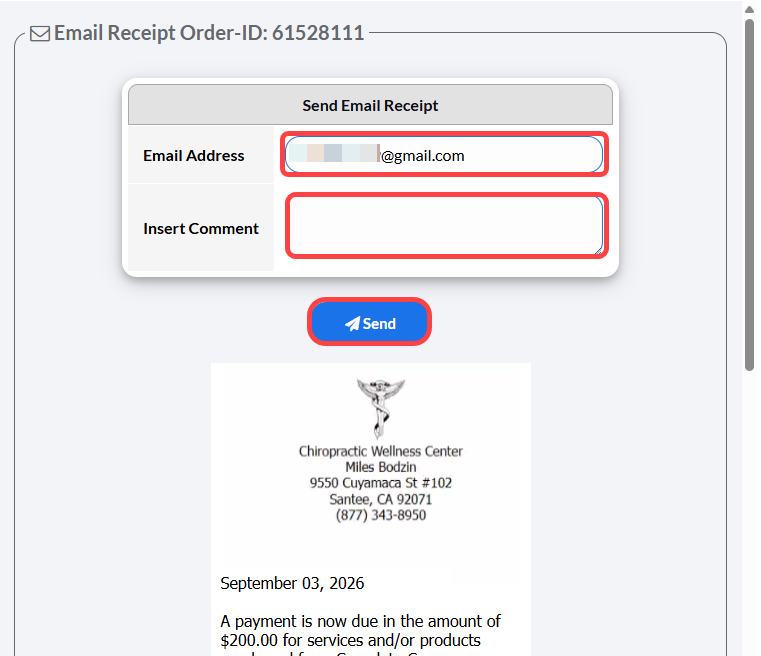
Step 6: Enter the patient's email address - it will automatically populate if there is already an email on file. Add any comment to include in the email and then click [Send].