Please click HERE for instructions on how to make a new CP Online Form.
Follow the instructions below on how to embed (publish) the Survey within a CP Online Form.
Getting started:
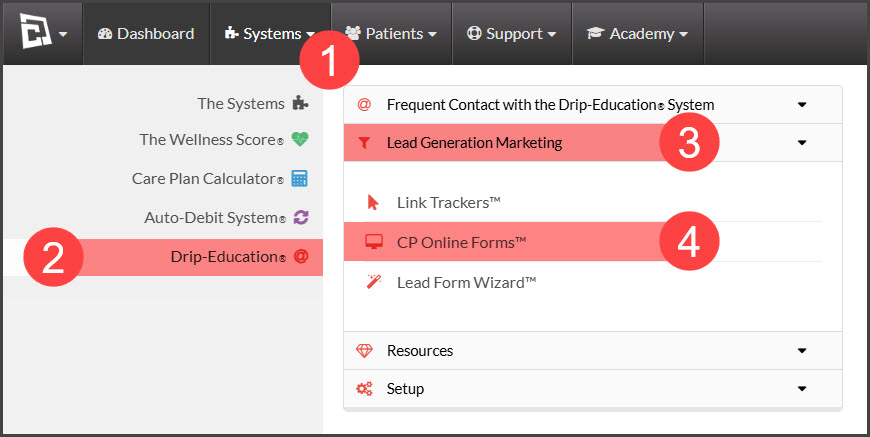
Step 1: From the [Systems] menu → select [Drip-Education] → click on [Lead Generation Marketing] → choose [CP Online Forms™].
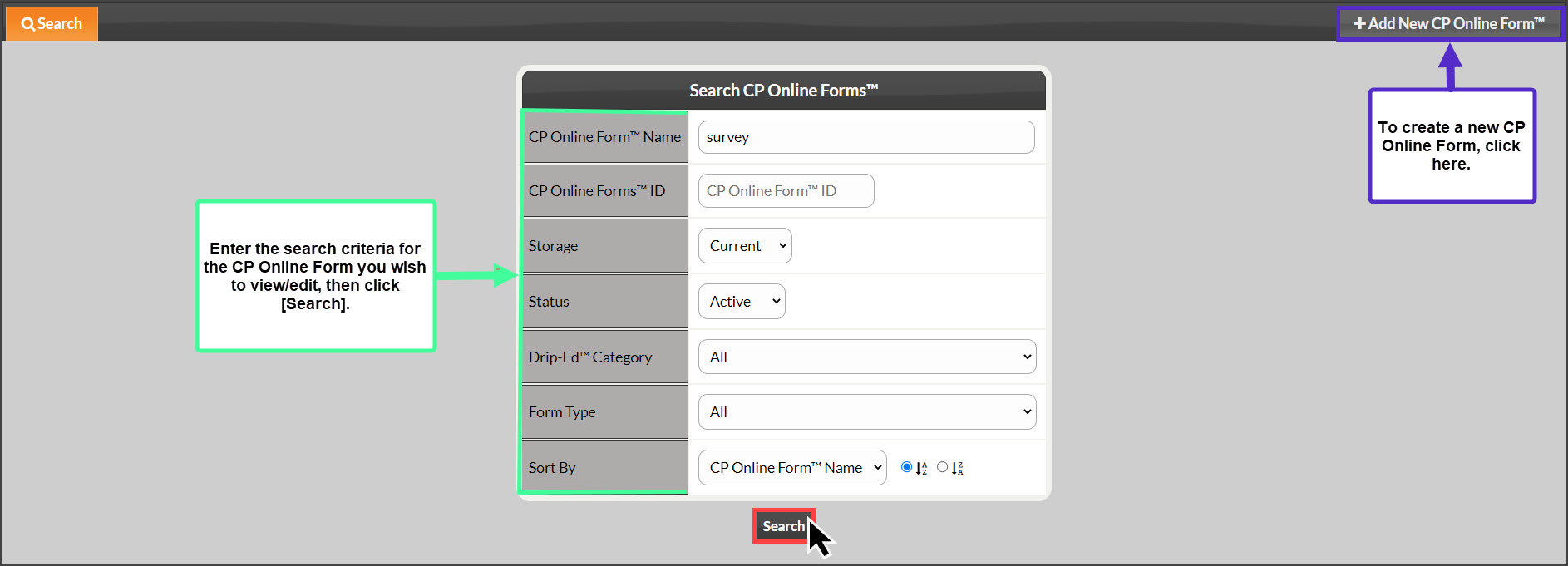
Step 2: Fill in your search criteria or select [+Add New CP Online Form™].
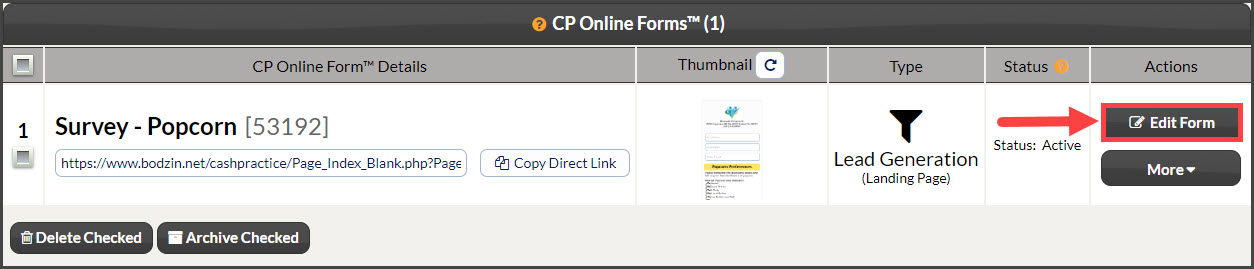
Step 3: Locate the form your survey will be added to → click [Edit Form].
Step 4:
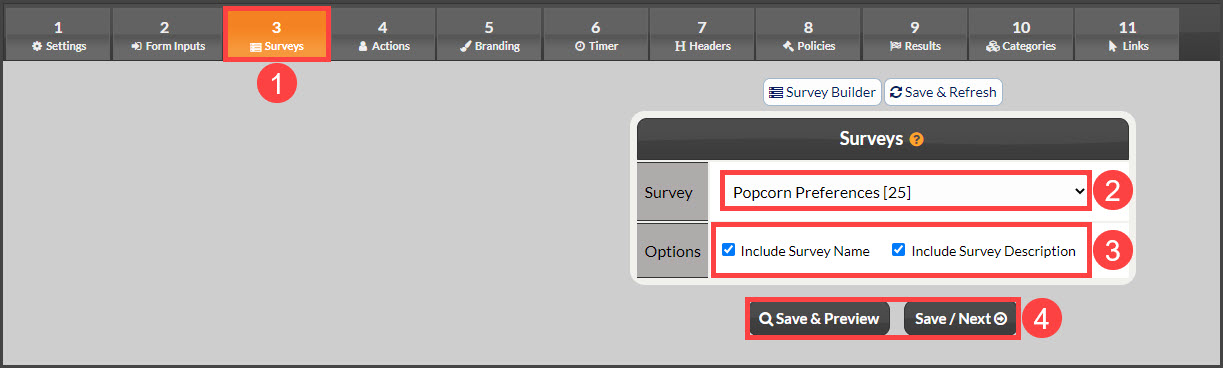
Click over to Step 3 - Surveys
Survey: Select the desired survey to include on the form from the drop-down menu
Options: Check the boxes to include or not include the Survey's name for the patient to see, as well as the survey's description
To view the changes, click [Save & Preview] or select [Save/Next] to move forward
For additional instructions on how to brand your survey, follow the instructions HERE.
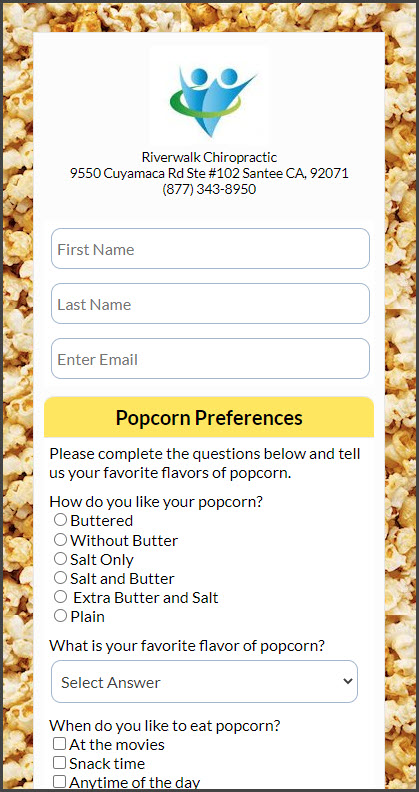
Example of the survey within an online form: