Getting Started:
Step 1: In the top-right corner of the Dashboard, begin typing the patient's first or last name in the [Search Patient] bar and select the patient record once it appears in the drop-down menu.

Step 2: With the patient record open → click the [Drip-Education System] tab → select [Survey History].

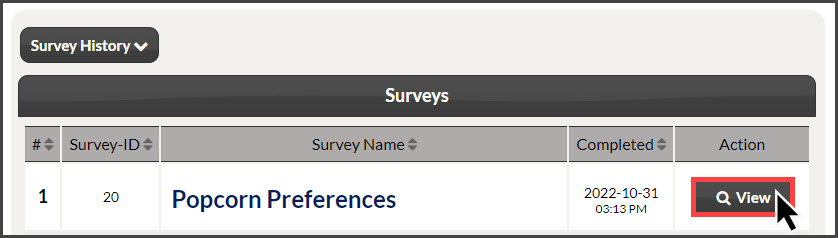
Step 3: A list of all past surveys this patient has completed will appear on the page. Click the [View] button to the right to review their answers.
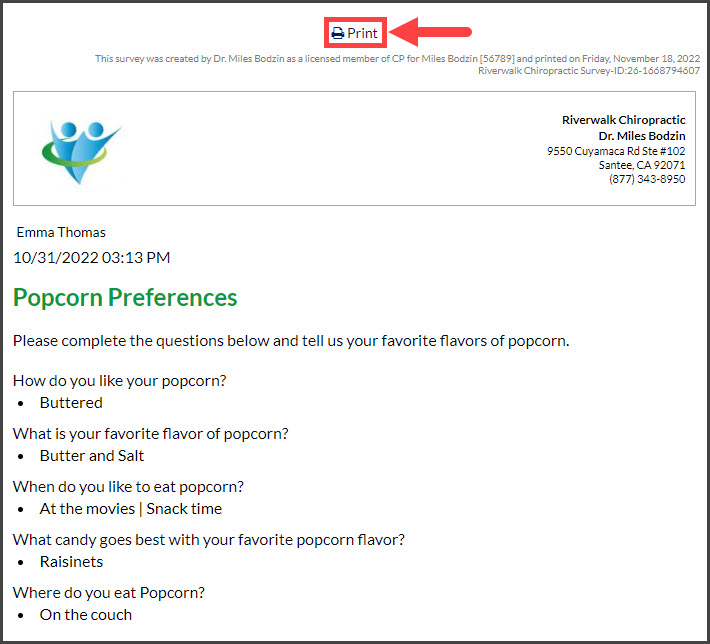
Step 4: Review their answers with the option to print atop the preview.
Optional: View all past answers for a particular survey by clicking [Survey History].

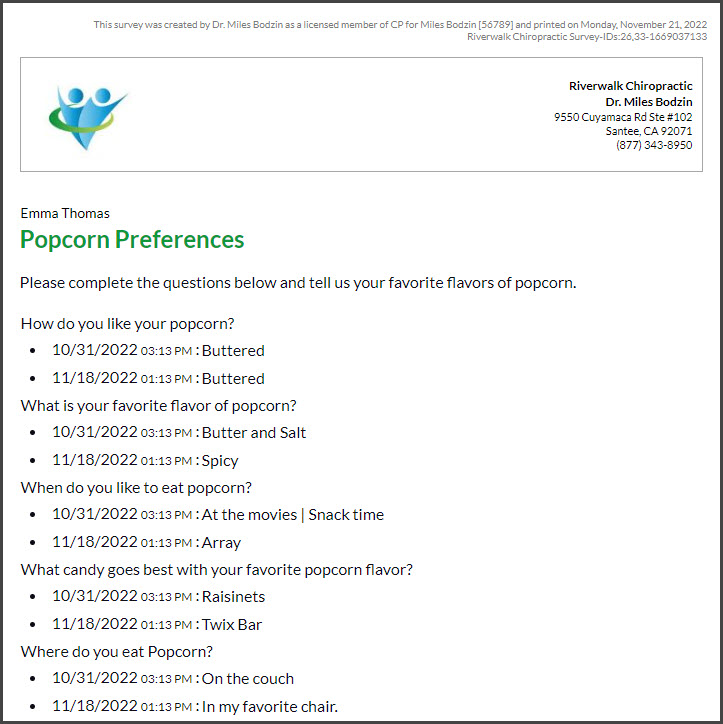
View all the patient's answers over time and how they may have changed, like the example below: