
Getting started:
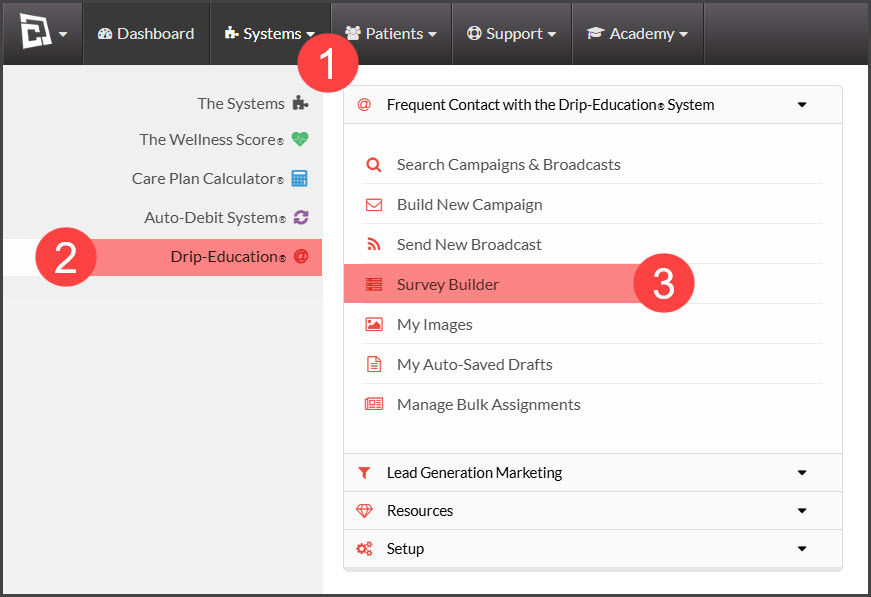
Step 1: From the [Systems] menu → select [Drip-Education] → click on [Survey Builder].
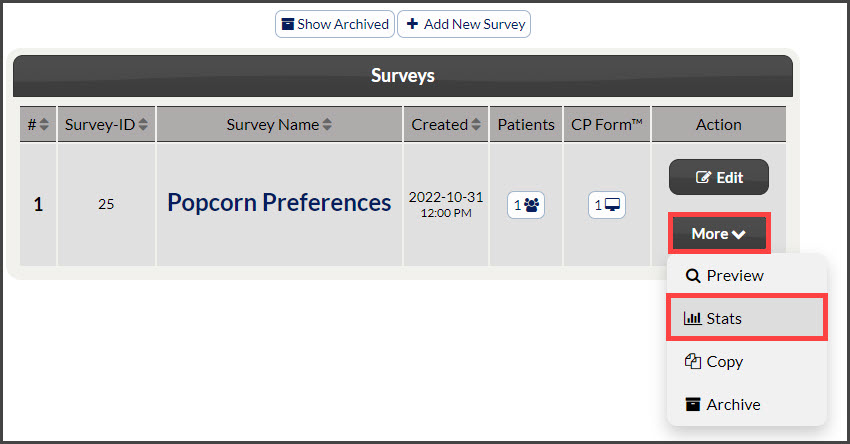
Step 2: Locate the survey to review stats on → click [More] → select [Stats].
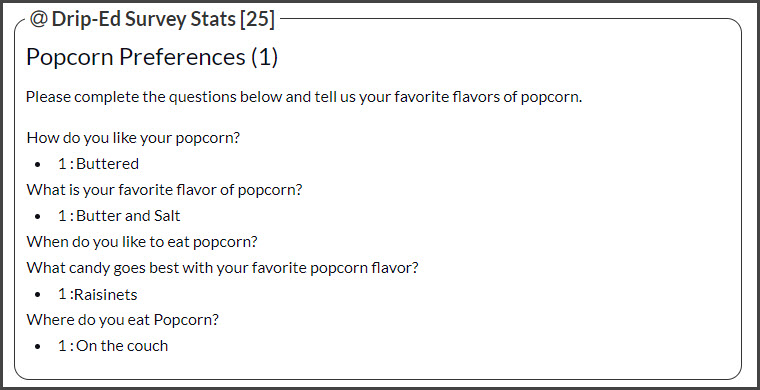
Step 3: View the stats/results.

Cash Practice® Systems Help Center
Search our knowledge base to get answers to your questions, access video training & more!
Surveys: How to view Survey Stats
Drip-Education® Email Marketing System (Frequent Contact)
Survey Stats allows you to see the total number of answers for each question asked.
Last updated on 13 Sept, 2025
Getting started:
Step 1: From the [Systems] menu → select [Drip-Education] → click on [Survey Builder].
Step 2: Locate the survey to review stats on → click [More] → select [Stats].
Step 3: View the stats/results.