

Easily refund payments through the CP Mobile™ app, and the earliest a transaction can be refunded is the following day. Payment originally made on CP Mobile™ cannot be refunded from the Cash Practice® Systems Website.
If it is too soon to refund, you can perform a Void. Click HERE to learn how to void a transaction.
Account users must have permission to process refunds. To learn more about setting Account User permissions, click HERE.
Transactions collected using the CP Mobile™ swiper can be refunded directly through Cash Practice as shown HERE. Credit card number will be required.
Getting Started:
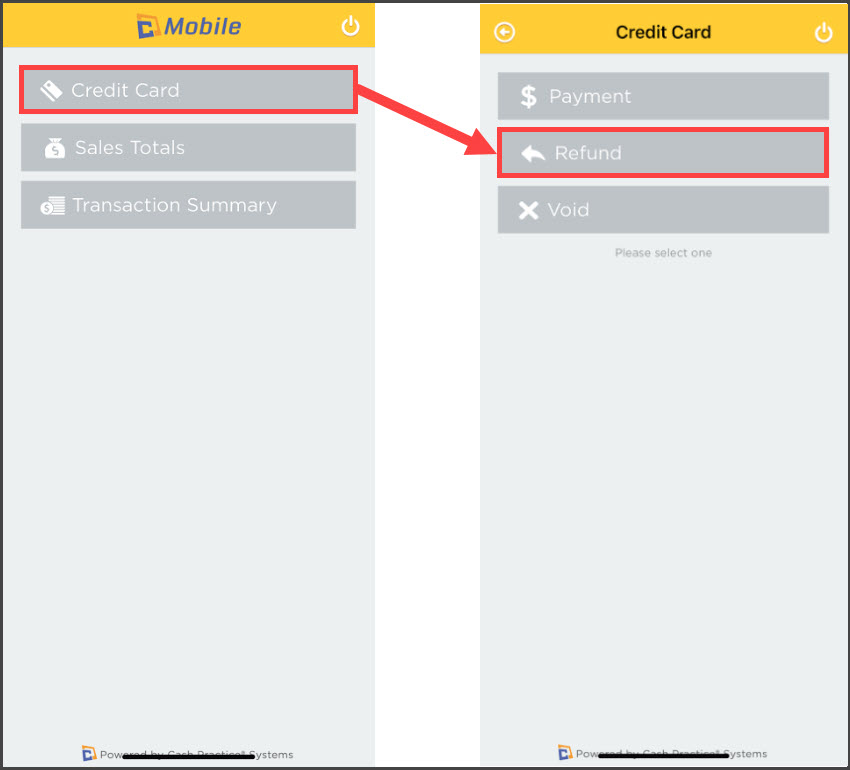
Step 1: Once you have signed in, from the CP Mobile™ home screen, select [Credit Card] → [Refund].
*If you do not have the permissions set up to do so, please click HERE to learn how to edit CP Mobile™ permissions.
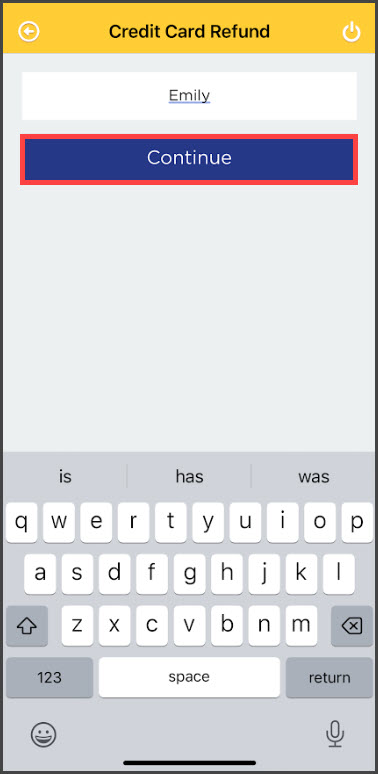
Step 2: Search for the card to refund by entering a few letters of the customer's name (name on card used) or the amount. Click the [Continue] button.
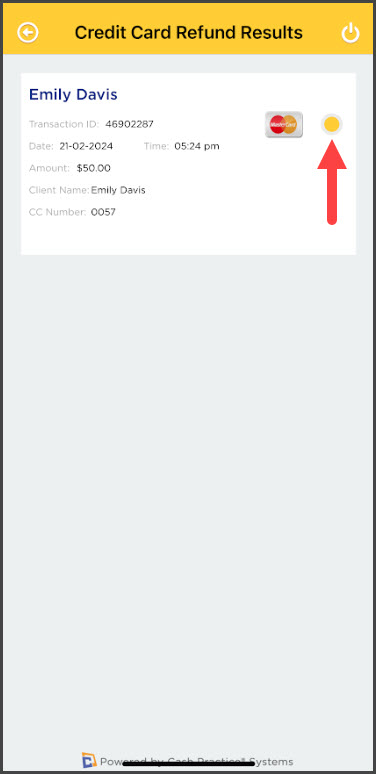
Step 3: A report of the payments able to be refunded will appear, find the payment you wish to refund, and select its radio button.
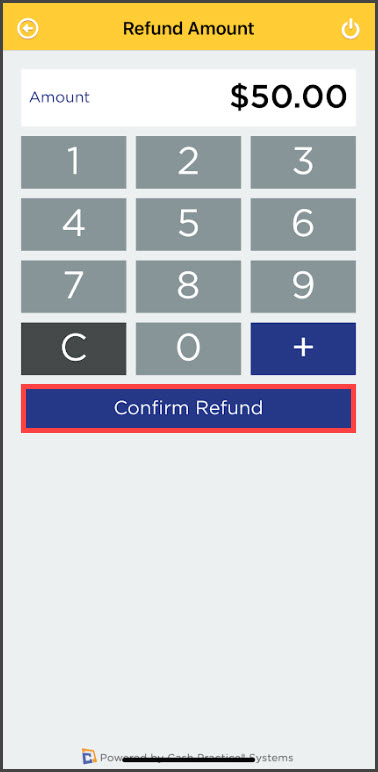
Step 4: On this next screen, enter the amount to be refunded. You may complete a partial refund if needed. The refund amount cannot exceed the original amount of the transaction. Select [Confirm Refund].
Step 5: Once the refund is completed, a receipt will appear. There is no need to get a signature for refunds. From here you can Text or Email the receipt to the customer. Once you are finished, click the [Done] button.
*Note:
Receipts cannot be texted to a customer from an iPad or any device that does not have FULL texting abilities. This would include Android tablets and iPads that only have iMessage.
Receipts can be printed directly from the CashPractice.com account if needed. Please see the linked instructions HERE.