
Logo

Cash Practice® Systems Help Center

Search our knowledge base to get answers to your questions, access video training & more!

Account Information: Where do I change my username? (Admin)

My Account Guide

Account Information: Where do I change my username? (Admin)

Last updated on 14 Sept, 2025

Step 1: Logged into the account as the Admin/Account Owner → From the user profile menu → Go to [My Account] and select [Account Users].
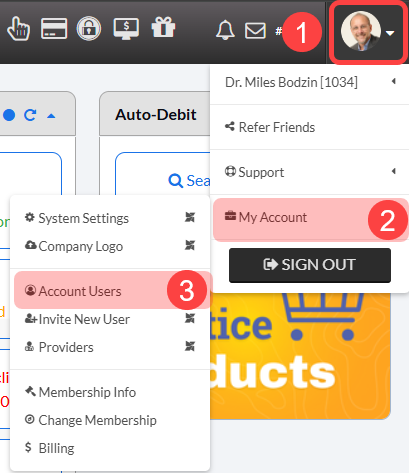
Image

Step 2: Click on [Actions] drop-down menu→ then select [Username]. Once updated, click [Save].
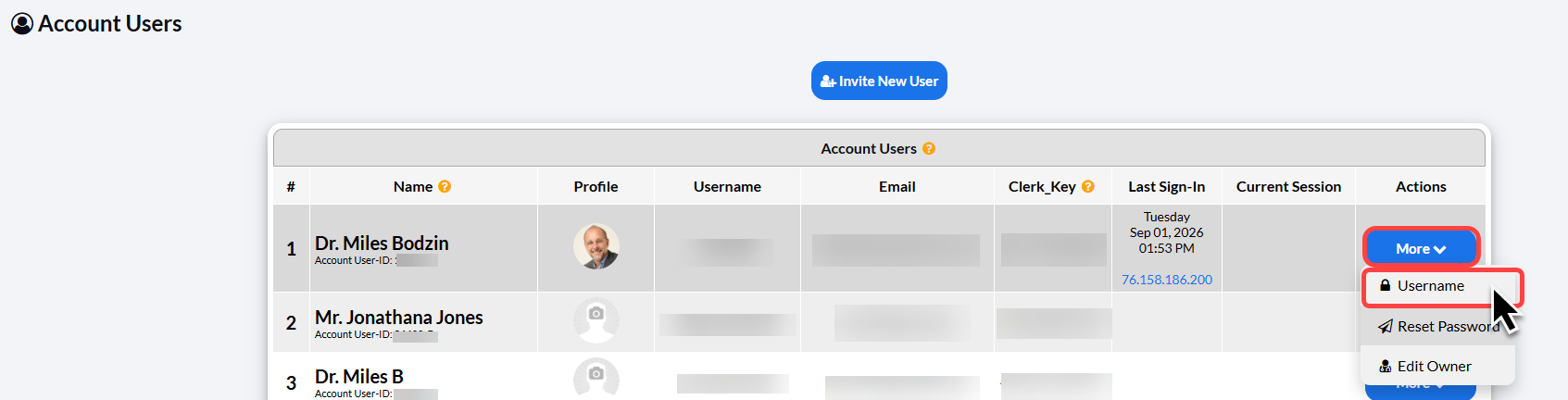
Image

Note: Type your current username, and create a new username below. It must be a minimum of 8 characters in length. Username & Passwords are case sensitive. Once finished, click [Save].
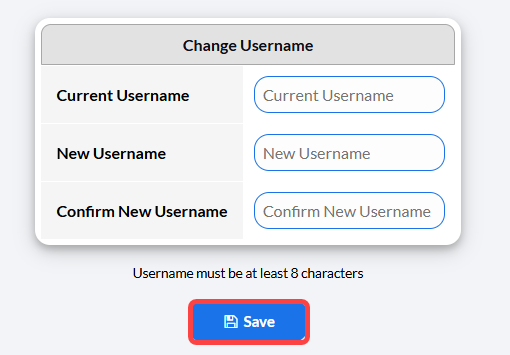

Image

Did you find this article helpful?
Previous

Account Users: How do I select which account users will get email alerts?

Next

© 2026 Cash Practice Systems. All rights reserved.