

One of the biggest reasons a patient will drop out of care is due to the failure to effectively communicate the amount of progress they are making. It is crucial that the doctor does progress exams and provides the patient with a Wellness Score Progress Report so the patient knows how they are doing. A doctor who fails to do regular progress exams and/or fails to effectively communicate how the patient is progressing will suffer from poor retention.
From your Dashboard:
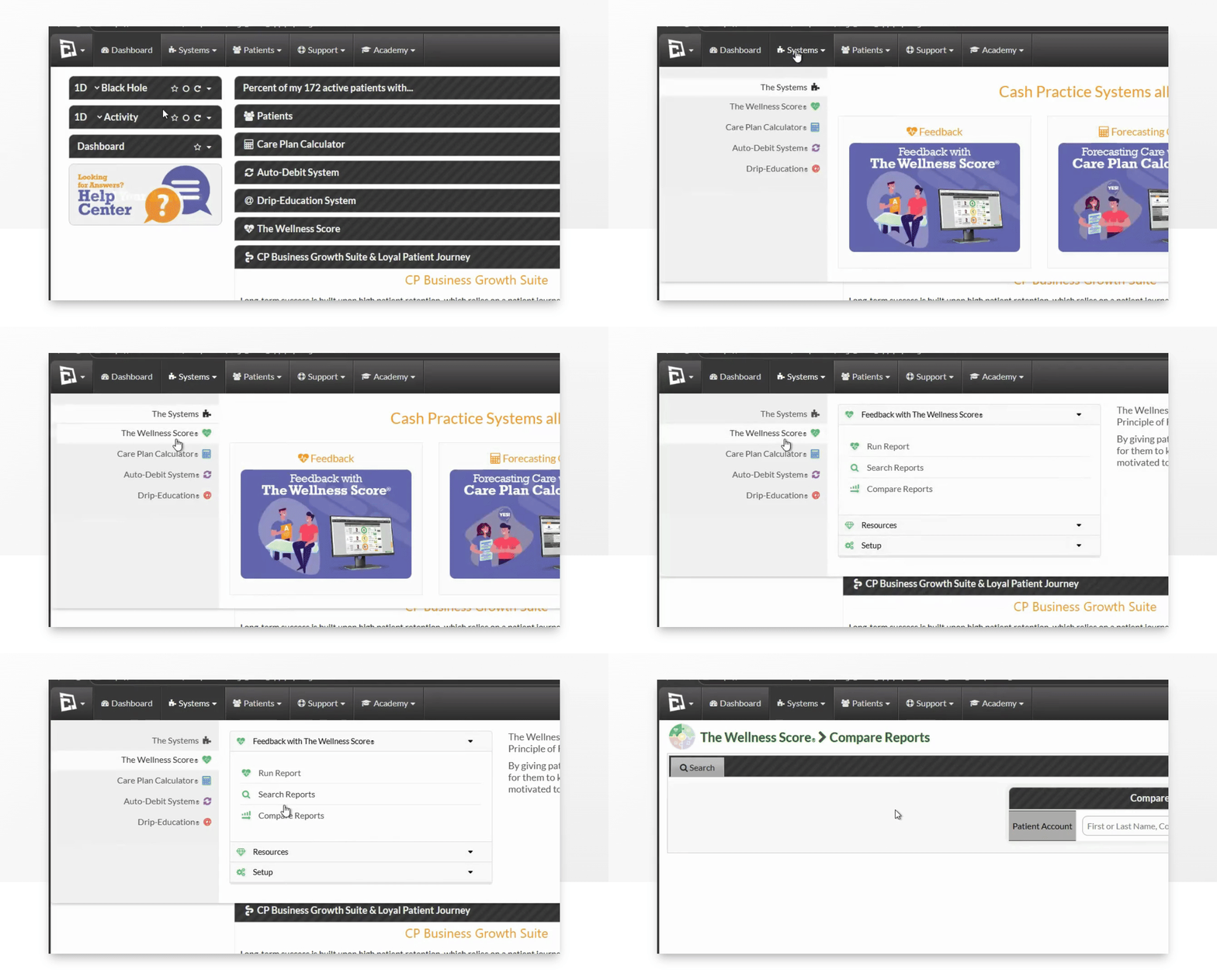
Step 1: Access The Wellness Score® menu & choose Compare Reports
From your dashboard, hover over the Systems tab and click on The Wellness Score®. Then select Compare Reports.
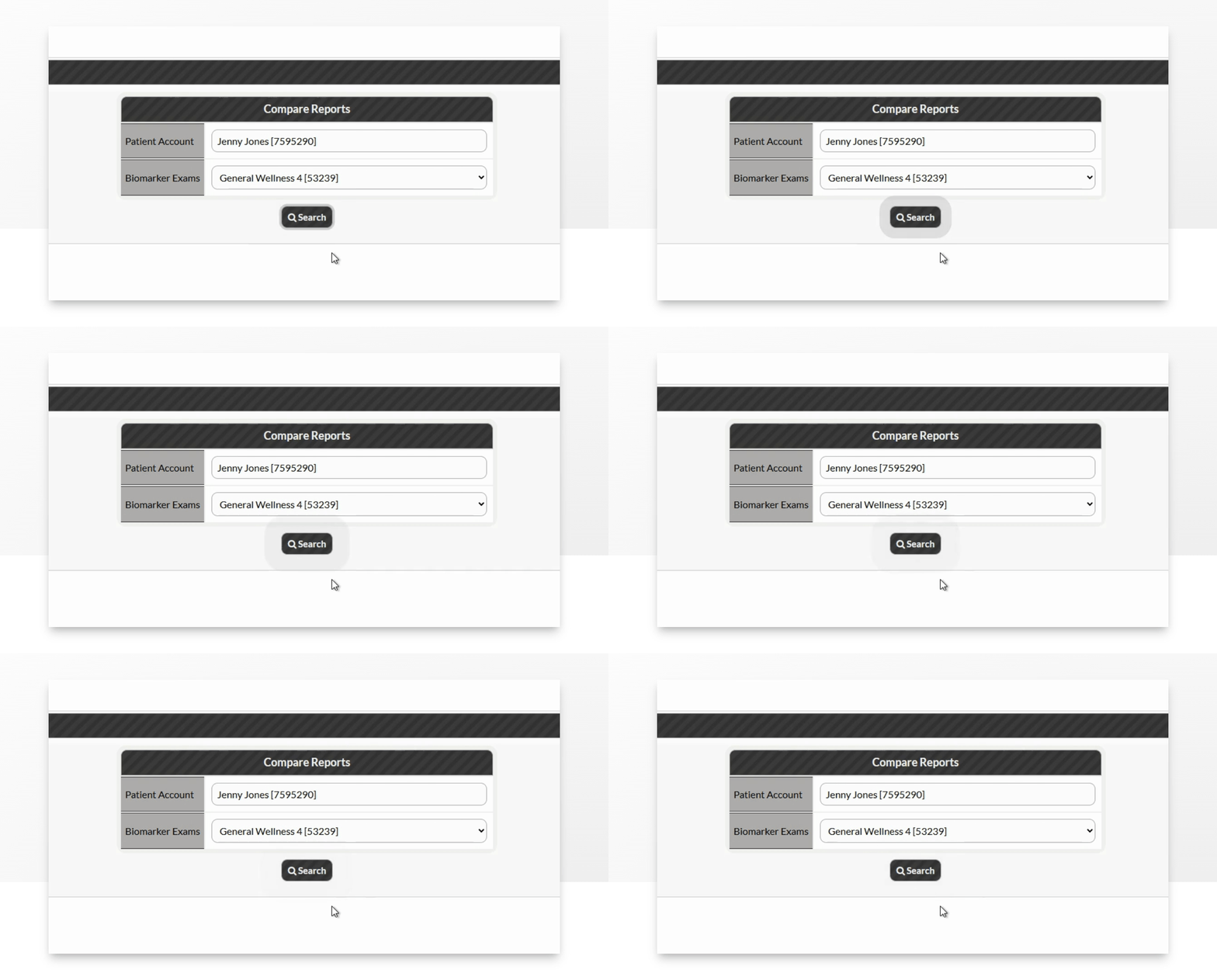
Step 2: Enter patient's name & biomarker exams
Enter the patient's name and then select the biomarker exam you wish to compare. Please note you can only compare matching biomarker exams.
Click Search.
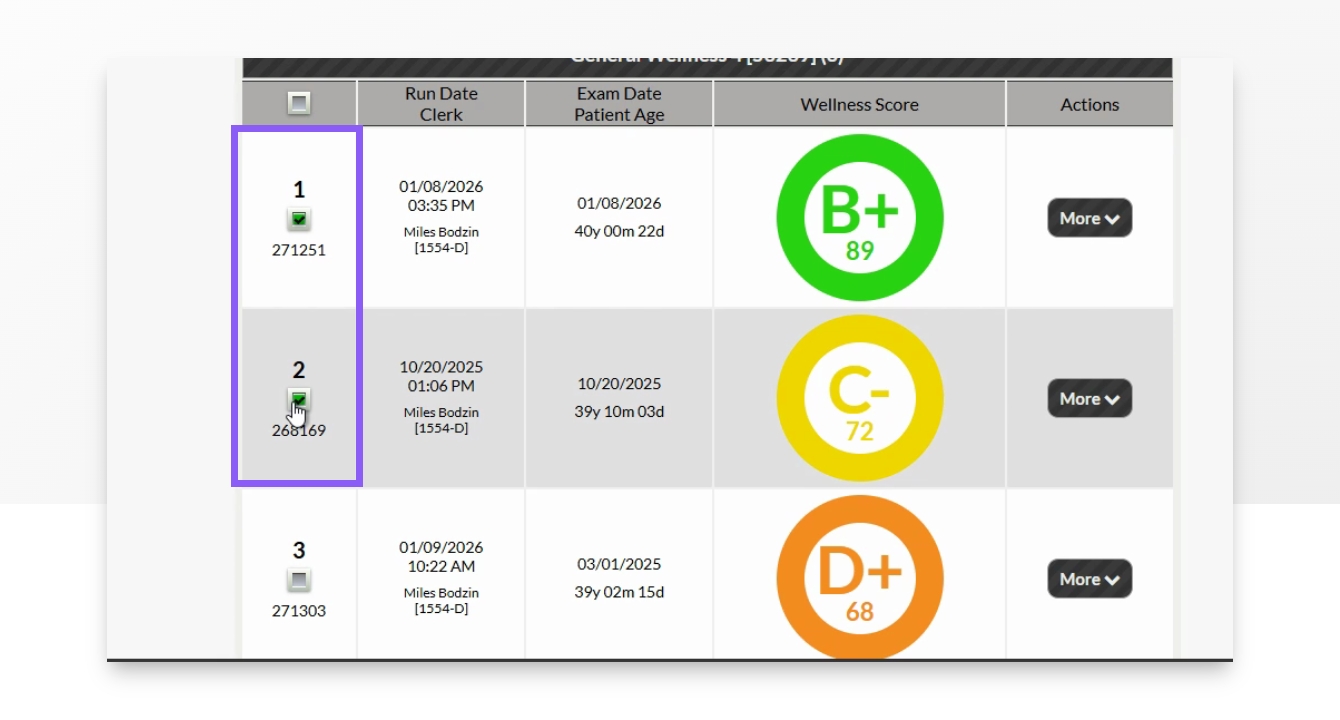
Step 3: Select Reports to Compare
Check the boxes for the reports you'd like to compare from the list.
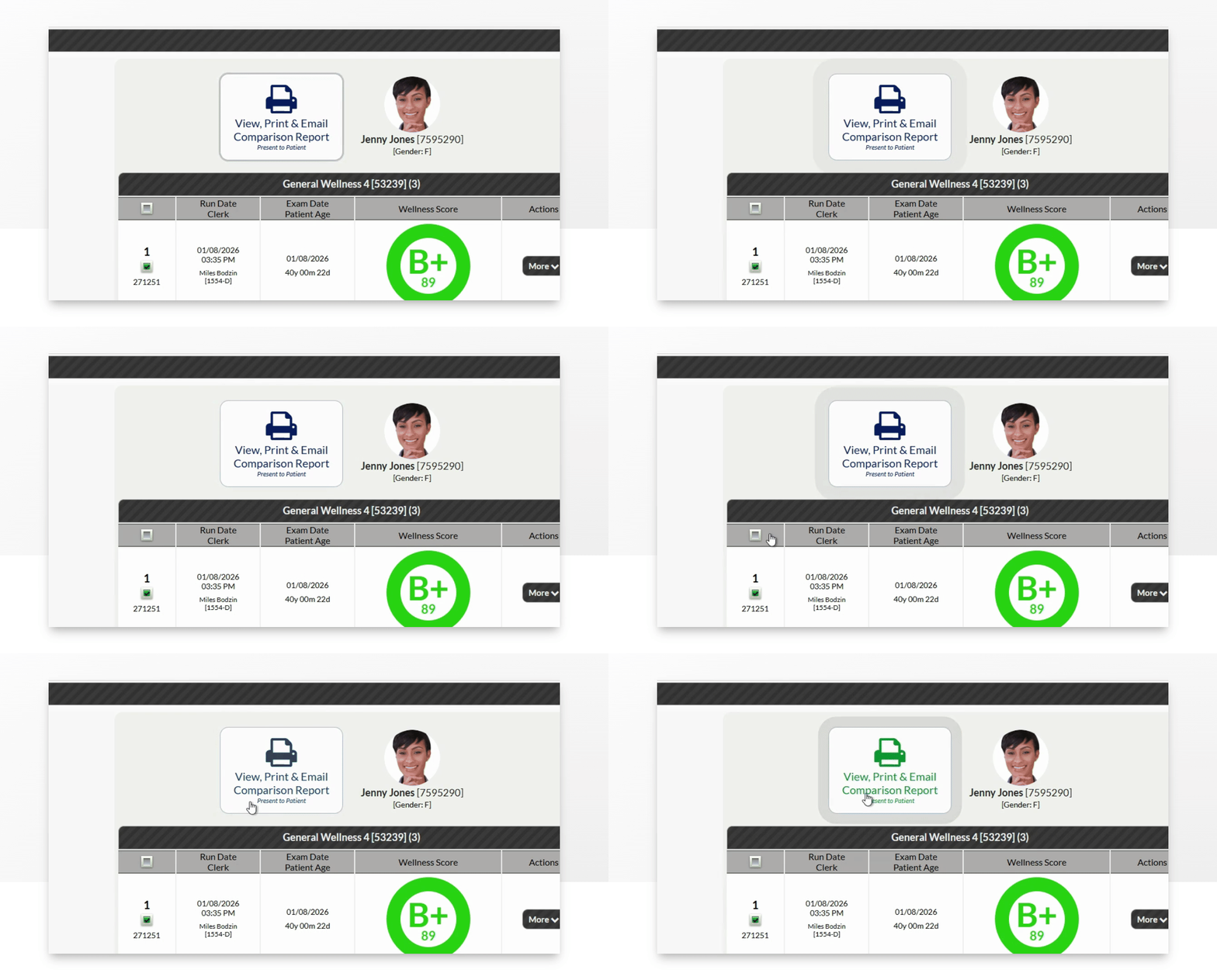
Step 4: Generate Comparison Report
Click the View, Print, and Email Comparison Report button to create the report.
Step 5: View, print, download, or email your report
Utilize the options at the top of the page to print, email, or download your report. You may also click on the logo to print your report.
Note: The letter grade will only show on the bottom of page one IF there are 20 or less biomarkers listed.
Shortcut to Comparison Report:
Step 1: Run a new Wellness Score Report
Follow the steps in the following article to run a new Wellness Score for the report you would like to compare. Please note, you can only compare reports with the same biomarker exam.
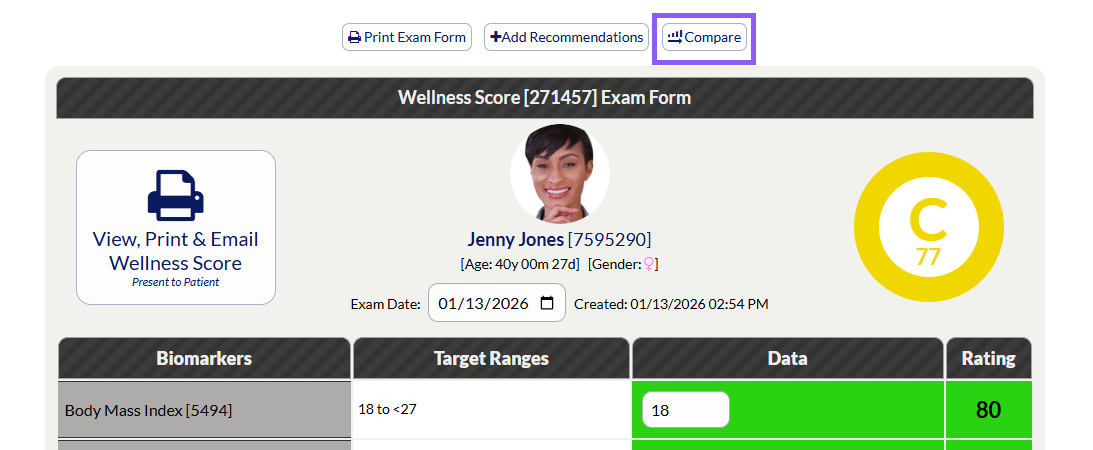
Step 2: Select Compare
After you have completed filling out the new Wellness Score Exam form, select the Compare option at the top of your page.
Step 5: View, print, download, or email your report
Utilize the options at the top of the page to print, email, or download your report. You may also click on the logo to print your report.
Note: The letter grade will only show on the bottom of page one IF there are 20 or less biomarkers listed.