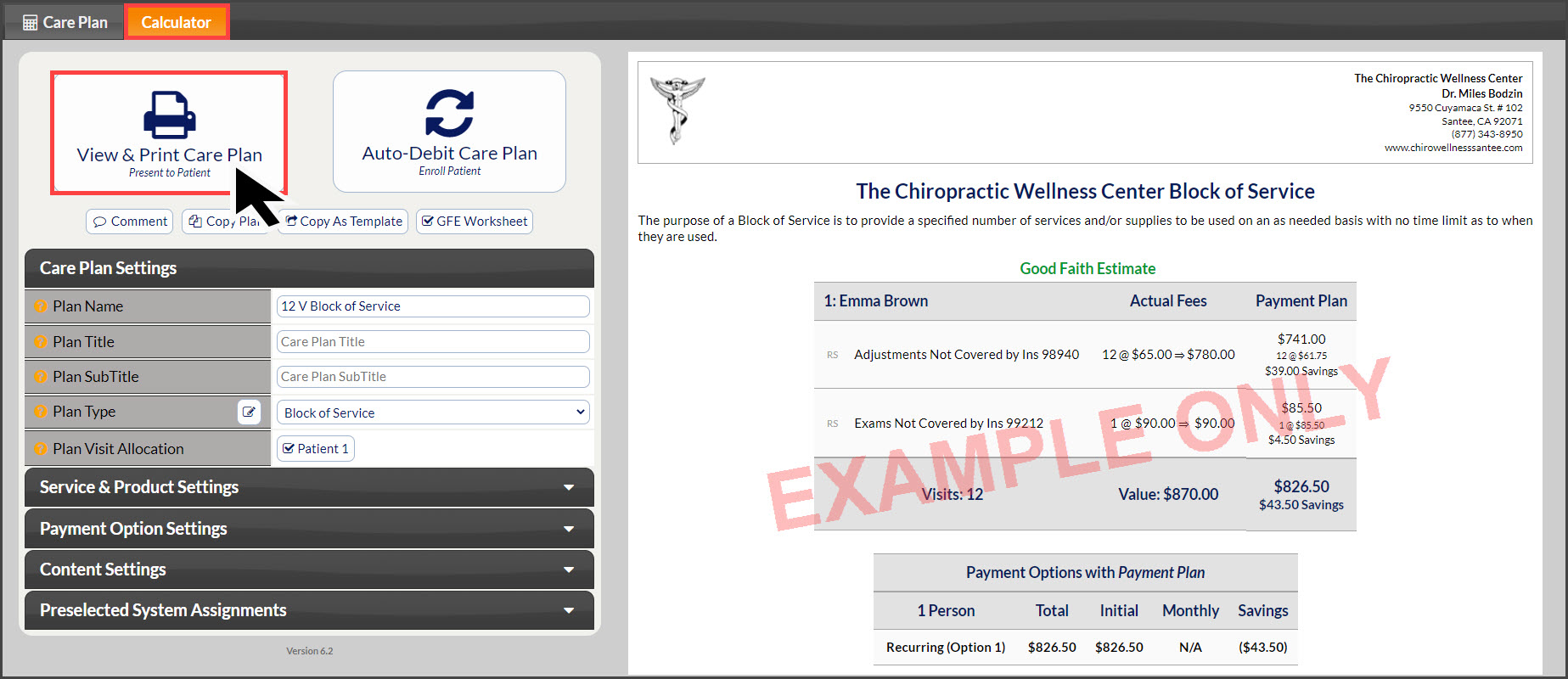
Getting started:
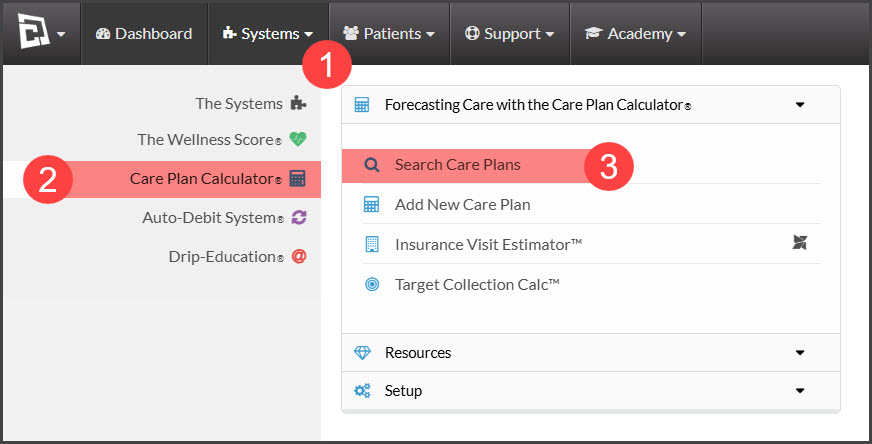
Step 1: Hover the mouse over the [Systems] Menu→ [Care Plan Calculator®] →[Add New Care Plan].
Step 2: Add New Block of Service/Block of Visits
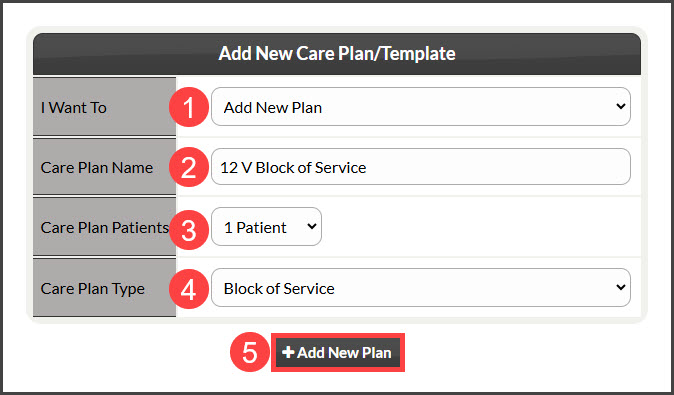
From the “I Want To” section, select the Action as [Add New Plan].
Care Plan Name: Enter a plan name using characters A-Z, a-z, and 0-9. You can either give a generic name such as "6 months 46 visit" or a specific name such as "Mary Smith 12M 60V ". Choose a name that identifies the plan so it can be easily found when you have a large list of plans. NOTE: The plan name is NOT seen by the patient. It is only viewable by account users, therefore the plan name should be as descriptive as possible.
Care Plan Patients: Select the number of plan members. Up to seven members of a family can be on one plan.
Care Plan Type: Choose [Block of Service]
Click the [Add New Plan] button and click [OK].
Step 3: Care Plan
Assigning Plan to Patient:
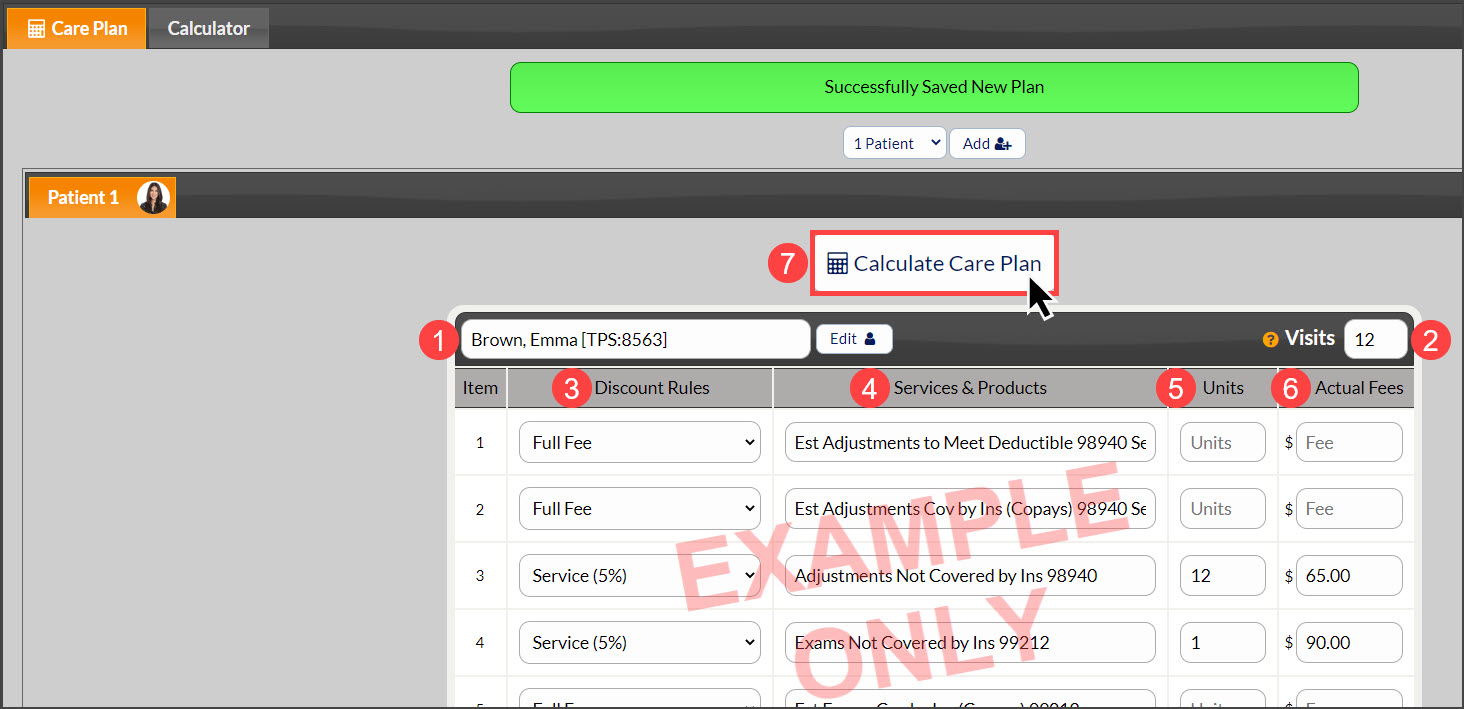
Existing patient: Enter the patient name, company, patient ID, or TPS ID into the patient section menu. The menu will search for patients that match the information entered into the field.
New Patient: If this is a new patient and has no patient account, the Section Menu will state that there is “NO PATIENT FOUND” you may add a new account by clicking the [Add +] button near the top of the page.
Total Visits(Required): Enter the total visits the patient will be receiving with this Block of Service. This will calculate the Ave$/ visits column
Discount Rules: Select Discounting Rules for each service/product.
CHUSA Only
Service (Routine): A Routine Service is categorized as a service that happens each and every visit, like an adjustment. This helps our system calculate the correct CHUSA discount/Max for this line item.
Service (Non-Routine): A Non-Routine Service is a service that does not happen each visit, for example, a Progress Exam would be considered a Non-Routine Service. This helps our system calculate the correct CHUSA discount for this line item.
Service and Products: Enter the service/product you want to include (If not already defaulted into the CPC)
Units: Enter the number of units for each service/product. Lines with no units are not included in the plan. You can edit the service/product descriptions and fees. (If not already defaulted into the CPC)
Actual Fees: Enter the Fee for the Service and Product (If not already defaulted into the CPC).
When finished, click the [Calculate Care Plan] button at the top and bottom of the page.
*Note The discount you apply, if any, must be entered into [Service & Product Settings] → [Plan Discounts] edit button (pencil) → The first discount box.