Getting started:
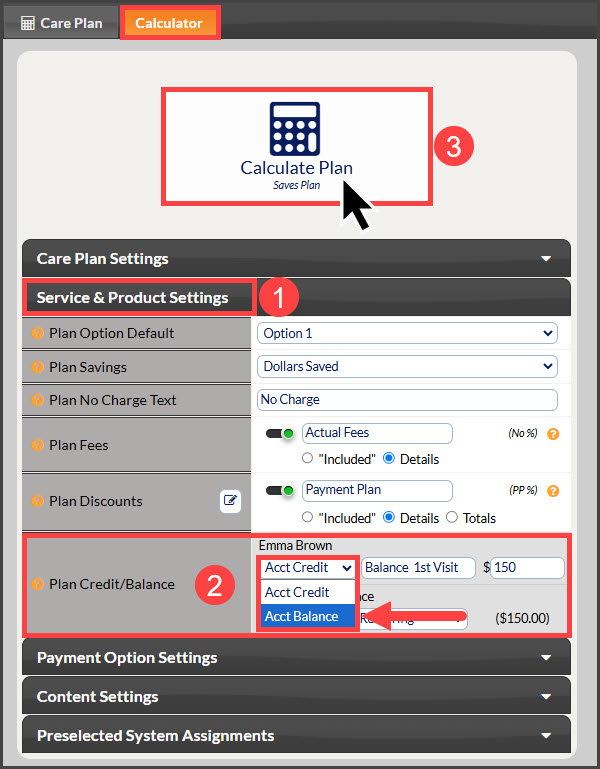
Step 1: To access your plans hover over the [Systems] menu→ [Care Plan Calculator®] menu → [Add New Care Plan]. OR if adding credit to an existing plan, head to [Systems] menu→ [Care Plan Calculator®] menu → [Search Care Plans]. Follow the instructions HERE.
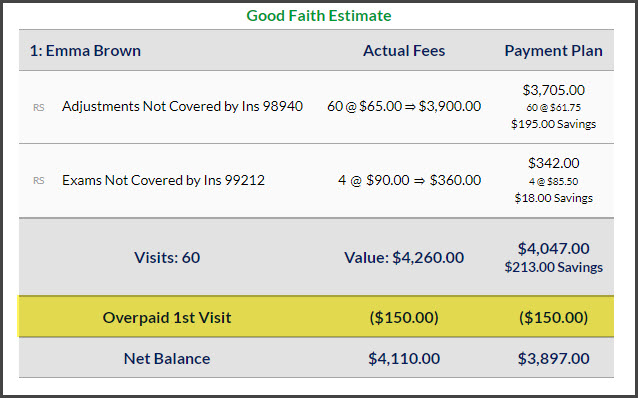
Step 2: Under the Calculator tab, locate the [Plan Credit/Balance] fields under the [Service & Product Settings] section. Enter the credit amount and proceed with adding a description of the credit/balance so the patient knows where this money is coming from, as well as select how this will be applied to the plan. By default, this will be applied to Initial & Recurring. Once finished, click the [Calculate Plan] button.
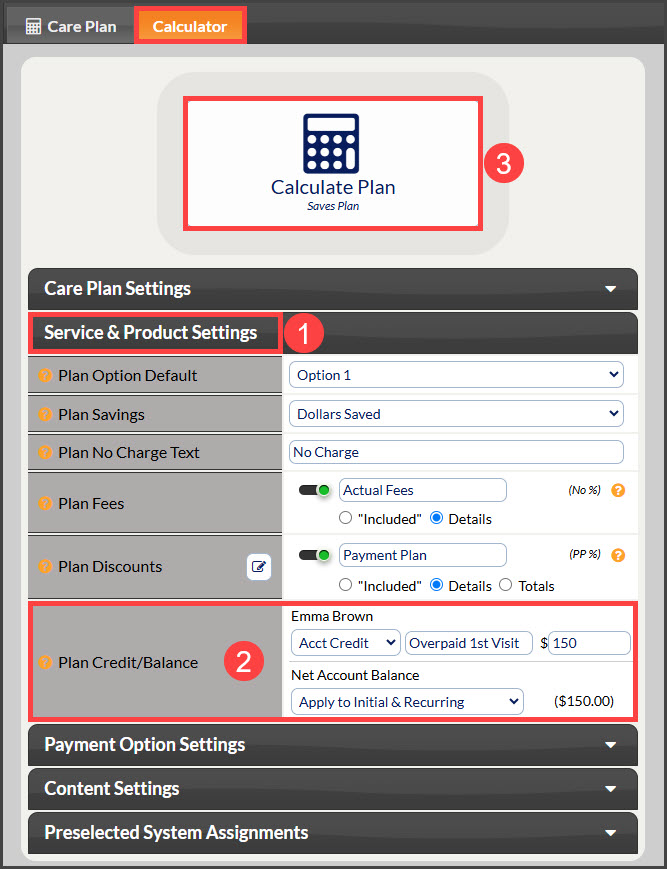
Credit:
Apply Plan Credit Method:
Apply to Initial & Recurring: This evenly spreads the amount through the calculations
Apply to Initial: Applies the amount only to the Initial or first payment of the plan
Apply to Recurring: Add the amount to only the scheduled recurring payments.
Apply Plan Credit Description: Enter a description for the credit. This is displayed on the plan with the credit amount.
Balance:
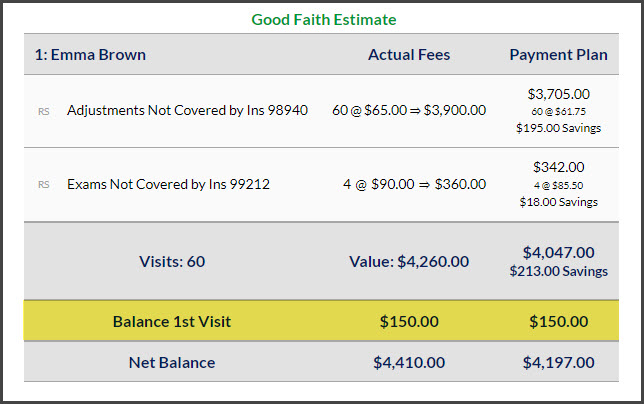
Add a Balance owed on the care plan. This can be done by changing the selection from "Acct Credit" to "Acct Balance". For example: If the patient owes the office $150 from their first visit, and would like this added to the care plan. This will be listed as a charge on the care plan. Still, use the [Method] and [Description] to space and describe this Balance.