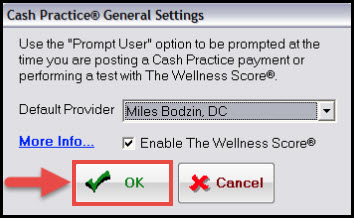
When you have multiple providers in your office, you can choose to select one provider as the "Default Provider" when using your Cash Practice® Systems inside of ChiroTouch®.
When using your Cash Practice® Systems inside of ChiroTouch®, if you have multiple providers, it will ask you to select the provider you wish to use the Cash Practice® System under. This feature is designed for offices that have multiple providers with separate Cash Practice® accounts. If you and the other providers in your office share a Cash Practice account, you can select a default provider to prevent you from having to select one each time you run a transaction.
Getting Started:
Step 1: Log into ChiroTouch®, and access [ChiroTouch® Maintenance].
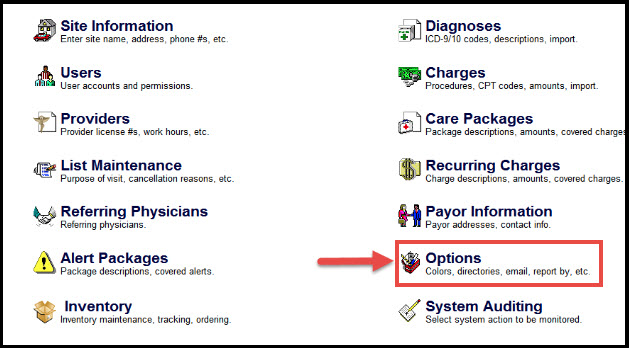
Step 2: From the Maintenance menu, select [Options].
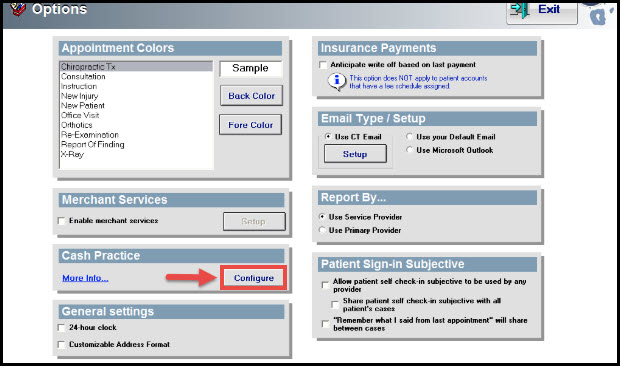
Step 3: In the Options menu, under the title “Cash Practice” select [Configure].
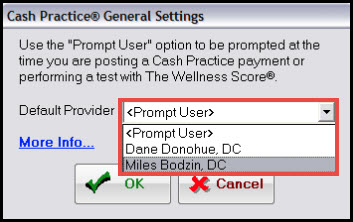
Step 4: This will bring up “Cash Practice® General Settings”. Here you will select the drop-down menu, and a list of all of your current providers inside of ChiroTouch will display.
Step 5: Once you select the provider that you would like to use as your “Default Provider” from the drop-down list, select [OK]. This will save your settings and the next time that you use your Cash Practice® Systems inside of ChiroTouch®, it will automatically use the provider you selected here!