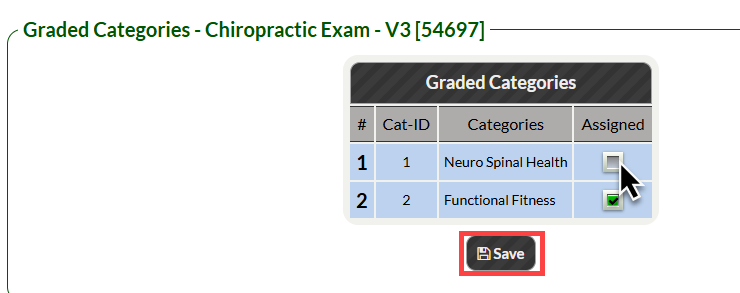
Health Categories appear on your Wellness Score® Reports in order to effectively communicate with your patients why what you have measured and scored affects their overall health.
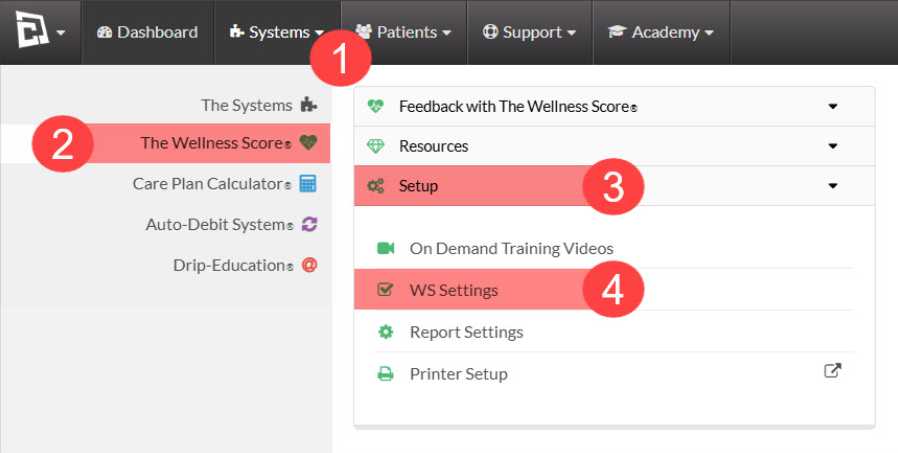
Step 1: Follow the sequence below to access your WS Settings:
Hover over the [Systems] menu
Click on [The Wellness Score®]
Select [Setup]
Click on [WS Settings].
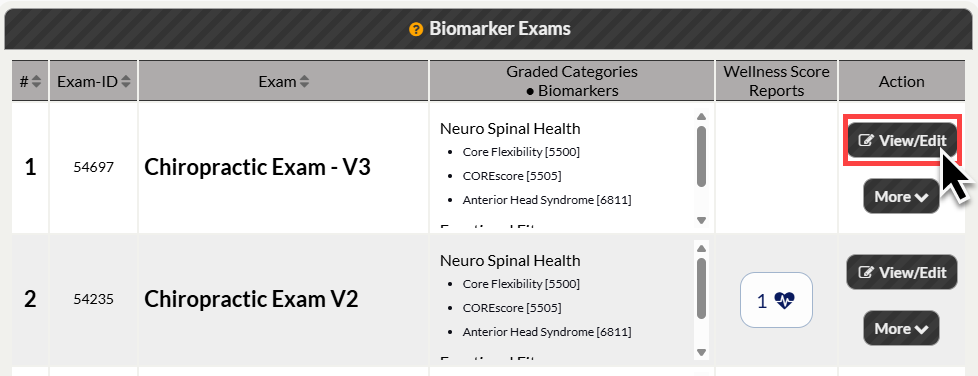
Step 2: From the list of Biomarker Exams, select the [View/Edit] button next to the Biomarker Set from which you'd like to edit the Categories. Note: The page will automatically load under the [Biomarker Exam] tab once you click on WS Settings.
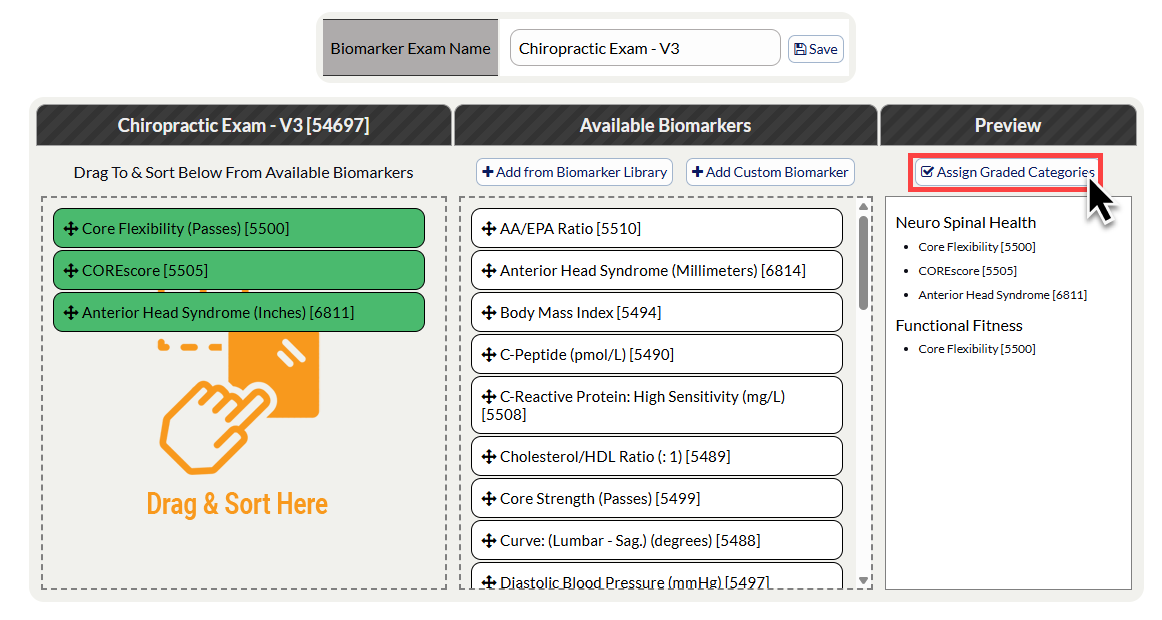
Step 3: From the Biomarker Exam window, under the [Preview] section, click [Assign Graded Categories]. This will open a window with the Categories listed.
Step 4: Click the checkmark box to select or deselect the Categories you want to include/exclude from your Biomarker Exam.
Then click [Save] to save your changes.