

Getting started:
Step 1: Locate the plans you wish to delete. See HERE on how to locate your plans.
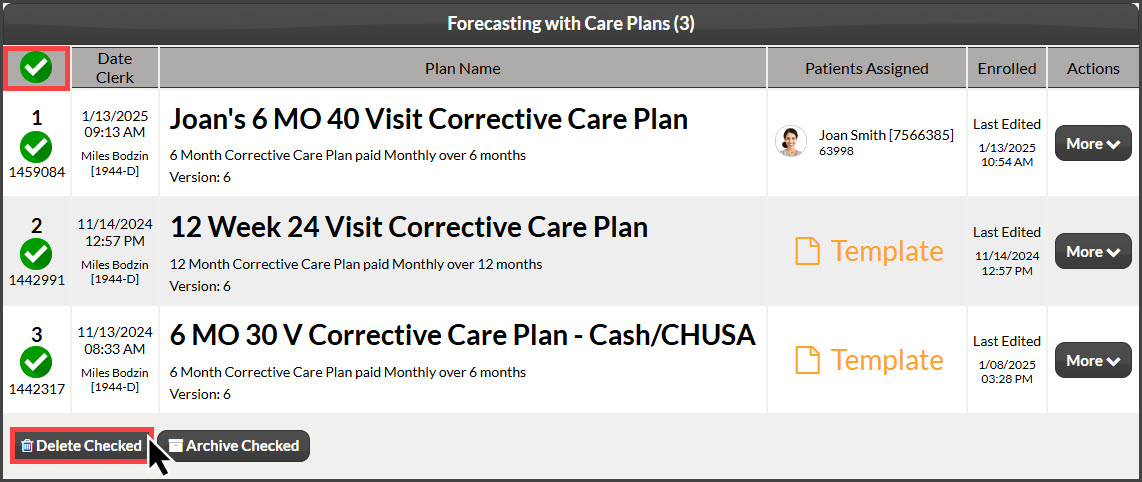
Step 2: From the search results you can click the [Check-all] button OR individually check the plans you wish to delete, then scroll down to the bottom left of the page and click the [Delete Checked] button to permanently delete the selected plans.
Note: You cannot delete a plan that has been attached to an auto-debit. Instead, you can [Archive] the plan.
Can't see the [Delete Checked] option? If you are unable to see this as the image displays, have your Account Owner/Admin verify that your User Account has the "Delete Plans" permission allowed.