

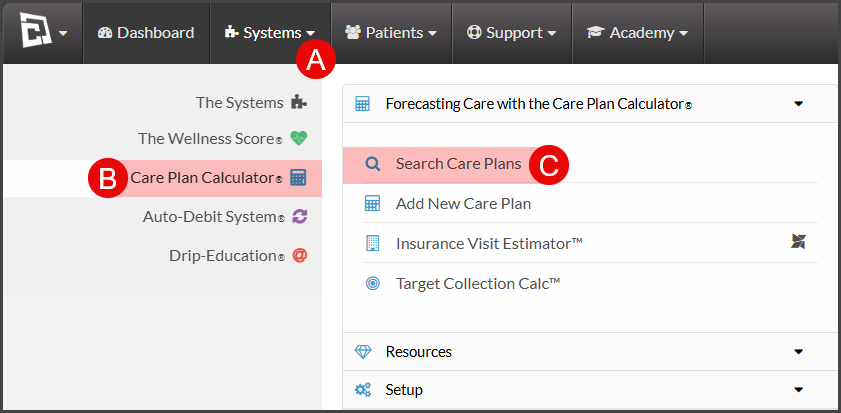
To get started, follow the sequence below.
A: Hover over [Systems]
B: Click [Care Plan Calculator®]
C: Select [Search Care Plans]
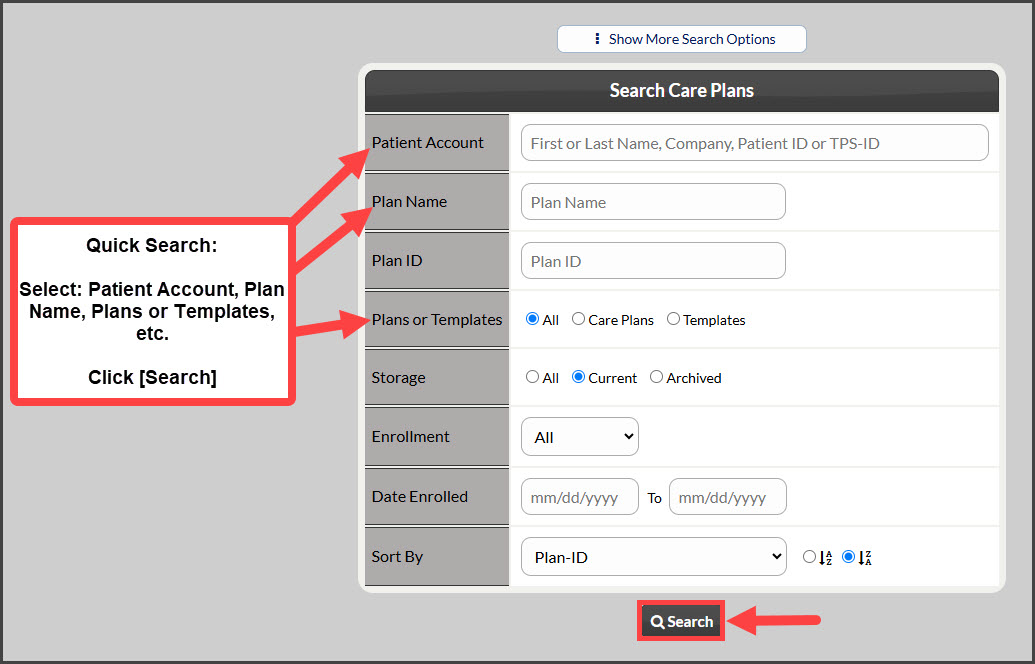
Step 1: Narrow your search by entering as little or as much information about the plan that you are looking for, OR click the [Search] button at the bottom of the page to view all "Current" care plans.
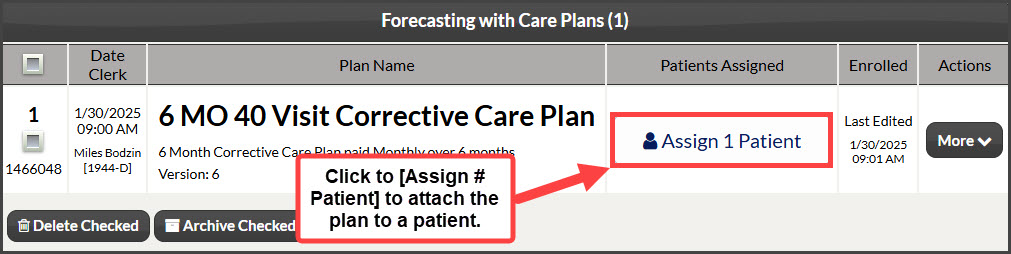
Step 2: Locate the plan from the search results and click on the [Assign # Patient] button.
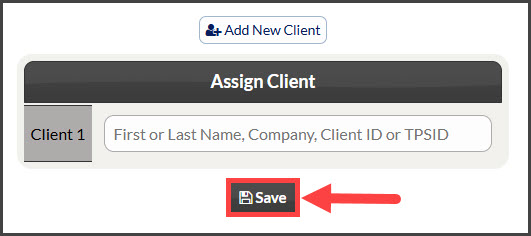
Step 3: In the [Client #] field → enter the client's first or last name. Company or TPS ID and select the correct client for the dropdown. Click the [Save] button when finished.
Step 4: You will receive an alert letting you know the client was successfully assigned to the plan.
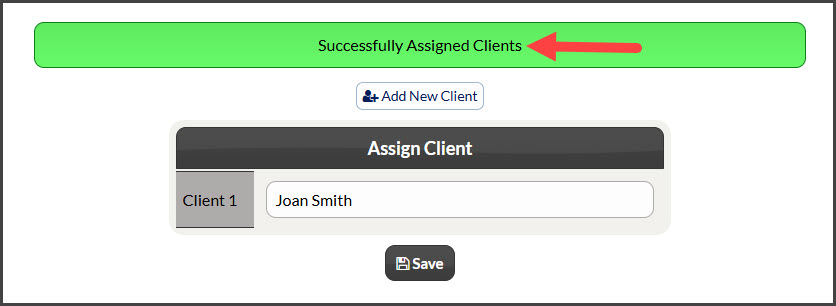
Step 5: Close out of the screen by selecting the red X in the bottom right corner.