

Step 1: Follow the Steps to Create a Biomarker
Follow the steps outlined in the article below.
Once you get to the section on Inputting Data, proceed with entering the information as outlined here.
Step 2: Enter Data
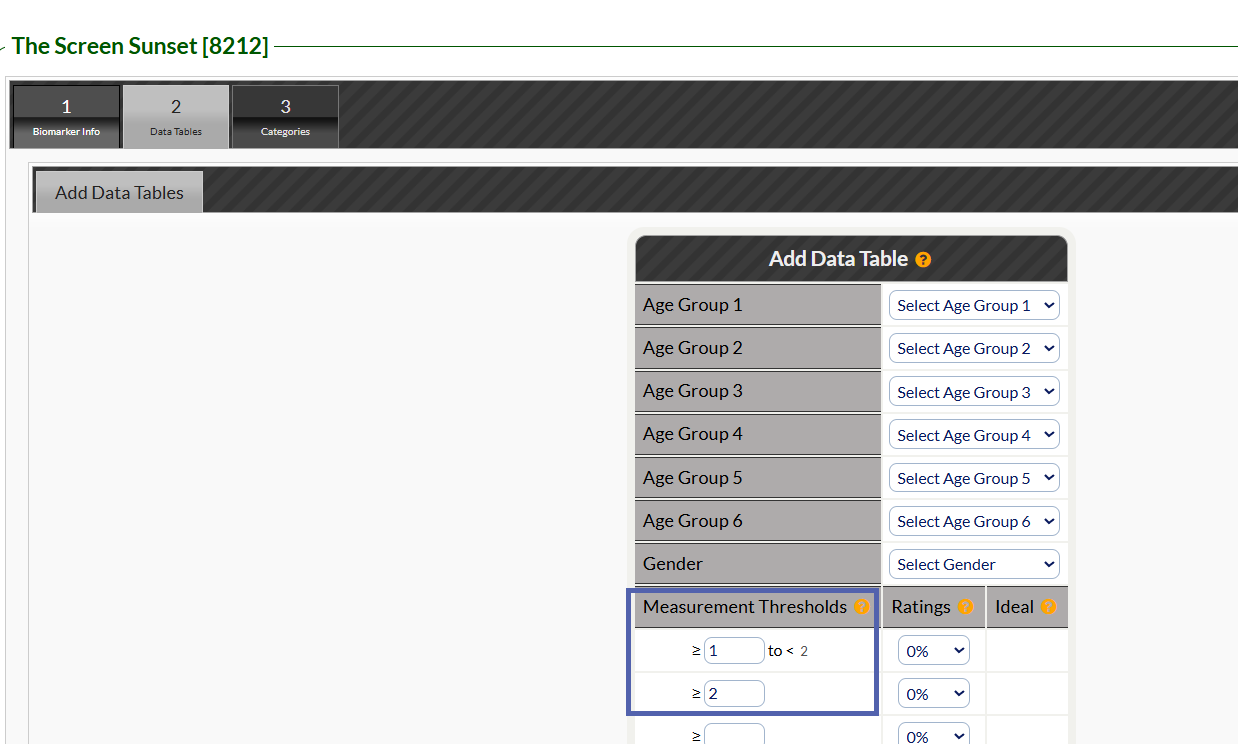
From the "Add Data Table" screen, enter 1 and 2 as the first two Measurement Thresholds.
Step 3: Assign the Rating
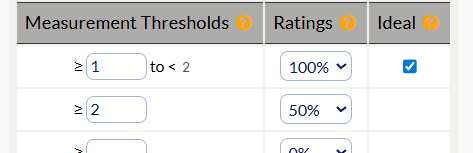
Assign the rating as 100% for the box to the right of 1, and choose the rating 50% to the right of 2. The box will automatically check marking the 100% rating as ideal (passing).
Step 4: Click Save
Click save and proceed with the remaining steps of creating a custom biomarker by assigning a Category and assigning to a Biomarker Exam.
How to enter this data on a Wellness Report:
When running a report, a passing score for the test is 1, and a failure of the test is 2.