

Getting started:
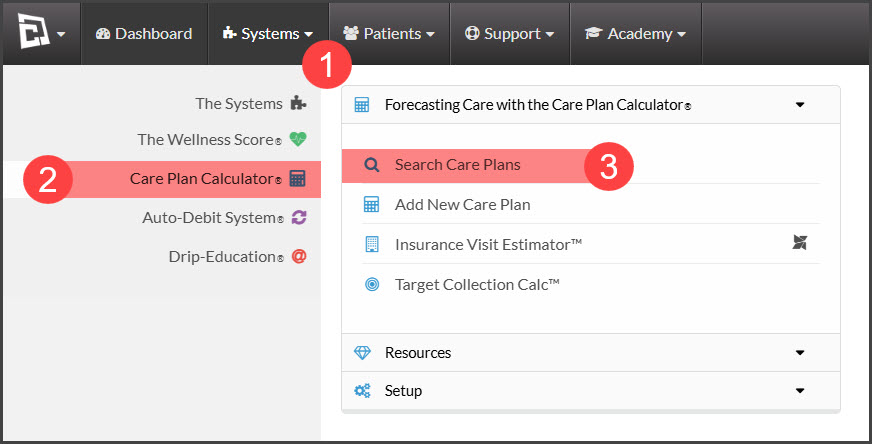
Step 1: To access your plans hover over the [Systems] menu→ [Care Plan Calculator®] menu → [Search Care Plans].
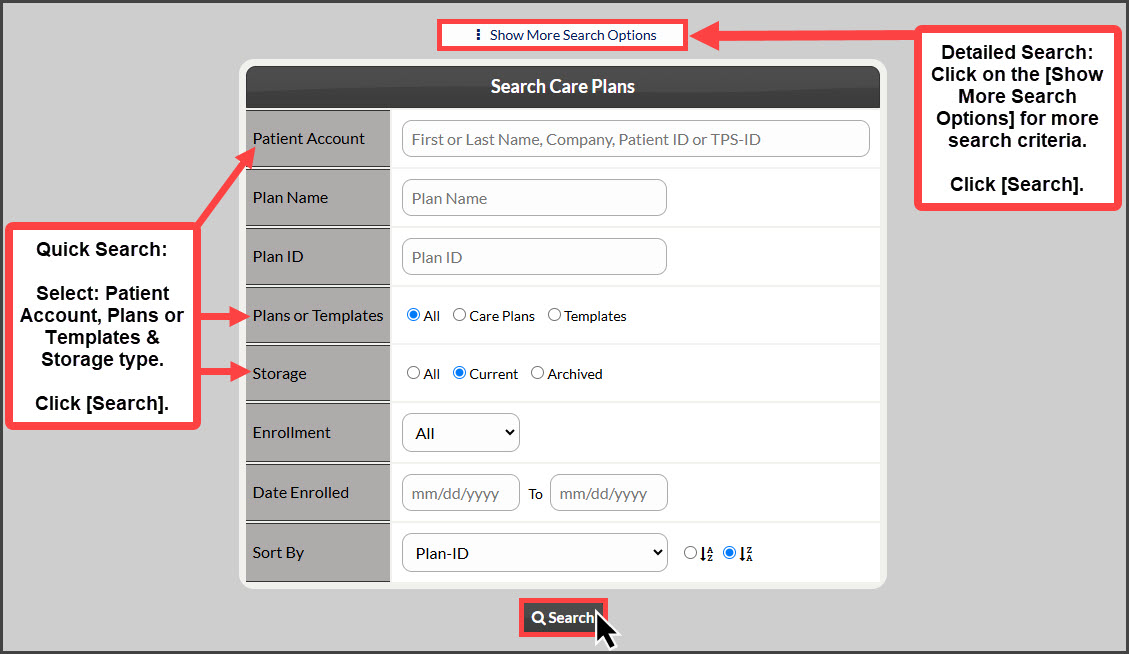
Step 2: Once the [Search Care Plans] page loads, narrow your search by entering as little or as much information about the plan that you are looking for OR click the search button at the bottom of the page to view all [Current] plans.
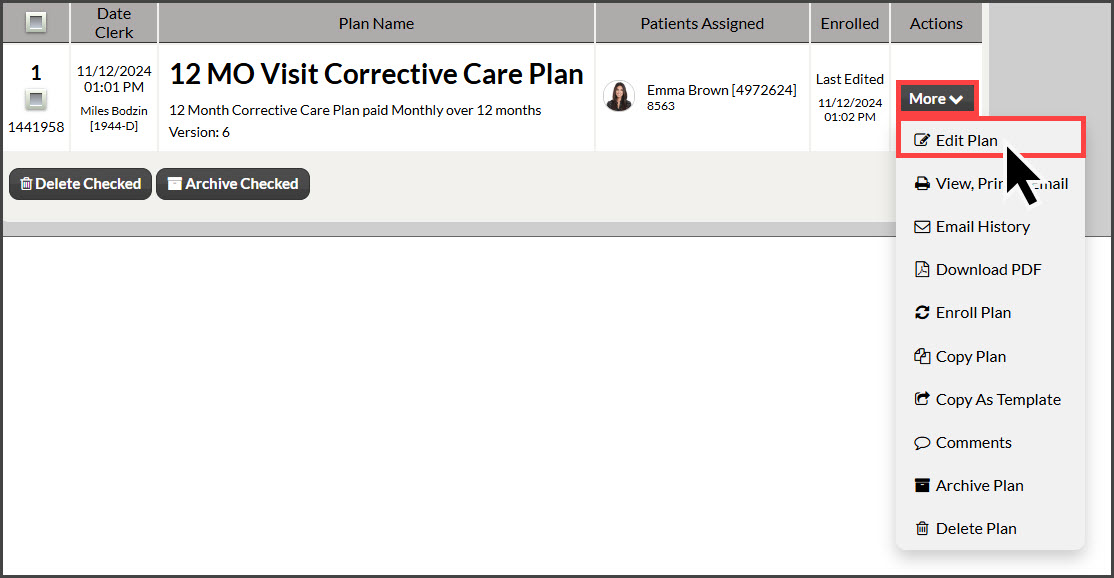
Step 3: From the search results, click on the [Actions] button on the right side of the page to complete a task. To customize the title of the plan, click on the [Edit Plan] button.
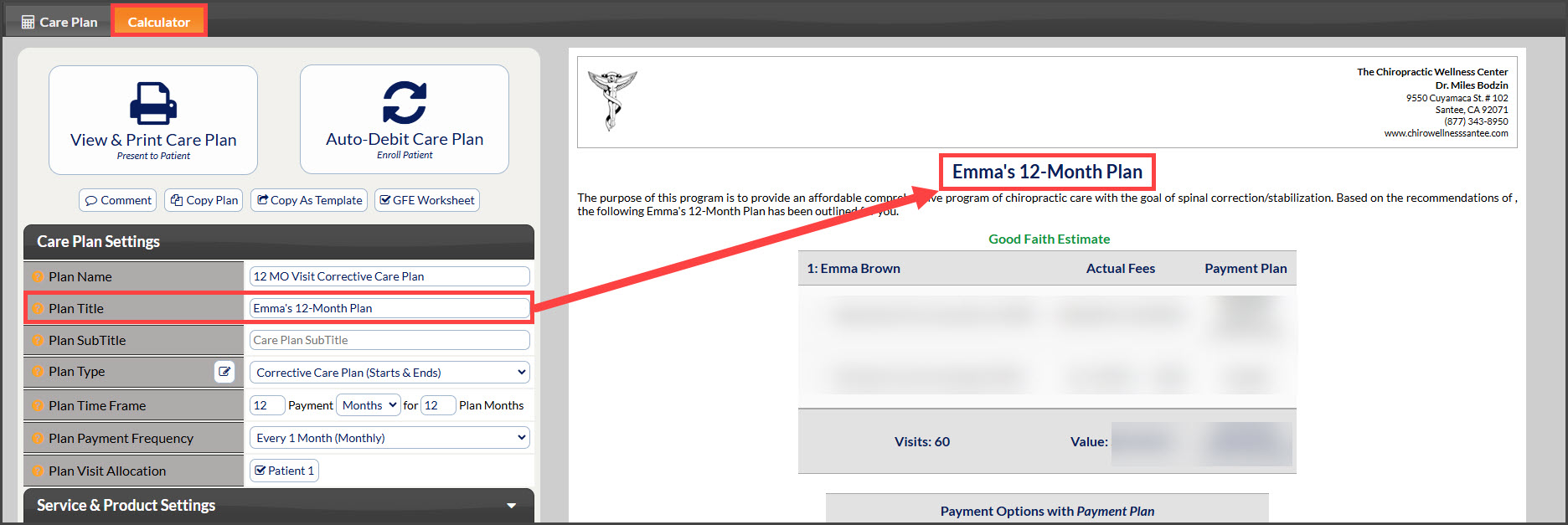
Step 4: In the [Calculator] tab click on the [Care Plan Settings] section, and type out a new Plan Title in the provided field. Once finished, click the [Calculate Care Plan] button.
Step 5: After making and saving any changes to the plan editor, you are able to View & Print, Auto-Debit, Copy Plan, or Copy As Template.