If it has been MORE than 3 months since the initial patient began care, we recommend that you create a new plan for the additional patient(s). Click HERE for instructions on how to add a new plan.
If it has been LESS than 3 months since the initial patient began care, we recommend using one of the options outlined below based on whether the patient was enrolled using the Care Plan Enroller™:
If the patient was enrolled using the Care Plan Enroller™ you will need to copy their current care plan in order to make changes.
Step 1: Make a copy of the current plan as shown HERE.
Step 2: Attach the initial patient to the plan as Patient 1 & leave all services & products as if Patient 1 had never begun care. A credit towards these services will be applied in step 5.
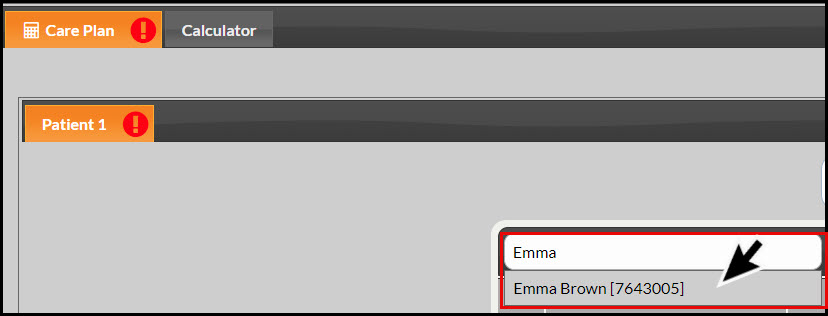
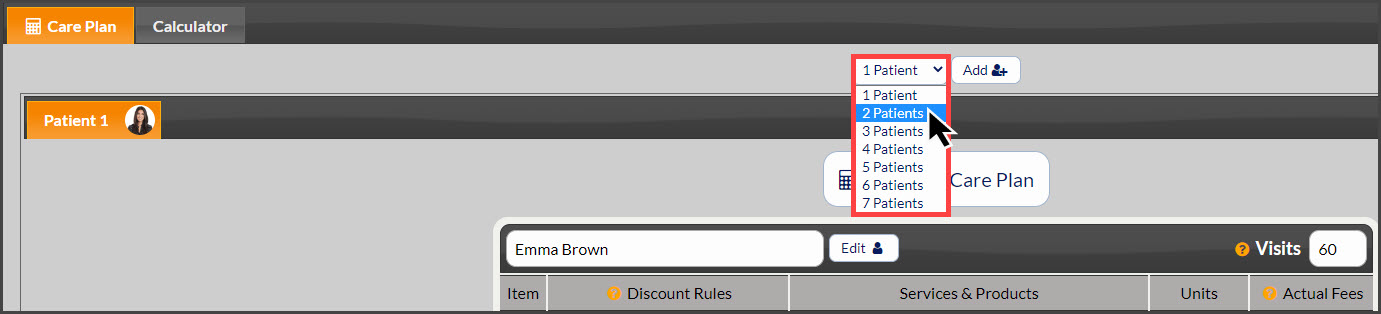
Step 3: Using the drop-down menu, select the total number of patients the plan will include.
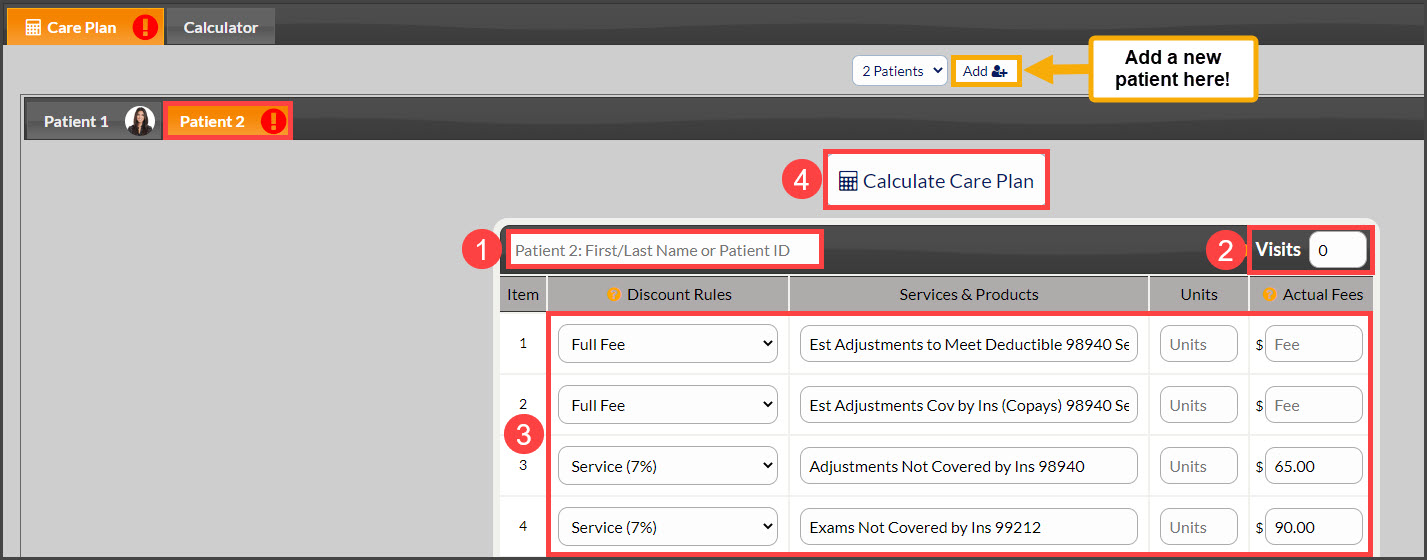
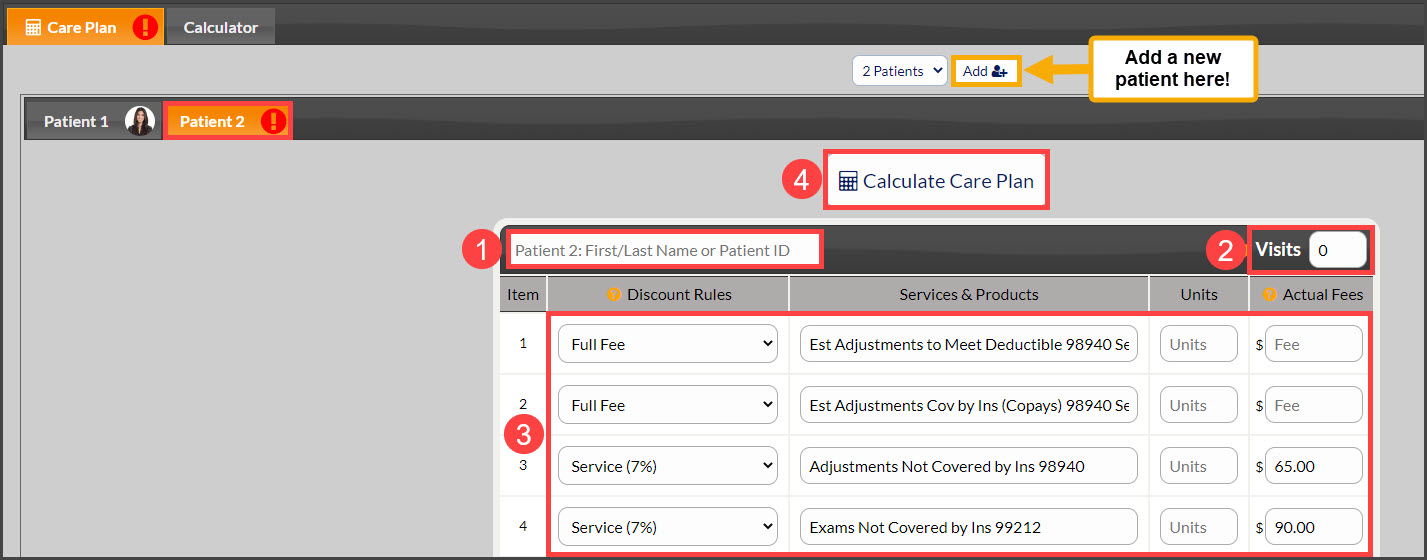
Step 4: The page will reload to include additional patient tabs. On each tab, you will add in the patient's name and the services they will be receiving. Once finished, click the [Calculate Care Plan] at the top or bottom of the screen. *CHUSA members, proceed with allocating the patient visits.
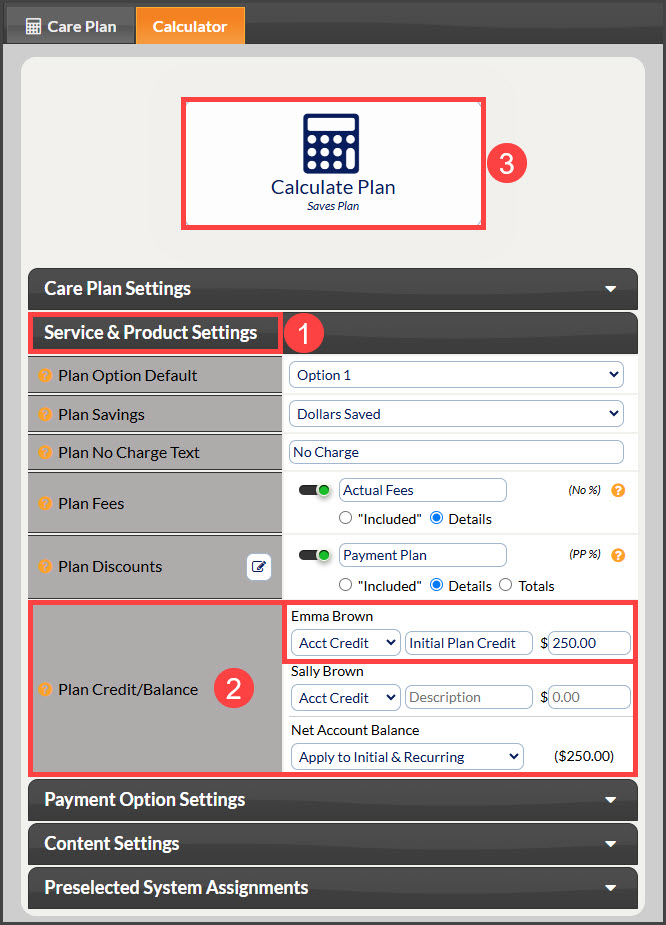
Step 5: Apply any money previously collected from the patient towards their portion of the new plan.
If the patient was NOT enrolled using the Care Plan Enroller™ you will be able to edit their current plan.
Step 1: Locate their plan as shown HERE.
Step 2: Under the [Care Plan] tab, select the drop-down menu for [1 Patient] and select the total number of patients the plan will include.
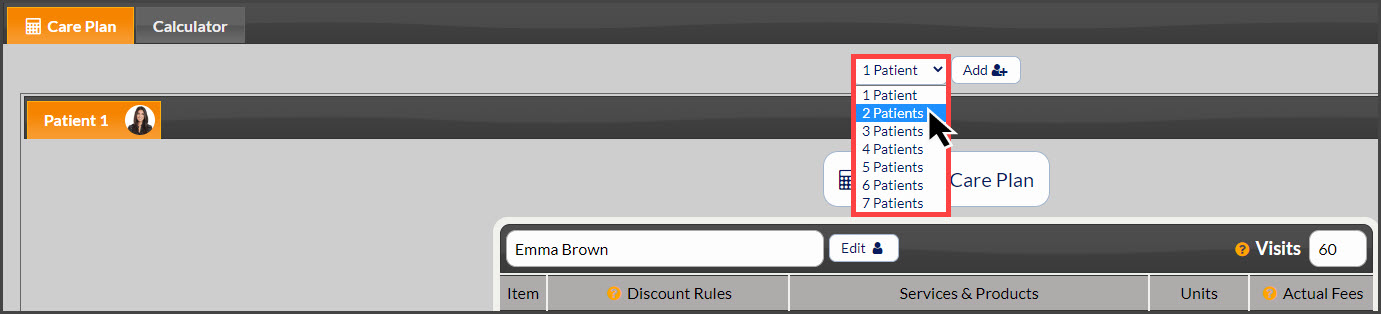
Step 3: The page will reload to include additional patient tabs. On each tab, you will add in the patient's name and the services they will be receiving. Once finished, click the [Calculate Care Plan] at the top or bottom of the screen. *CHUSA members, proceed with allocating the patient visits.