
Important: For optimal security, we recommend that each team member has their own Cash Practice user account.
[Start Here] Follow the steps in the article below to create a new user account for your team member. Please note, you will need to be logged into the admin account or an account with similar privileges.
After the user account is created, proceed with the following steps:
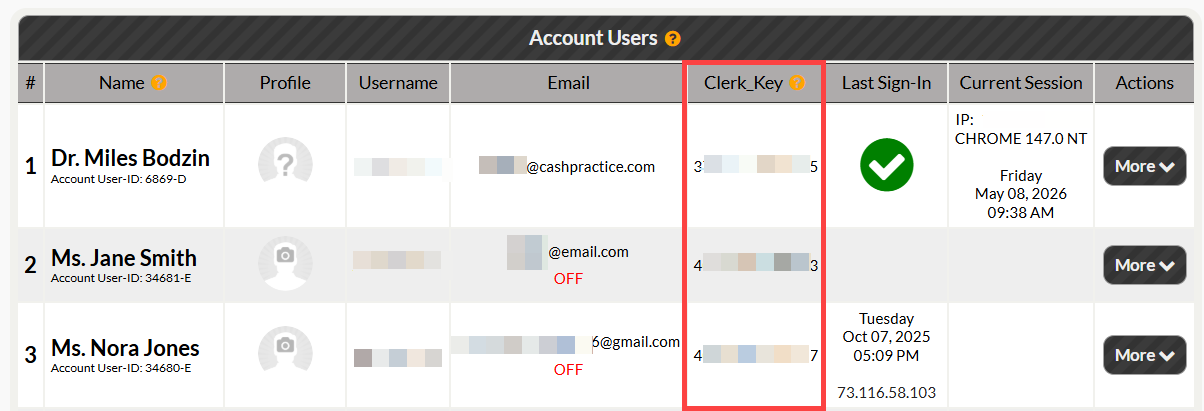
Step 1: Collect the clerk key for the account user.
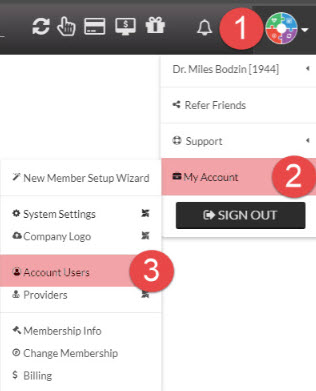
You can access the clerk key through the account users menu as shown below:
1. Click the top right hand corner of Cash Practice.
2. Select [My Account]
3. Click [Account Users]
You may also access your TPS Keys from the System's Setting's menu. Click HERE for instructions.
Step 2: Copy the clerk key.
Locate the clerk key for your new account user and copy the corresponding clerk key. You can do this by highlighting the key and either:
Right-clicking and selecting Copy.
Pressing Ctrl + C on your keyboard.
Step 3: In ChiroHD, open up the integrations menu.
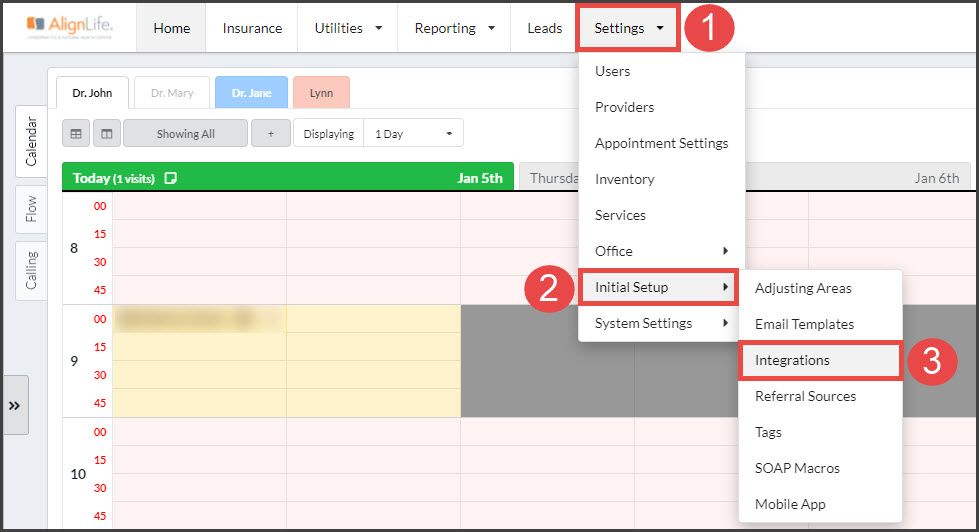
From the top of your ChiroHD screen:
First select [Settings]
Then click on [Initial Setup]
Click [Integrations] to open the Manage Integrations menu.
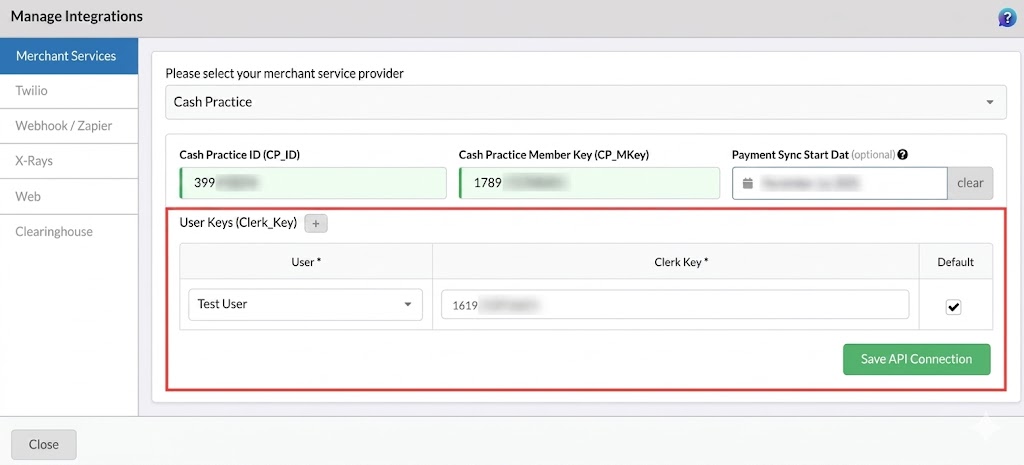
Step 4: Enter the clerk key into the [User Keys] section of the Manage Integrations screen.
Find the corresponding ChiroHD user from the menu as shown below and enter their [Clerk Key] into the corresponding box and save the changes.